You open a streaming app from your hotel room abroad. A message replaces the video player: this content is not available in your region. You switch to your banking app. It loads, then stops, citing an unusual login location. Your account is valid. Your subscription is active. The problem is your IP address.
Every internet connection carries a public IP address, and that address signals your location to every service you reach. Streaming platforms use it to enforce content licensing. Banking apps use it to flag logins from unexpected locations. Government portals use it to restrict access by country. In each case, the fix is the same: connect through a server in the right country so the service sees a local IP address instead of yours.
Restarting your router, toggling airplane mode, and renewing your DHCP lease all change which address your ISP assigns your device from its local pool. On connections using carrier-grade NAT, even a reboot may not change your effective public identity at all. This guide covers only location-based IP changes: obtaining an address that places you in a specific country.
TL;DR
When you connect to a VPN server in another country, all your device traffic exits from that server. Destination services see the server’s IP address and country, not yours. The IP you receive is registered to a commercial hosting provider’s network, and IP-intelligence databases flag it as hosting or VPN infrastructure. This is why some services block you even after connecting to the correct country: they check the type and reputation of your IP, not just its geography. For streaming, switching to a different server in the same country clears most blocks. For banking apps that consistently reject VPN IPs, mobile data roaming on a home-country SIM with home-routed roaming is the most reliable alternative.
Smart DNS handles streaming-only geo-unblocking on devices that cannot run a VPN app, but provides no encryption and no protection against services that check the actual connection IP. A proxy is the weakest option for this use case and is not suitable for anything involving credentials or financial data.
What “changing your IP address location” means
The fix for geo-restrictions starts with a distinction most guides skip: the difference between your private IP address and your public IP address.
Every device on a home or office network has a private IP address, a local identifier assigned by the router and visible only within that network. It typically falls in a reserved range such as 192.168.x.x or 10.0.x.x. When you adjust your IP settings in the operating system, you are changing this private address, which has no effect on what services outside your network see.
What websites and services actually see is your public IP address: the address your internet provider assigns to your network’s outbound connection to the internet. That address belongs to your ISP, not to your device. Changing your network settings, restarting your router, or switching between connections all operate below the public IP level — they do not change what external services see. For a full explanation of how your traffic moves from your device to a destination, see how a VPN actually works.
When you connect through a VPN server in another country, your device sends all traffic to that server, which forwards it to its destination using the server’s own public IP address. The destination sees a request from the server’s location, not yours.
Services determine your location by querying IP-intelligence databases, such as those maintained by MaxMind, IP2Location, and IPQualityScore, that map IP address ranges to countries and classify them by connection type and reputation flags. When a destination checks your IP, it receives back a country, an approximate location, and a set of flags indicating whether the address belongs to a residential ISP, a mobile carrier, a commercial hosting provider, or known VPN infrastructure.
What changes when you connect through a foreign VPN server: the country and IP classification that services see, and the ISP name those services receive. What does not change: your physical location, your device’s GPS signal, your browser fingerprint, and your Apple ID or Google account region, which are determined by billing address and payment method rather than by IP address.
Why you’d want a specific country’s IP address
Three categories of service apply geographic IP checks.
Streaming and geo-restricted content. Content licensing is territorial. The same subscription can unlock different libraries depending on which country’s IP the platform sees. A service available in one country may be unavailable in another, even with an active subscription. Connecting to a server in the relevant country is the standard approach.
Banking and financial apps abroad. Banking apps treat logins from foreign IP addresses as a fraud signal. The check is automated: a request arriving from an unexpected country triggers a block or forces additional verification steps. Connecting to a home-country server before opening the app satisfies the geographic check in most cases.
Government portals, work systems, and remote access. Some portals restrict access to connections from within a specific country or network range. Corporate intranets frequently whitelist particular IP blocks for remote access. A VPN server in the required country satisfies the check in most cases, since these portals typically apply a geographic IP filter rather than the layered reputation checks that banking apps use.
| Situation | Primary requirement | Does a VPN IP usually work? |
|---|---|---|
| Streaming content abroad | Country-level IP match | Usually — switching servers resolves most blocks |
| Banking app abroad | Country-level IP, residential-type range preferred | Sometimes — see the IP type section below |
| Government portal | Country-level IP match | Usually |
| Corporate intranet | IP within the company’s allowed range | Depends on network policy |
Which tool to use: VPN, Smart DNS, or proxy
Three tools can make you appear to be connecting from a different country. Choosing the wrong one for your use case is the most common source of frustration. If you specifically cannot or prefer not to run a VPN app on your device, Smart DNS handles streaming-only use cases on devices with native DNS settings, and mobile data roaming on a home-country SIM is the most reliable alternative for banking — both covered below.
VPN: the general-purpose tool
A VPN creates an encrypted tunnel between your device and a server in your chosen country. All traffic from your device, including your browser, your apps, and background connections, routes through that tunnel. The destination sees the server’s public IP and country. Your ISP sees only that you are connected to a VPN server. For a plain-English explanation of what a VPN is and what it actually protects, see What Is a VPN?
Three properties make a VPN the right default for location-based IP changes. It covers all traffic on the device, not just one app or browser. The encrypted tunnel protects your data in transit on untrusted networks, which matters on hotel Wi-Fi and public hotspots. And it satisfies all three use cases above: streaming, banking checks, and government or corporate access.
Two settings should be active on any VPN used for this purpose. A kill switch cuts your internet connection if the VPN drops unexpectedly, preventing your real IP from being briefly exposed during reconnection. DNS leak protection ensures that domain-name lookups travel through the encrypted tunnel rather than slipping through to your ISP. Both should be enabled by default. One limitation: the IP address a VPN provides is registered to a commercial hosting provider, not to a residential or mobile connection. Some services detect this and block or restrict access accordingly. The next section covers how that detection works and what to do about it.
Smart DNS: streaming on devices that cannot run a VPN
Smart DNS works by returning customized DNS responses that redirect the geo-detection and authentication portions of a streaming connection through a proxy in the target region, while your actual video stream typically continues from your real IP. This is why throughput is largely unaffected and why Smart DNS functions on Smart TVs, gaming consoles, and streaming sticks that cannot install a VPN app directly: it is configured in the device’s network DNS settings rather than through a separate application. Note that some implementations also proxy the video stream itself (without encryption) when a streaming platform performs geo-checks beyond the initial authentication step, so the exact scope of proxying varies by provider and service.
Smart DNS provides no encryption and no IP replacement for services that check the actual connection IP rather than relying on the proxied geo-detection step. It is not suitable for banking, government portals, or any use involving credentials or financial data. Use it for streaming access on a device that cannot run a VPN app, where throughput matters more than privacy.
For a full explanation of how Smart DNS works, what it leaves unchanged, and how it compares to a VPN across streaming platforms and devices, see the VPN vs Smart DNS guide.
Proxy: weakest option for location-based IP changes
A proxy routes one specific application’s traffic through an intermediary server in another location. The destination sees the proxy’s IP for that application, but every other app on your device connects to the internet directly and unprotected. Most proxy implementations include no built-in encryption.
For obtaining a specific country’s IP across your entire device, and especially for anything involving account credentials or financial data, a proxy is the weakest option. Free proxy services carry significant trust risks: the traffic they handle is fully visible to the operator, and many recover infrastructure costs through data collection rather than subscriptions. For the full comparison, see the VPN vs. proxy guide.
| Tool | Encrypts traffic | Replaces IP device-wide | Works for banking | Works for streaming | Works on Smart TV or console |
|---|---|---|---|---|---|
| VPN | ✅ Yes — all traffic | ✅ Yes | ⚠️ Sometimes | ✅ Yes | ⚠️ Via router only |
| Smart DNS | ❌ No | ❌ DNS queries only | ❌ No | ✅ Yes | ✅ Yes |
| Proxy | ❌ No | ❌ One app only | ❌ No | ⚠️ Unreliable | ❌ No |
What to look for in a VPN for location changes
Most VPN marketing leads with metrics that have little bearing on whether you will actually reach the service you are trying to use: total server counts, encryption strength labels, and speed test screenshots. The criteria below focus only on what matters for location-based IP changes.
Country coverage over server count. A provider with servers in 90 countries is more useful for most travel needs than one with 5,000 servers concentrated in 10. Before subscribing, verify on the provider’s server list page that your target country is listed. This is the most important check, and the one most users skip.
Server IP diversity within your target country. When one server’s IP range is on a streaming platform’s block list, the fix is switching to a different server in the same country. This only works if the provider operates multiple servers with different IP ranges in that country. Providers that run only one or two servers per country give you no fallback when those IPs are detected.
Kill switch and DNS leak protection, both active by default. Both should be enabled by default, not buried in advanced settings. For the full framework on evaluating a VPN provider’s trustworthiness, see our no-log VPN guide.
Why a VPN sometimes still gets blocked: hosting IPs versus residential IPs
Geographic location and IP classification are two separate signals, and services check both. This is the most common VPN frustration left unexplained: why a service blocks you even after connecting to the correct country.
The difference between hosting IPs and residential IPs
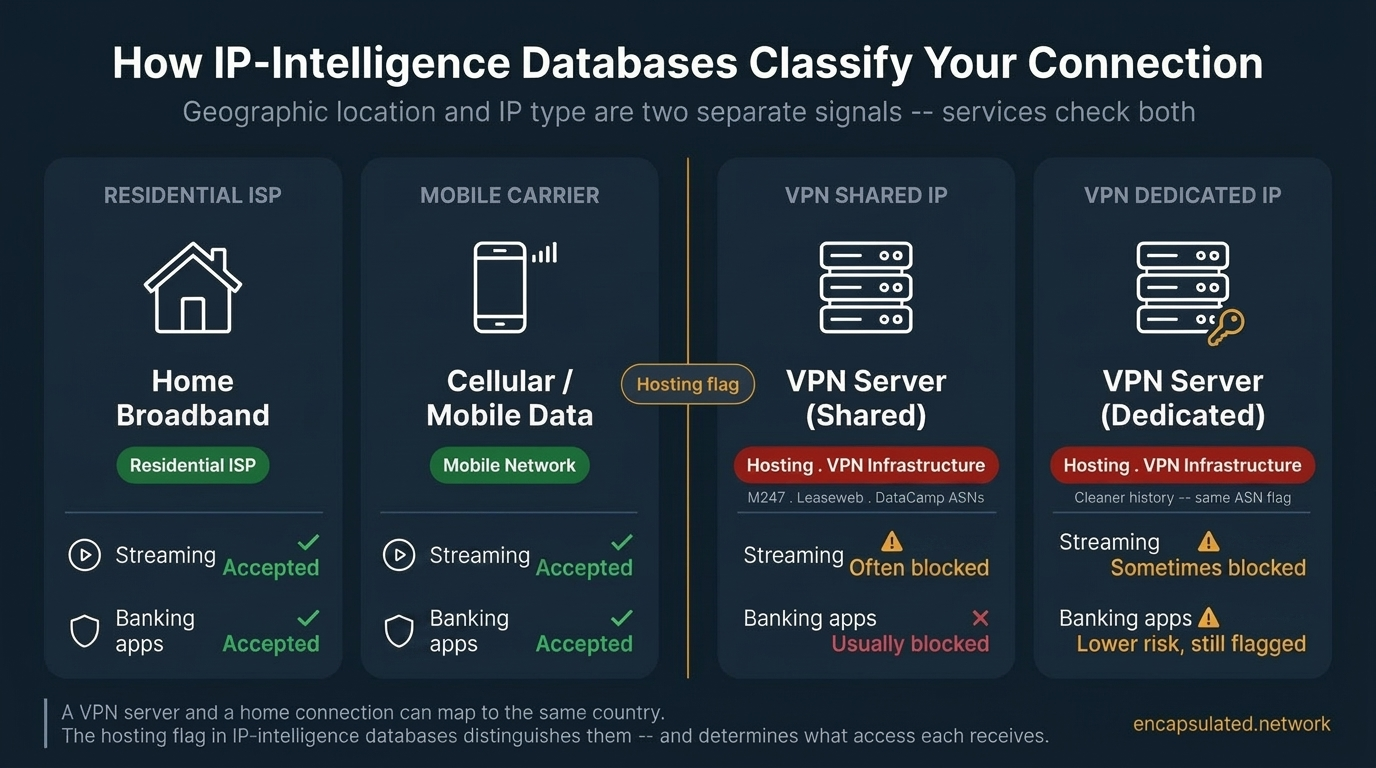
When you connect to a VPN, the IP address you receive is registered to the autonomous system (ASN) of a commercial hosting provider. Companies such as M247, Leaseweb, and DataCamp operate large networks of servers that VPN providers lease for their exit infrastructure. The IP ranges belonging to these ASNs are registered under the hosting provider’s name in WHOIS and routing databases, not under a residential ISP or mobile carrier.
IP-intelligence databases, including products from MaxMind, IPQualityScore, and Spur.us, expose a flag on these ranges marking the IP as hosting or VPN infrastructure. This flag is separate from the geographic location data. A VPN server with a Malaysian exit IP and a Malaysian home internet connection are geographically identical in these databases. What differs is the classification: one is flagged as hosting or VPN infrastructure; the other is registered as a standard residential ISP connection.
How streaming platforms use this
Streaming services combine several detection signals: IP-intelligence feeds that flag hosting and VPN ranges, ASN registration data, behavioral signals such as many simultaneous accounts sharing one IP address, DNS resolver origin checks, and WebRTC or IPv6 leak scans. The hosting flag is the most consistent element across platforms because it reflects the underlying infrastructure registration, not usage patterns that vary over time.
Two VPN servers in the same country can have very different detection histories. One server’s IP range may be on every major streaming platform’s block list while another in the same country is clean. This is why switching to a different server in the same country is always the first action to take when a streaming service blocks you.
How banking fraud systems use this
Fraud detection systems flag hosting and commercial IP ranges as elevated risk regardless of geographic location, because retail banking customers almost never originate connections from hosting provider networks.
Hosting IP detection is one of the most common reasons a banking app blocks a user even after connecting to the correct country’s server. Banking apps also enforce device attestation, app-integrity checks, and session consistency independently of IP address, and any of those can trigger a block on its own.
Three remedies, in order of ease:
- Switch servers. Different servers use different IP ranges with different detection histories. Try two or three servers in the same country before concluding that VPN access will not work for a particular service.
- Mobile data roaming on a home-country SIM. If you have a SIM from your home country and your carrier uses home-routed roaming, your traffic exits through your home carrier’s network. Destination services see an IP assigned to your carrier’s mobile network, which falls into the cellular range that fraud systems treat as normal consumer connections. This is the most reliable alternative when VPN IPs are consistently rejected by a banking app. Note that some travel eSIM services assign an IP from the eSIM provider’s hub network rather than from your home carrier, so verify your roaming configuration before relying on it. A cellular IP satisfies the geographic and IP-type check but is not sufficient on its own: banking apps also verify device binding, registered phone numbers, and app-integrity attestation independently of your IP address.
- Dedicated IP. Some VPN providers offer a static IP address assigned to a single subscriber. Because it is not shared across many simultaneous users, it accumulates fewer abuse reports and behavioral signals that add shared VPN IPs to reputation-based block lists. However, a dedicated IP typically still sits on a hosting provider’s ASN and still carries the hosting flag in IP-intelligence databases. It avoids behavioral block lists while remaining detectable by systems that filter hosting ASNs regardless of individual IP history. A dedicated IP guide is planned.
For the country-specific version of these problems, including which services apply which type of check and what works in practice for each destination, see the country guides at the bottom of this page.
How to change your IP address location: step by step
The process is the same regardless of which country you are targeting. Country guides below cover the exact configuration for each destination.
Step 1: confirm your target country is available and select a provider
Using the criteria in the VPN selection section above, confirm your target country is listed on the provider’s server list page and that the provider runs multiple servers there. Install the application, sign in, and keep the kill switch and DNS leak protection settings active before you connect.
Step 2: Connect to a server in the target country
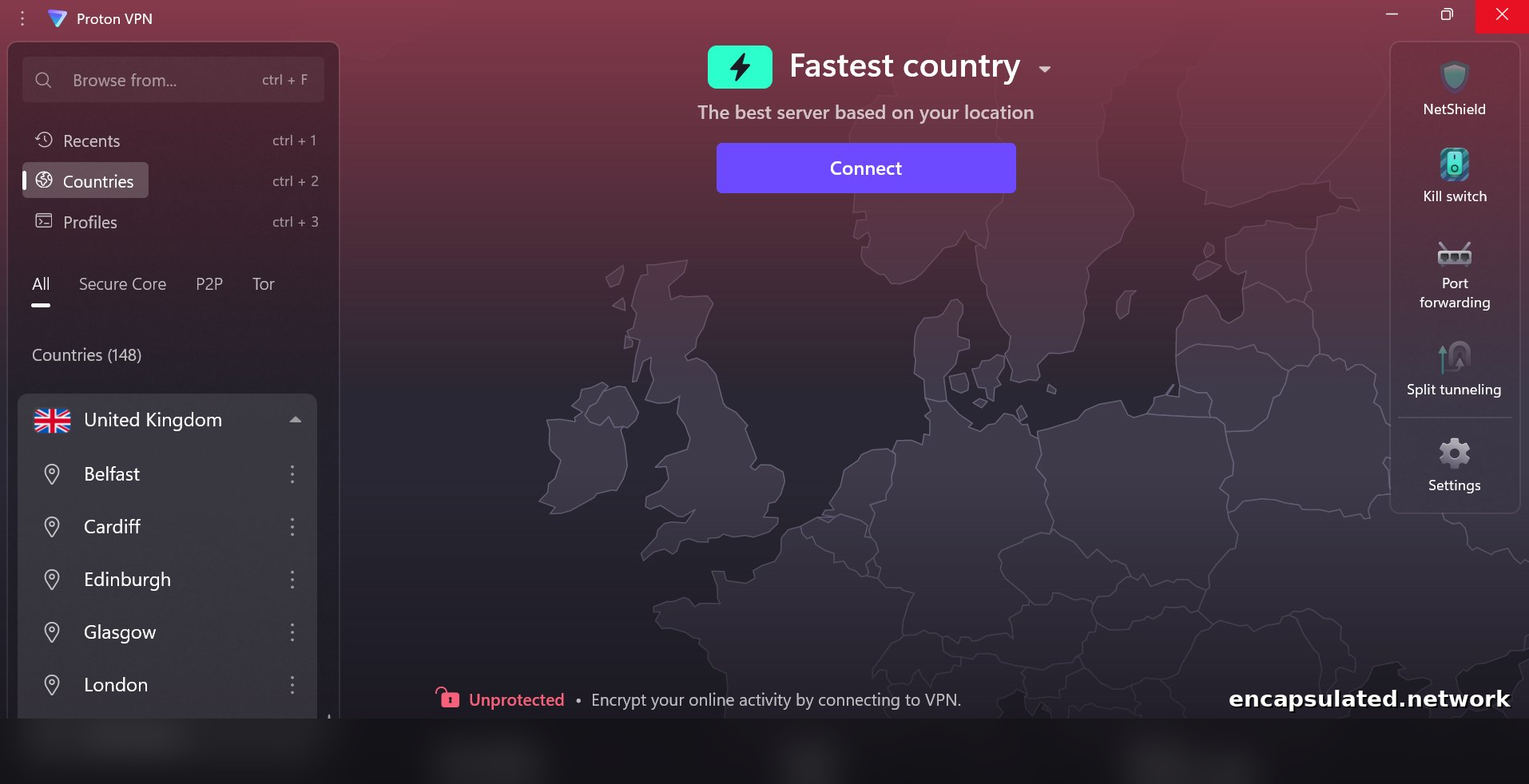
Open the server list or country search. Select your target country. Where city-level selection is available, choose the capital city or primary business hub: the majority of national streaming services, banking systems, and government portals are based there or route through it. Connect. Leave WireGuard as the default protocol.
Step 3: verify the change before opening any service
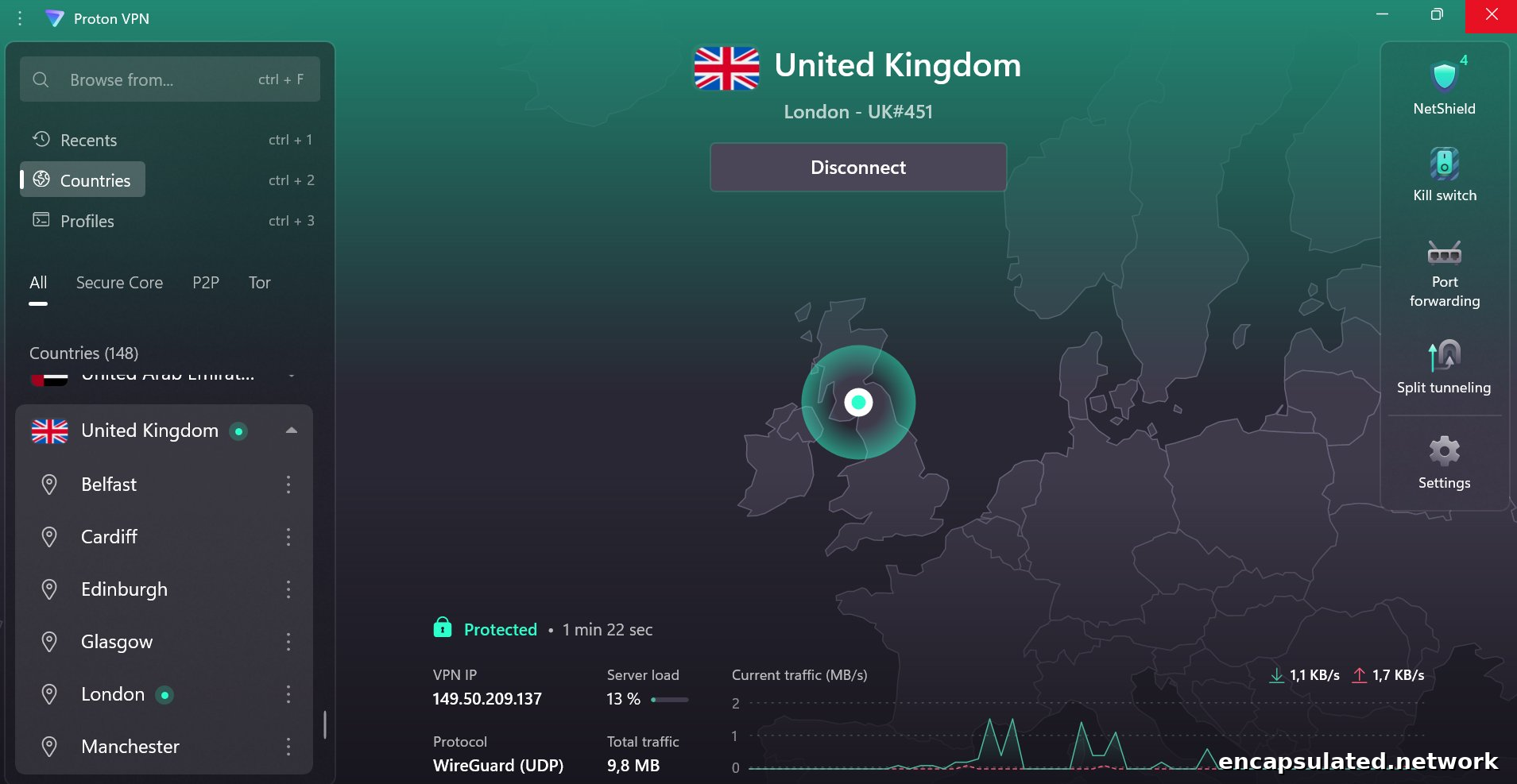
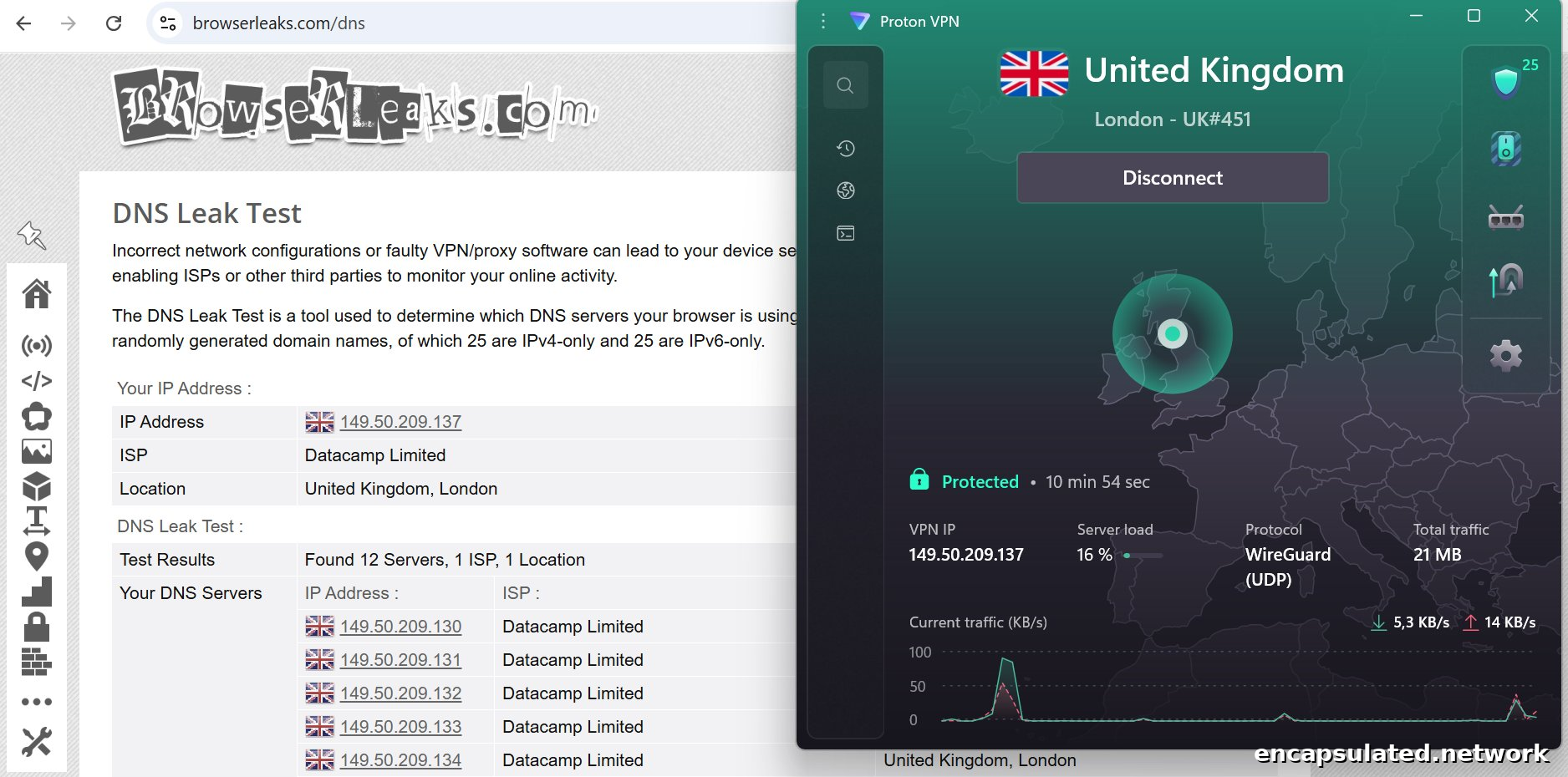
Before opening any service, confirm the IP change is in effect. Navigate to an IP checker such as ipleak.net or browserleaks.com. The IP address shown should place you in your target country; the DNS servers listed should belong to your VPN provider, not your home ISP. If the DNS servers still show your home ISP, DNS queries are leaving the encrypted tunnel and resolving through your real location — some streaming platforms detect this as a mismatch between your IP country and your DNS resolver origin, and block access even when the IP is correct. Enable DNS leak protection in your VPN app settings before proceeding. For the full verification procedure including IPv6 and WebRTC leak checks, see the DNS leak guide.
What to do if a service is still blocking you
Work through these steps in order. The majority of persistent blocks resolve at step one or two.
1. Switch to a different server in the same country. Different servers use different IP ranges with different detection histories. A server IP on a streaming platform’s block list may sit alongside a clean IP on a different server in the same country. Disconnect, select a different server, reconnect, and retry the service.
2. Clear your browser cache and cookies, or close and reopen a native app. Stale location data from a previous session can persist in the browser or app after the VPN connects. Clear before retrying. On mobile, remove the app from the recent apps tray, confirm the VPN is still connected, then reopen.
3. Open the service after the VPN is connected, not before. Apps that are already running when you activate the VPN may have cached a pre-connection IP at launch. Close them completely, verify the VPN connection is active and showing the correct country, then reopen.
4. Check for IP leaks. Two separate mechanisms can expose your real IP even when the VPN tunnel appears active. An IPv6 leak occurs when your device has an active IPv6 address that some services detect independently of the VPN’s IPv4 tunnel. A WebRTC leak occurs when browsers use a peer-to-peer connection protocol that can discover and expose your real network address to a web page, bypassing the VPN tunnel. Run the check at ipleak.net and review both the IPv6 section and the WebRTC section. If either shows your real IP address or your home ISP, enable IPv6 leak protection in your VPN app settings. For WebRTC specifically, browser-level mitigation is also required: WebRTC runs at the browser layer rather than through the VPN tunnel directly, so a VPN app setting alone may not be sufficient. Many VPN providers offer a browser extension that handles this, or you can disable WebRTC via a browser privacy flag. Both leak types remain live risks in 2026. For a full explanation of how each leak mechanism works and how to confirm protection is active, see the WebRTC and IP leak guide.
5. Switch VPN protocol. On some corporate networks and hotel Wi-Fi, the VPN connection itself may be filtered. Switching from WireGuard to OpenVPN using TCP on port 443 evades basic port-based firewall rules, because port 443 is the standard HTTPS port and many firewalls permit it without inspection. This technique does not defeat deep packet inspection: OpenVPN’s handshake has a recognizable signature that DPI systems can identify even on port 443. Networks with DPI in place require genuine protocol obfuscation rather than a port change. For what obfuscation involves and which providers offer it, see What Is an Obfuscated VPN? For a full comparison of when and why to switch protocols, see the VPN protocols guide.
IP address guides by country
Services, detection systems, and access requirements differ significantly from country to country. A service that accepts standard VPN IPs in one country may apply stricter detection in another. The guides below cover each destination in detail: which services apply geo-restrictions, how they enforce them, which server and city choices work in practice, and how to verify access once connected.
- 🇮🇩 How to Get an Indonesian IP Address — Vidio, RCTI+, myBCA, Mandiri Livin’, Fola Play and MAXStream TV for the 2026 FIFA World Cup, and Indonesia’s Komdigi content blocks. Covers streaming geo-restrictions, why Indonesian banks are designed for overseas use, and why VPN use in Indonesia runs in both directions.
- 🇹🇭 How to Get a Thai IP Address — TrueID, BUGABOO.TV, AIS PLAY, and CH3 Plus. Covers K PLUS and SCB Easy from abroad, the Thai SIM OTP barrier that a VPN cannot resolve, device-specific setup, and VPN legal status under Thai law.
- 🇻🇳 How to Get a Vietnamese IP Address — VTV Go, FPT Play, TV360, and VieON. Covers which Vietnamese streaming platforms are still live and which three shut down between January 2025 and January 2026, why Vietnamese banking access requires biometric verification and VNeID rather than a VPN, and what changed in Vietnam’s cybersecurity law on 1 July 2026.
Frequently asked questions
Does changing my IP address location affect my App Store or Google Play region?
No. Apple ID and Google account regions are determined by your billing address, payment method, and account settings, not by your current IP address. Connecting to a foreign VPN server does not shift your App Store or Google Play catalogue to a different regional version.
Can I change my IP address location for free?
A small number of VPN providers offer free tiers that include a limited selection of server countries. The practical constraints are significant: fewer country options, server capacity limits that reduce reliability during peak times, and slower connection speeds. Free proxy services carry higher trust risks: infrastructure costs have to be recovered somehow, and many free proxy operators do so through data collection rather than subscriptions, meaning the traffic you want private becomes the product. For any use involving financial accounts, government services, or sensitive credentials, a paid provider with an independently audited no-log policy is the appropriate choice.
Is it legal to change your IP address location?
In the large majority of countries, yes. Using a VPN to change your apparent IP location is legal and widely practiced by individuals and businesses. A small number of countries restrict or prohibit the use of unauthorized VPN services, including China, Russia, Iran, and Belarus. Using a VPN does not grant legal immunity: accessing content or conducting activity that is illegal under the laws of your location remains illegal regardless of your IP address.
Why is a service still blocking me even after I connect to the correct country?
The most common cause is IP classification rather than IP geography. The address your VPN provides is registered to a commercial hosting provider’s ASN, and IP-intelligence databases flag it as hosting or VPN infrastructure. The service is checking that flag independently of the geographic location, so the country being correct is not sufficient. The first fix is switching to a different server in the same country, which uses a different IP range with a different detection history.
Does changing my IP address location affect my GPS or physical location?
No. GPS is determined by your device’s hardware receiver using satellite signals. A VPN operates at the network layer and has no effect on GPS, on-device location data, or any location signal that does not depend on your IP address. Some mobile apps use both IP and GPS to determine your location. In those cases, a VPN changes what the IP-based check returns but does not affect the GPS-based check.
How do I know which country to connect to?
Connect to the country where the service is based or where the content is licensed. For home banking and government services, that is your home country. For streaming, that is the country whose library or platform you are trying to reach. Where city-level server selection is available, the capital city or primary business hub is the right choice for most services. Country guides specify which country and city server is needed for each destination covered.
Do I need to keep the VPN connected the whole time, or only when opening the app?
For streaming, keep the VPN connected throughout the session. Most platforms check your IP not only at login but periodically during playback. Disconnecting mid-session interrupts playback. For banking, connect before opening the app and stay connected for the full session: some apps perform IP checks at multiple points rather than only at login. For government portals, keeping the connection active throughout is the safest approach, since session re-validation behavior varies by platform.
Can my streaming or banking account be suspended for using a VPN?
Blocking and account suspension are different consequences, and almost every consumer platform responds with the first rather than the second. Streaming services detect a VPN IP and block access to content for that session; they do not typically suspend or terminate the account itself. Turning off the VPN or switching to a clean server restores access. Banking apps apply a similar logic: a VPN IP triggers a login block or step-up verification, not account closure. A temporary account lock during an unusual login is a fraud-prevention measure, not a penalty for VPN use. Using a VPN to access streaming services does technically violate most platforms’ Terms of Service, but enforcement in practice is limited to access blocks.
Will a VPN slow down my connection enough to affect streaming quality?
On a modern device using WireGuard, the encryption overhead is small enough to be unnoticeable for most streaming use cases. The larger variable is server distance: connecting to a VPN server geographically close to you adds minimal latency, while connecting across continents routes all your traffic the extra distance and can affect buffering. If streaming quality degrades through a VPN, switching to a geographically closer server in the same country resolves it in most cases. Switching to WireGuard from an older protocol also reduces overhead significantly.