
You connected your VPN. The green light is on, your IP address has changed, and a quick check confirms the VPN server’s address is showing instead of yours. Then you run a WebRTC leak test and see your real, ISP-assigned IP address sitting in the results.
Your VPN is not broken. It is working exactly as it was designed to. The problem is a browser feature called WebRTC, and it operates in a way that certain VPN implementations do not intercept.
This guide explains what a WebRTC leak is, why a connected VPN does not always prevent it, how to confirm in two minutes whether your browser is affected, and how to close the leak with a browser-specific fix that requires no technical background.
TL;DR
A WebRTC leak exposes your real IP address through your browser’s WebRTC API, even when your VPN is connected and working correctly for standard traffic. The leak happens because WebRTC uses STUN servers to discover your network path, and those requests are sent via UDP through the operating system’s networking stack in a way that browser-extension VPNs and improperly configured system VPNs do not intercept. The fix is browser-specific: Firefox lets you restrict or disable WebRTC natively through about:config; Chrome requires an extension; Brave has a built-in policy setting. Test with browserleaks.com/webrtc before and after applying the fix to confirm the issue is resolved.
| Browser | Native toggle? | Recommended fix | Difficulty |
|---|---|---|---|
| Firefox | ✅ Yes | about:config → media.peerconnection.ice.default_address_only = true | Easy |
| Chrome | ❌ No | WebRTC Leak Prevent extension (set to Default Public Interface Only) | Medium |
| Brave | ✅ Yes | Settings → Privacy and Security → WebRTC IP Handling Policy → Default Public Interface Only | Easy |
| Edge | ❌ No | Same extensions as Chrome (Edge Add-ons store) | Medium |
| Safari (desktop) | ⚠️ Limited | System-level VPN that captures all UDP traffic | Medium |
| Opera | ✅ Partial | Settings → Privacy & Security → Disable non-proxied UDP | Easy |
| Tor Browser | ✅ Pre-set | Disabled by default — no action needed | None |
| Android (Chrome) | ❌ No | Firefox for Android (Nightly/Beta) or VPN app with WebRTC protection | Medium |
| iOS (all browsers) | ❌ No | VPN app with explicit WebRTC routing only | Hard |
What Is WebRTC?
WebRTC (Web Real-Time Communication) is a browser technology that enables direct peer-to-peer connections for video calls, voice chat, file sharing, and screen sharing without requiring any plugins or additional software. If you have ever joined a Google Meet session in your browser, made a voice call through Discord’s web interface, or shared your screen on a browser-based conferencing tool, WebRTC made that possible.
The technology is built directly into Chrome, Firefox, Edge, Brave, Safari, and Opera and is enabled by default in all of them.
To establish a direct connection between two devices, WebRTC needs to find the most efficient network path. It does this through a discovery process that asks your operating system for every available network interface, including your local and public IP addresses. This requirement is not incidental to how WebRTC works. It is the mechanism the technology was built around, and it is the root of the privacy problem this article addresses.
What Is a WebRTC Leak?
A WebRTC leak occurs when a website uses your browser’s WebRTC API to retrieve your real, ISP-assigned IP address while your VPN is connected. Your VPN has replaced your IP address for all standard browsing traffic. WebRTC exposes the original one alongside it, or instead of it.
Any website running the relevant JavaScript can trigger this. The process requires no action from you and produces no visible prompt in most browsers. Your VPN app displays a connected status throughout, because from the VPN’s perspective, the tunnel is working correctly. The exposure is entirely silent.
How Serious Is a WebRTC Leak in Practice?
A WebRTC leak does not broadcast your home address. What it exposes is your ISP-assigned public IP address, from which your internet service provider and your approximate location at city or region level can be inferred. For most users, that is enough to undo the primary reason they installed a VPN in the first place.
The practical severity depends on what you are doing. For casual privacy users, a leaked IP allows sites to build a persistent identifier that follows you across sessions, even when you clear cookies. For users who share files over peer-to-peer networks, a public IP leak means your real address can appear in torrent swarms and be logged by rights-enforcement monitoring services, regardless of whether your VPN client itself is correctly tunnelling the download traffic. For journalists and researchers, any persistent identifier that links sessions to a real network location is a risk worth eliminating regardless of its precise scope.
The honest verdict: meaningful and fixable, but not catastrophic. The fix takes under two minutes and the leak stops the moment it is applied.
How a WebRTC Leak Compares to Other VPN Leaks
WebRTC is one of several ways a VPN can expose information it is supposed to hide. Fixing a WebRTC leak closes one gap, not all of them. The four most common leak types are distinct in what they expose, why they happen, and where to test for them.
| Leak type | What it exposes | Typical cause | Where to test |
|---|---|---|---|
| DNS leak | Every domain you visit, logged by your ISP | DNS queries routed outside the VPN tunnel | DNS leak guide — dnsleaktest.com |
| WebRTC leak | Your real public IP via STUN discovery | Browser API sends UDP outside the VPN tunnel | browserleaks.com/webrtc — this article |
| IPv6 leak | Your real IPv6 address to every site you visit | VPN tunnels IPv4 only; IPv6 traffic exits unprotected | ipleak.net — IPv6 section |
| Traffic leak (kill switch) | Unencrypted traffic during a VPN reconnect | No kill switch active when the VPN connection drops | Kill switch guide |
If you have only addressed the WebRTC leak, run a DNS leak test separately before considering your setup fully verified. Our DNS leak guide covers that test and its fixes in full. The IPv6 leak and kill switch scenarios are addressed in their own dedicated guides.
Why Your VPN Does Not Stop It
The STUN Discovery Process
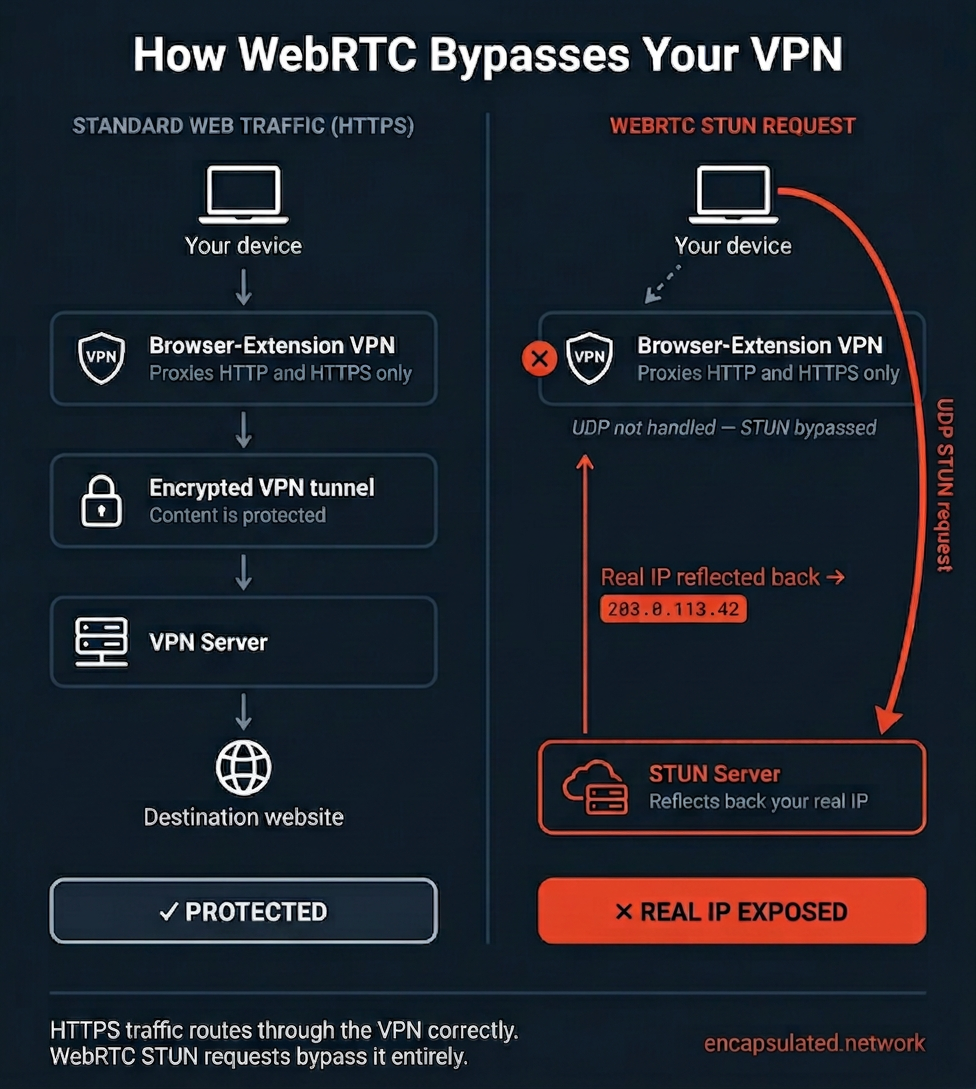
To establish a peer-to-peer connection, WebRTC runs a process called ICE (Interactive Connectivity Establishment) to find the most efficient network path between two devices. Part of ICE involves querying a STUN server. STUN stands for Session Traversal Utilities for NAT, and a STUN server is an external service that responds with the public IP address it sees your request arriving from. Your browser sends the STUN request; the STUN server reflects your real IP back; JavaScript on the page reads that address silently. No user action is involved at any step.
Why the VPN May Not Catch It
WebRTC’s STUN requests are sent via UDP through the operating system’s networking stack. Whether those requests travel through your VPN tunnel depends entirely on how your VPN is implemented.
Browser-extension VPNs only proxy HTTP and HTTPS traffic. They act as application-level proxies, not system-level tunnels, and they do not route UDP traffic at all. WebRTC’s UDP STUN requests bypass them completely.
System-level VPNs (the kind that install a network adapter and capture all traffic at the OS level) route UDP correctly in most configurations. However, a system VPN can still miss WebRTC traffic if it does not capture all network interfaces, if IPv6 is not tunnelled, or if the VPN is configured in split-tunnel mode that excludes browser traffic.
This is why the leak appears inconsistently across users. A system-level VPN with full-tunnel configuration may prevent WebRTC leaks without any browser changes. A browser-extension VPN will leak on virtually every browser regardless of other settings. The browser fix in this article is the reliable approach because it closes the gap at the source rather than depending on how any particular VPN is implemented.
Local IP vs. Public IP: How to Read Your Test Results
Most people misread their WebRTC test results because they do not know which type of IP address to look for. Understanding the difference determines both how serious the situation is and whether a fix is working correctly.
Your local IP address (typically in the 192.168.x.x or 10.x.x.x range) is assigned by your router. It is not globally unique and is shared by millions of home networks worldwide. Its exposure does not reveal your physical location or your ISP to any website. Local IP exposure carries some fingerprinting risk, in that websites can potentially use it to correlate multiple sessions from the same physical device. But it is a lower-order concern than public IP exposure.
Chrome, Edge, Firefox, Opera, and Brave use mDNS obfuscation by default to substitute a randomised UUID hostname ending in .local (for example, 1f4712db.local) instead of your actual local IP address. Safari handles this differently: rather than generating .local hostnames, it filters out host candidates entirely by default until camera or microphone permission is granted. The practical result is the same — your local IP is not exposed in normal browsing — but Safari users should not expect to see .local hostnames in their test results the way Chromium-based browser users do. If you see a .local hostname in your test results on any of these browsers, that is mDNS masking working correctly. It is not a leak. One important qualifier: mDNS obfuscation only applies when a site has not been granted camera or microphone permission. Once a site has those permissions, browsers expose the real local IP.
Your public IP address is assigned by your ISP and is unique to your internet connection. It identifies your service provider and your approximate location, and it is what websites use to identify you on the network. This is the address a working VPN replaces with the VPN server’s IP. mDNS obfuscation does not protect your public IP — that is exposed through STUN separately and is unaffected by local IP masking. If your real public IP appears in the WebRTC section of a leak test while your VPN is connected, that is the leak worth fixing.
When reading test results: if the WebRTC section shows only your VPN server’s IP address or a .local hostname, you are clean. If your real ISP-assigned public IP appears anywhere in the WebRTC section, the leak is confirmed.
How to Test for a WebRTC Leak
You cannot tell whether you have a WebRTC leak by looking at your VPN app. The status indicator shows connected regardless. The only way to know is to run a test.
Step-by-Step Test Procedure
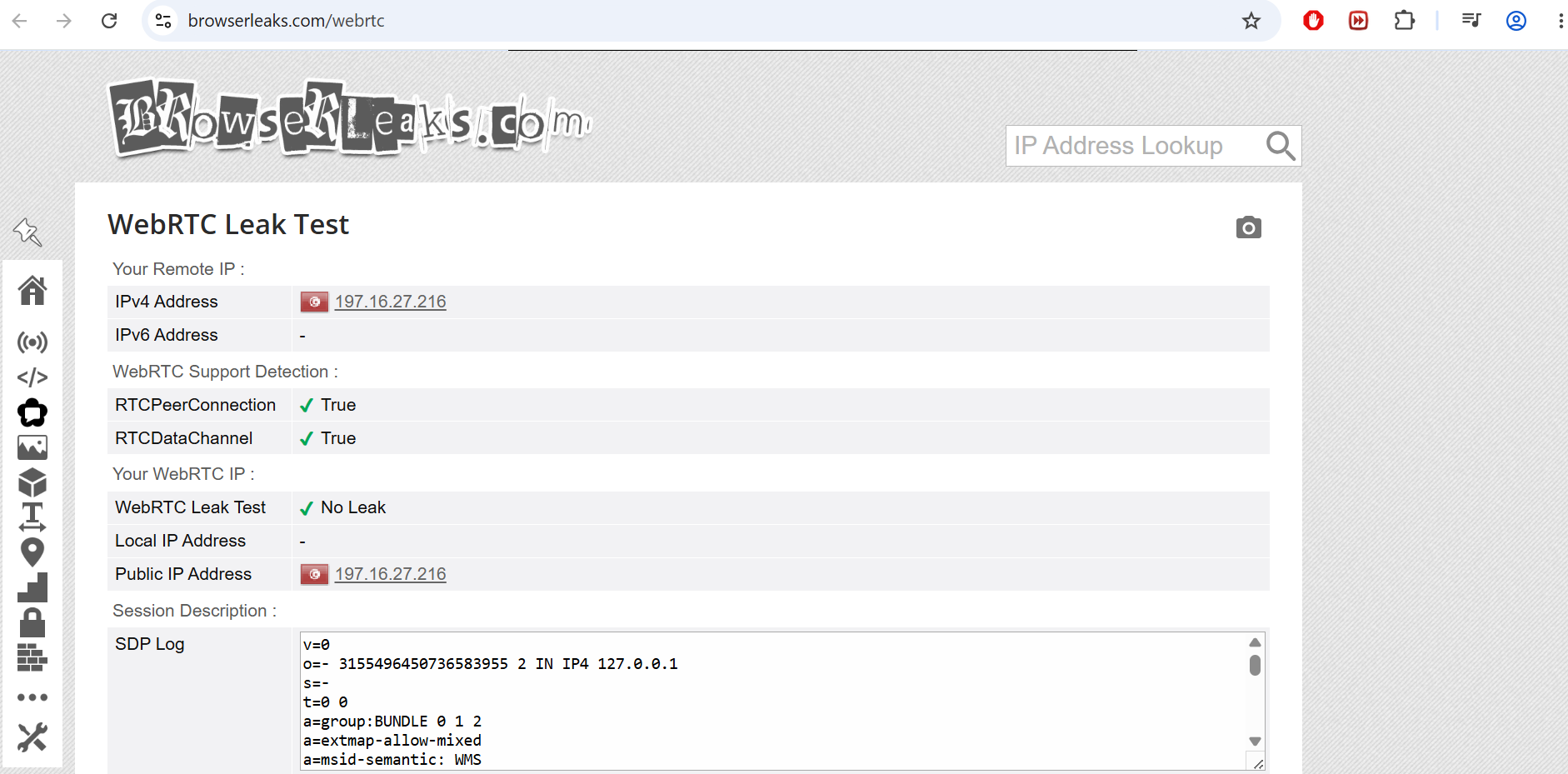
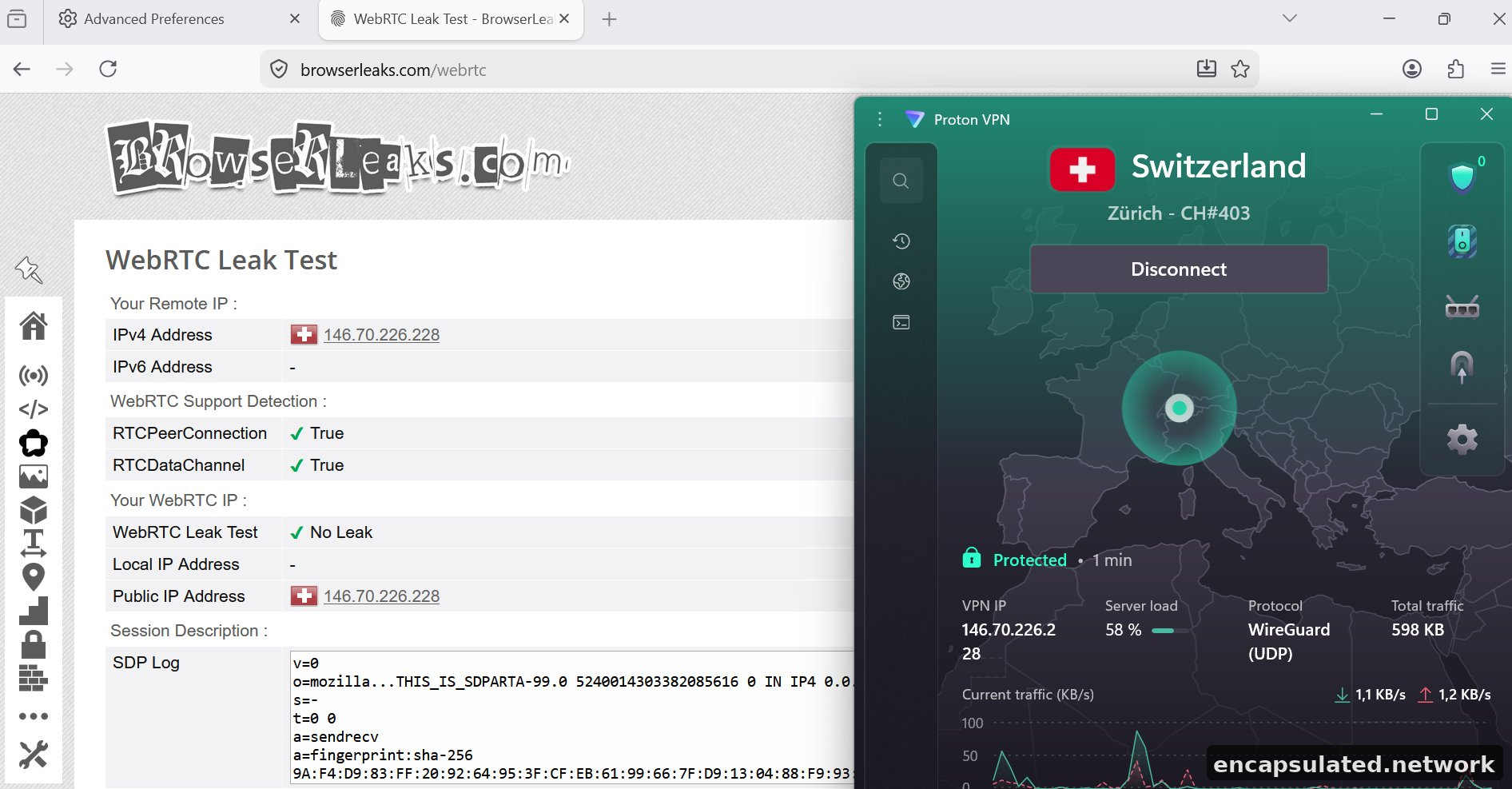
Step 1 — Record your baseline. Disconnect your VPN. Open your browser and visit browserleaks.com/webrtc. Find the public IP address shown in the WebRTC section. This is your real ISP-assigned address. Write it down or keep this tab open.

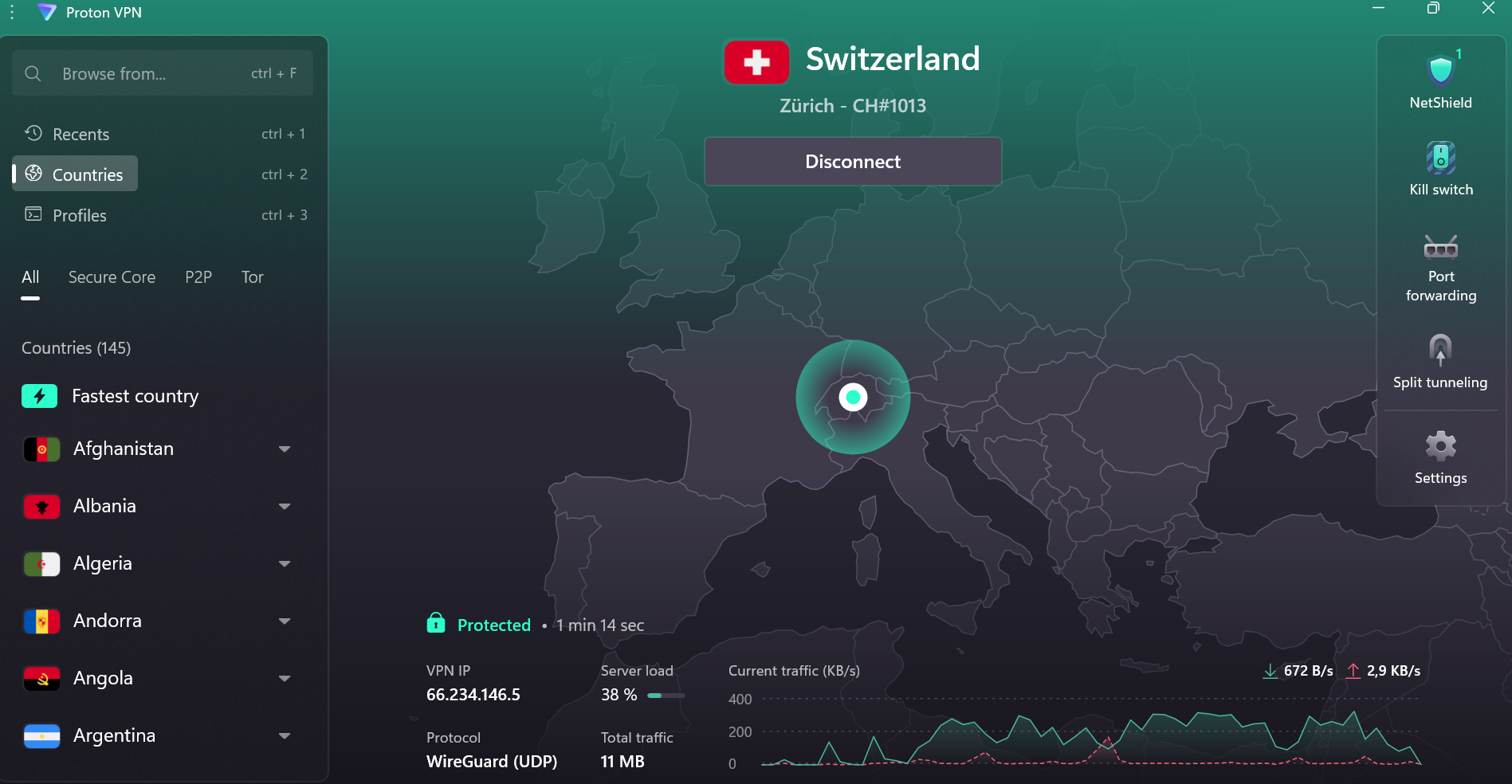
Step 2 — Connect your VPN. Open your VPN app and connect to a server in a country clearly different from your real location. Switzerland and the Netherlands work well as reference points because the difference in location makes any leak immediately obvious.
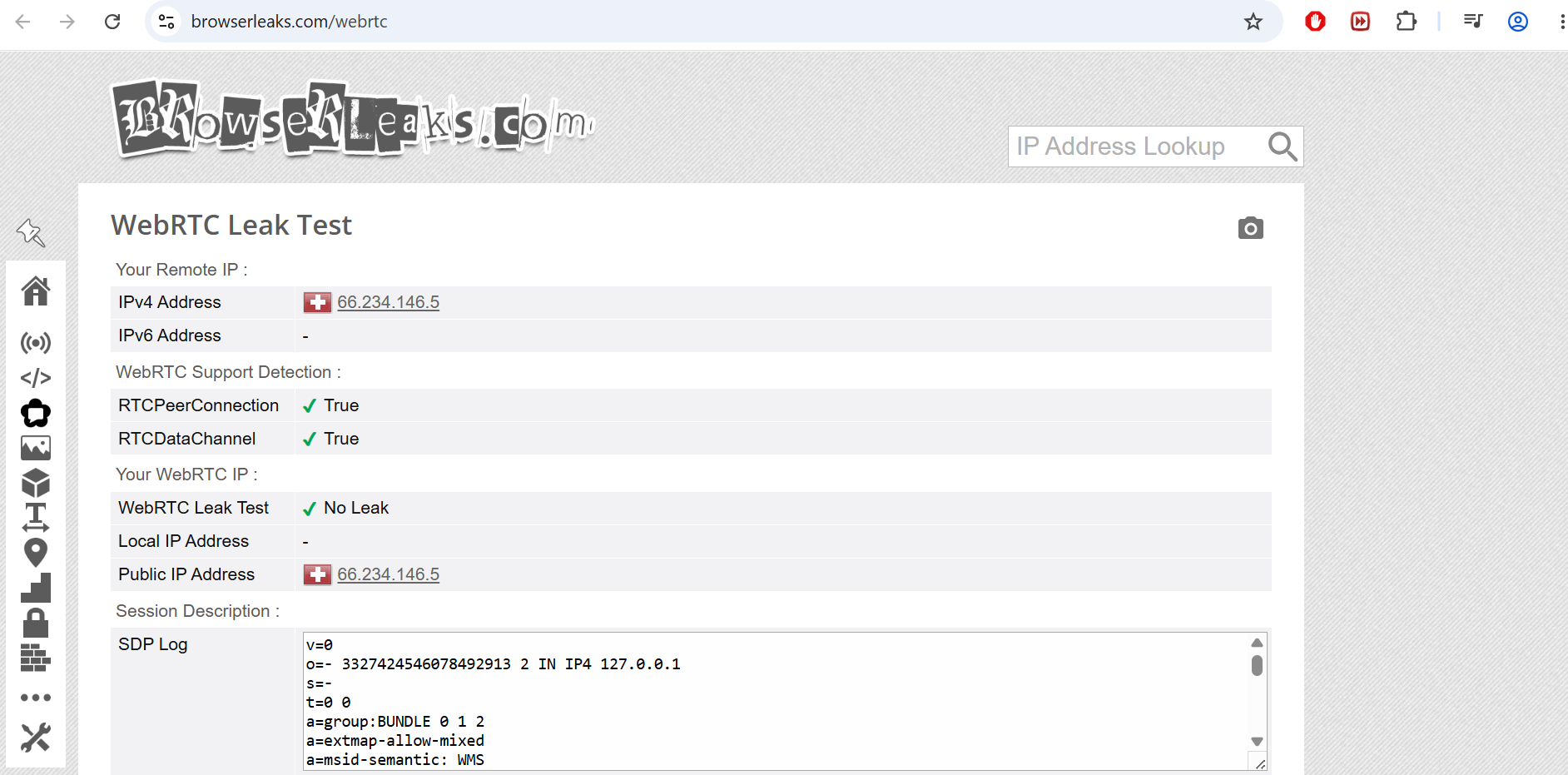
Step 3 — Open a fresh tab. Do not reload the tab from Step 1. Open a new tab and visit browserleaks.com/webrtc again. A fresh tab avoids any cached result from before the VPN connected.
Step 4 — Check the WebRTC section. Compare what you see with the IP you recorded in Step 1.
Two notes before running the test. First, opening a browser in incognito or private mode does not prevent WebRTC leaks. Private mode stops your browser from saving local history and cookies. It does not change how WebRTC interacts with your network hardware or STUN servers. Second, if you are using a Chrome-based browser and relying on an extension for the WebRTC fix, extensions are disabled by default in incognito mode. Your extension-based protection will not apply in incognito windows unless you have explicitly enabled “Allow in incognito” for that extension in your browser’s extension settings.
How to Read Your Results
Clean result (no leak): The WebRTC section shows only your VPN server’s IP address, a .local mDNS hostname, or no public IP at all. The IP you recorded in Step 1 does not appear anywhere.
Confirmed leak: Your real ISP-assigned public IP from Step 1 appears in the WebRTC section, with or without your VPN’s IP also present. A single entry showing your real IP is sufficient to confirm a leak. Even if the VPN IP appears alongside it, the real IP is still visible to the site running the test.
Two Worked Examples
Scenario A — Browser-extension VPN on Chrome: A user connects a VPN through a browser extension and runs the test. The VPN’s IP appears in the standard IP check, but the WebRTC section still shows the real ISP-assigned IP. This is expected: the browser extension only proxies HTTP/HTTPS traffic and does not route the UDP STUN requests WebRTC uses. The fix is a system-level VPN app or the browser-level extension fix described below.
Scenario B — System-level VPN on Firefox with no browser changes: A user runs a full-tunnel system VPN app (not a browser extension), connects, and tests. The WebRTC section shows only the VPN server’s IP because the system VPN captures all UDP traffic, including STUN requests. No browser changes are needed in this configuration, but retesting after each Firefox update is still recommended since updates can alter WebRTC handling.
Recommended Test Tools
browserleaks.com/webrtc is the most detailed WebRTC-specific test available. It separates local IPs, public IPs, and mDNS hostnames clearly, and shows all ICE candidates your browser is exposing. Use this tool for confirming both the initial result and that your fix is working.
ipleak.net tests DNS and WebRTC together in a single page load. If you have already run a DNS leak test there as part of verifying your VPN setup, the WebRTC results appear on the same page, which makes it a useful cross-check.
How to Fix a WebRTC Leak: Browser by Browser
Before choosing a fix, it helps to understand the two approaches available and what each one costs.
Full disable switches WebRTC off entirely. In-browser video calls, voice chat, and peer-to-peer file sharing stop working in that browser until you re-enable the feature. This is the maximum protection option.
Restrict to VPN IP keeps WebRTC active but instructs the browser to route WebRTC connections only through the VPN-assigned network interface. Video and voice calls continue to function. The leak is closed. This is the right choice for most VPN users who rely on browser-based communication services.
The sections below cover each browser individually and specify which approach is available and which is recommended.
Firefox
Firefox is the only major browser that provides granular native WebRTC controls through about:config without needing an extension.

Restrict to VPN interface (recommended for most users): Type about:config in the address bar and press Enter. Accept the warning if prompted. Search for media.peerconnection.ice.default_address_only and double-click the entry to set its value to true. This tells Firefox to gather ICE candidates only from the default network interface, which is your VPN when one is connected, rather than enumerating all available interfaces. Video and voice calls in the browser continue to work normally.

Two additional preferences are available for users who want stricter control. Setting media.peerconnection.ice.no_host to true prevents Firefox from exposing any host candidates (local IP addresses) at all. For most VPN users, media.peerconnection.ice.default_address_only is sufficient on its own.
Full disable: Search in about:config for media.peerconnection.enabled and double-click to set its value to false. The change applies to new connections immediately. Any tabs with active WebRTC sessions should be reloaded for the change to fully take effect. To re-enable WebRTC later, return to about:config and set the value back to true.
Trade-off for full disable: Google Meet in Firefox, Discord voice in the browser, Zoom web, and any other in-browser video or audio service will stop working until you reverse this setting.
Chrome
Chrome has never offered a native toggle to fully disable WebRTC in its desktop versions. Chrome for Android once exposed a chrome://flags/#disable-webrtc flag, but it was removed years ago and is unavailable in any current Chrome version. The fix on desktop Chrome requires an extension.
One note before installing an extension: mDNS local-IP obfuscation is enabled by default in Chrome since version 91 (2021). The chrome://flags entry that previously controlled it has been removed. No manual action is needed to activate mDNS protection for local IPs. The extension below addresses public IP exposure, which mDNS does not cover.
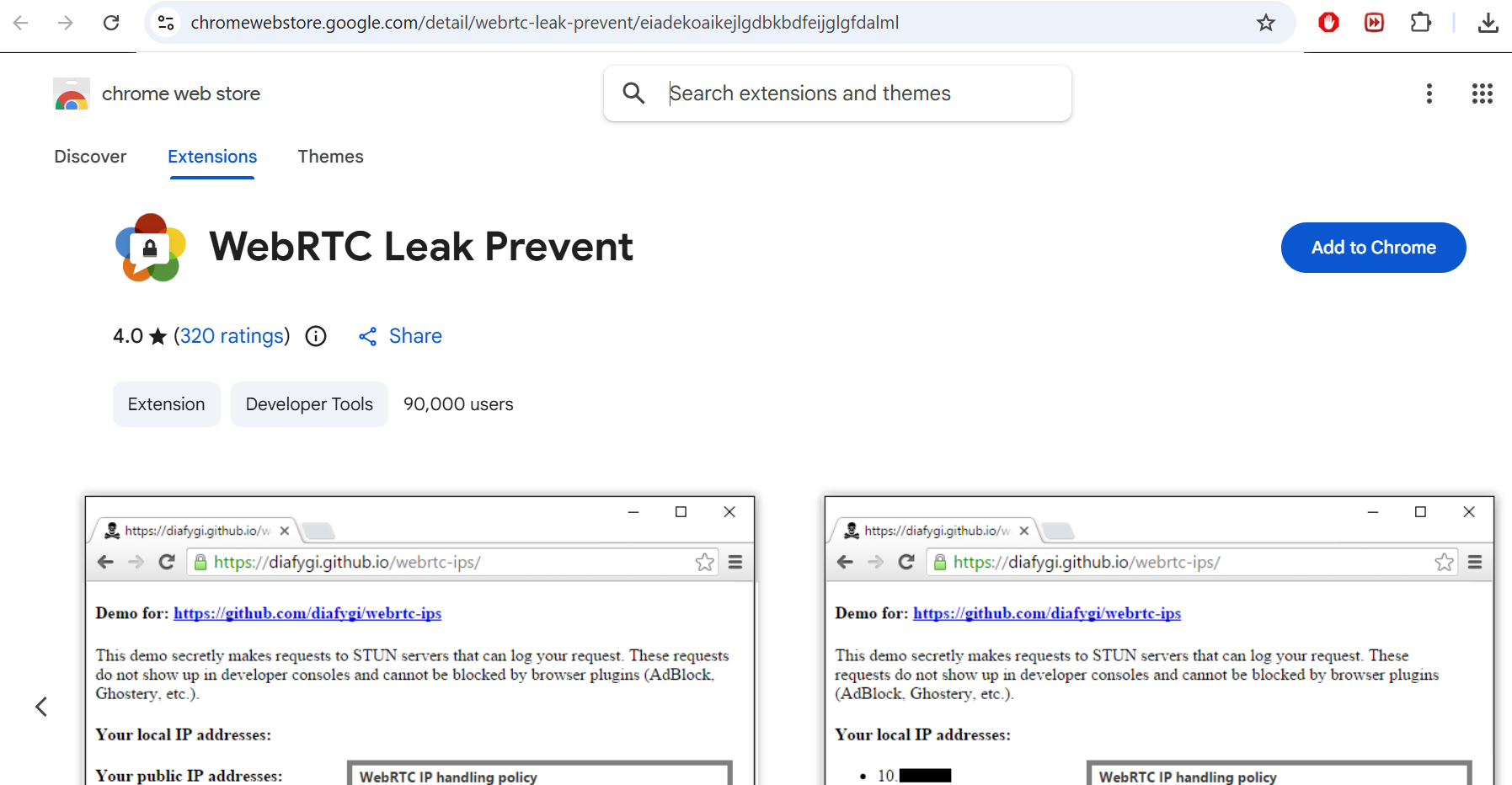
Extension fix — WebRTC Leak Prevent: Install WebRTC Leak Prevent from the Chrome Web Store. In the extension options, leave the setting at Use the default public interface only. This is the correct setting for system-level VPN users — it routes WebRTC through the default interface (your VPN) without breaking WebRTC functionality.


A note on the extension’s other option: Disable non-proxied UDP (force proxy) is intended for users with browser-extension VPNs or a dedicated UDP-capable SOCKS5 proxy, not for system-level VPN users. For most people on a standard VPN app, selecting this option will break browser-based video and voice calls without providing additional protection over the default interface setting.
A note on uBlock Origin: its “Prevent WebRTC from leaking local IP addresses” setting was removed from desktop browsers in uBlock Origin version 1.38 (2021), since Chrome and Firefox now apply mDNS obfuscation for local IPs natively. The setting is no longer present in the desktop version of uBlock Origin. Do not rely on it for WebRTC leak protection on desktop Chrome.
Brave
Brave provides the most complete native WebRTC controls of any Chromium-based browser. No extension is required.
Go to Settings, then Privacy and Security. Scroll down to find WebRTC IP Handling Policy. The available options are:
Default enumerates all network interfaces, the same behaviour as Chrome. This is Brave’s out-of-the-box setting and provides no additional leak protection on its own.
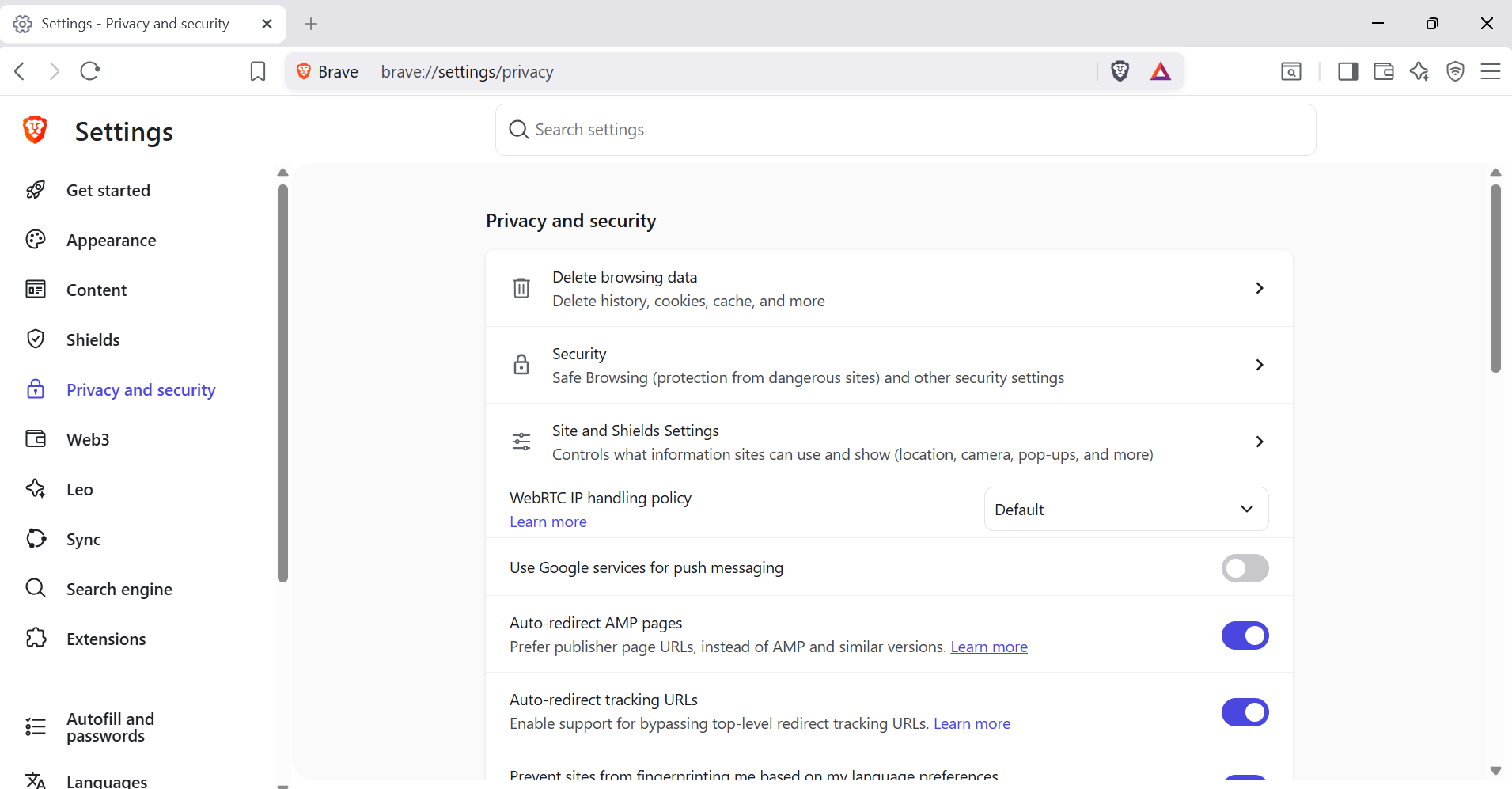
Default Public And Private Interfaces limits candidates to the default public and private interfaces rather than all interfaces.
Default Public Interface Only routes WebRTC through the default public interface only, which is your VPN when one is active. Video and voice calls continue to work. This is the recommended setting for VPN users.
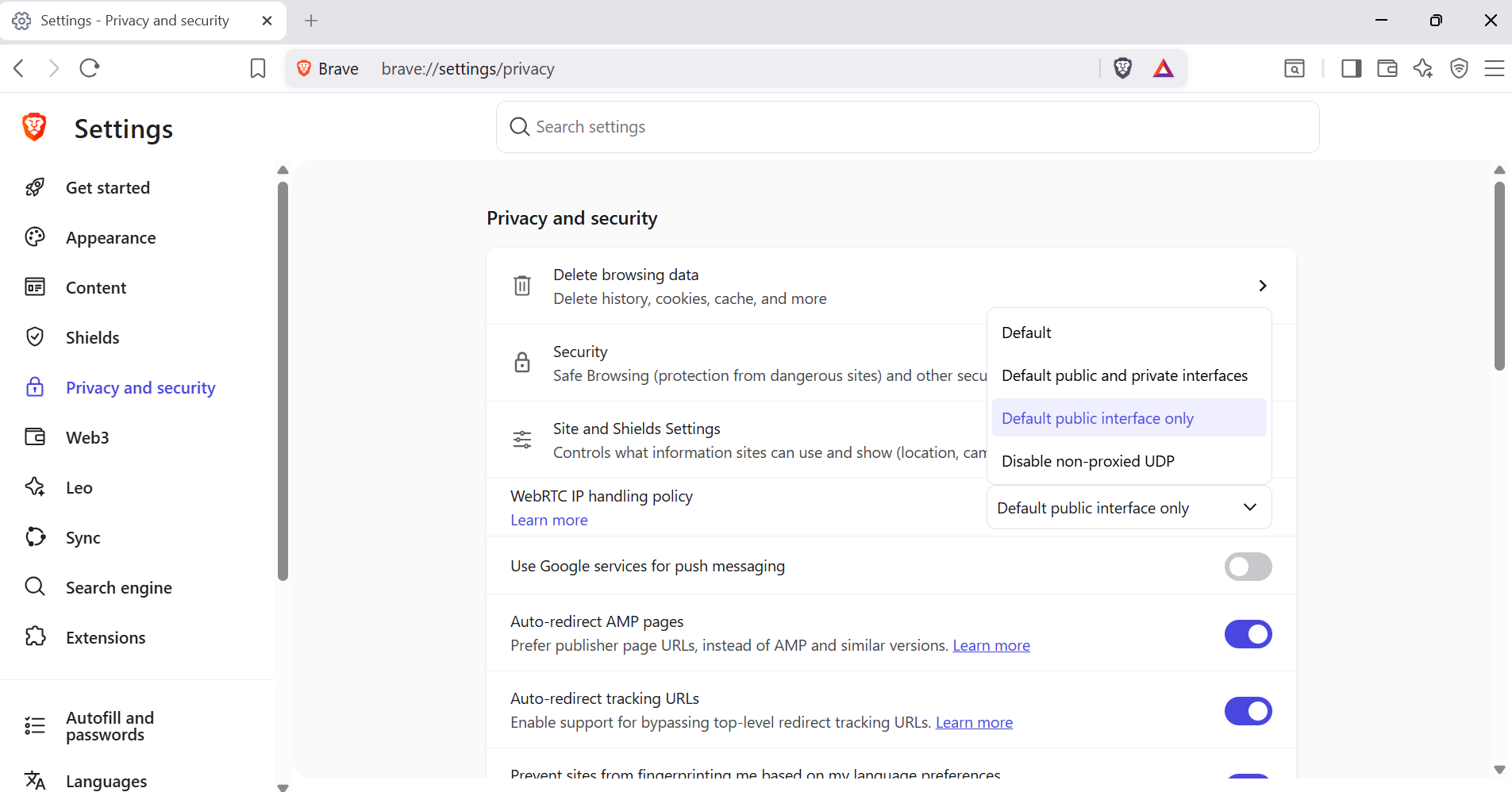

Disable Non-Proxied UDP restricts WebRTC to UDP only via a SOCKS proxy that supports UDP, falling back to TCP otherwise. For most users without a UDP-capable proxy configured, the practical effect is that browser-based video and voice calls fail. Select this only if you want maximum restriction and do not need in-browser communication services.
One clarification on Brave’s defaults: the WebRTC IP Handling Policy is set to Default out of the box, which behaves identically to Chrome. Stricter WebRTC handling activates automatically only when Brave’s Shields fingerprinting protection is set to Strict (which may break some sites), or when browsing in a Tor window. For standard browsing, the explicit policy setting above is required.
Edge
Edge is built on the Chromium engine and does not offer native WebRTC controls beyond what Chrome exposes. The extension-based fix for Chrome applies directly in Edge.
Install WebRTC Leak Prevent from the Microsoft Edge Add-ons store, where it is available directly. Configure it identically to the Chrome instructions above.
Edge can also install Chrome Web Store extensions after the user enables Allow extensions from other stores in Edge’s extension settings. This is a manual opt-in step, not automatic.
Safari (Desktop)
Safari’s WebRTC behaviour differs from Chromium-based browsers in an important way. By default, Safari filters out host candidates (local IP addresses) and does not expose them without camera or microphone permission. Your local IP is protected without any configuration change.
However, server-reflexive candidates — the public IP discovered via STUN — can still be exposed when an RTCPeerConnection is created, even without media permission. Safari’s default protects your local IP, not your public IP. A VPN is still required for public IP privacy.
Safari does not expose a clean native toggle to fully disable WebRTC. The most reliable fix for Safari users is a system-level VPN that captures all UDP traffic, which prevents STUN requests from reaching external servers regardless of browser behaviour.
A note on a fix that appears in many other guides: some articles recommend going to Develop → Feature Flags and unchecking WebRTC mDNS ICE candidates. This is incorrect advice. The mDNS ICE candidates flag controls whether Safari uses mDNS obfuscation to protect your local IP. Unchecking it disables that protection and would expose your real local IP rather than hide it. Leave this flag in its default enabled state.
For users who need the most restrictive possible browser configuration, macOS Lockdown Mode (System Settings → Privacy & Security → Lockdown Mode) restricts WebRTC heavily as a side effect, though it changes many other browser and system behaviours and is intended for users facing serious targeted threats.
Opera
Go to Settings, then Privacy & Security. Find the WebRTC section and select Disable non-proxied UDP.
Opera also supports Chrome Web Store extensions via the Install Chrome Extensions Opera add-on, which requires a one-time installation. After that, WebRTC Leak Prevent can be added from the Chrome Web Store as an additional layer.
Tor Browser
WebRTC is disabled in Tor Browser by default through a combination of the media.peerconnection.enabled preference being set to false and the fact that UDP does not route through Tor’s SOCKS5 proxy. If you are using Tor Browser, no configuration is required. Do not manually re-enable WebRTC in Tor Browser — doing so would expose your real IP and compromise the anonymity the browser provides.
Mobile: Android
Chrome for Android does not support extensions. The desktop Chrome fixes do not apply on Android mobile.
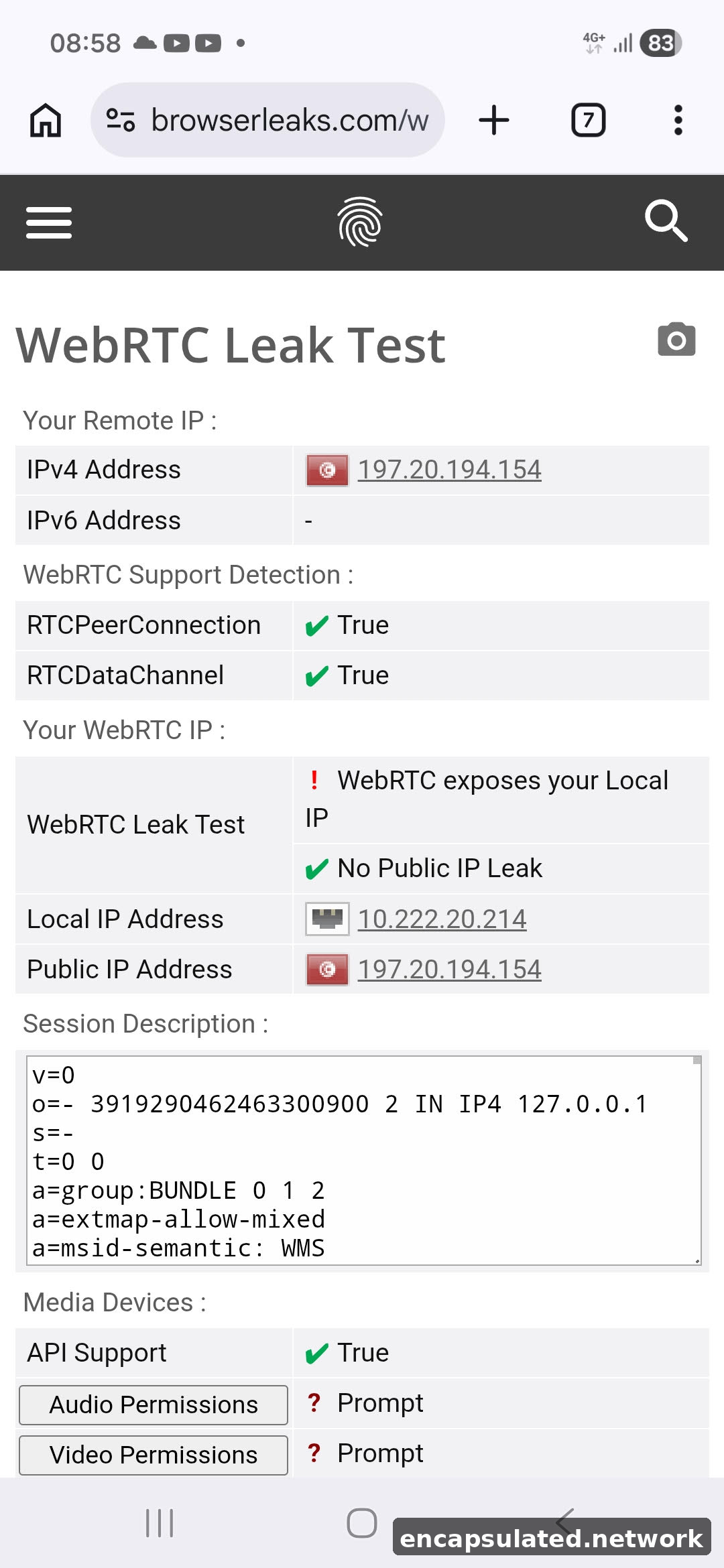
The most reliable fix is to install Firefox for Android. However, there is an important version distinction: about:config is only natively accessible in the Firefox Nightly and Firefox Beta channels for Android. In the stable release of Firefox for Android, the hidden configuration page at chrome://geckoview/content/config.xhtml has historically allowed access to about:config, but its availability varies by version and it has been reported as broken in some recent releases. Mozilla is actively working to restore native about:config access on Android stable (see Mozilla Bug 1813163). If the workaround does not function on your version, switching to the Firefox Nightly or Beta channel is the most dependable path. Once about:config is accessible, the same media.peerconnection.ice.default_address_only and media.peerconnection.enabled preferences apply as on desktop Firefox.
If you prefer to stay on Chrome for Android, use a VPN app that explicitly documents WebRTC leak protection and routes WebRTC UDP traffic through the tunnel. Most VPN apps do not enable this by default. Check your provider’s Android-specific documentation to confirm whether the feature is active before relying on it.
Mobile: iOS
iOS has never provided a reliable user-level toggle to disable WebRTC in Safari. What was removed in iOS 12 was a developer-facing “Remove Legacy WebRTC API” experimental feature toggle — a testing tool, not a general privacy control. It is sometimes mistakenly cited as a general WebRTC disable option that Apple took away. No subsequent iOS version has added a clean user-facing WebRTC control to Safari.
An important detail that many guides miss: outside the EU, Apple’s App Store policy requires all browsers on iOS to use WebKit as their underlying engine. They cannot override WebKit’s WebRTC handling, so the limitation described above applies to every browser app on the device. Installing a different browser does not provide any additional WebRTC control. In the EU, iOS 17.4 and later permit alternative browser engines under Apple’s Web Browser Engine Entitlement, but as of mid-2026 none of the major browser vendors have shipped widely-deployed non-WebKit iOS builds outside test channels, so the practical situation for most EU users remains the same.
The only available protection is a VPN app that explicitly routes WebRTC traffic through its tunnel. This must be confirmed in your VPN provider’s iOS documentation, since most providers do not enable it by default. Running a WebRTC leak test on iOS after connecting your VPN is the only way to confirm whether your specific combination of app and iOS version is protected.
Router-Level Fix: One Configuration, Every Device
If your VPN runs on your router rather than on individual devices, all WebRTC UDP traffic from every browser on every device routes through the encrypted tunnel before it reaches the internet. No per-browser extensions. No per-device settings changes. No ongoing maintenance each time a browser updates and resets its configuration.
This is also the only fix that covers devices with no extension or settings support at all: smart TVs, gaming consoles, and mobile browsers on any device connected to your network.
For users who want additional hardening, blocking outbound UDP on the ports that STUN commonly uses prevents browsers from reaching STUN discovery servers regardless of browser or VPN configuration. The most-used STUN ports are 3478 (the IANA-registered STUN port), 3479–3481 (used by Microsoft Teams for media), 5349 (STUN over TLS), and 19302 (Google’s public STUN service). Blocking the 3478–3481 range plus 19302 covers the most-used public STUN endpoints. Dedicated WebRTC services can use arbitrary ports, so this is a meaningful hardening step rather than a complete standalone solution.
For full implementation details, see our router VPN setup guide.
A Note on Disabling WebRTC Entirely
WebRTC is enabled by default in every mainstream browser — Chrome, Firefox, Edge, Safari, Opera, and Brave — so the overwhelming majority of users have it active. A browser where WebRTC is entirely absent or returns no candidates can appear unusual to fraud detection and anti-bot systems. Anti-detect tools generally recommend restricting WebRTC to match the proxy IP rather than blocking it outright, precisely because a blocked WebRTC response is itself a distinguishing signal.
For most VPN users, this is an acceptable trade-off. The privacy benefit of closing the IP leak outweighs the fingerprint consideration in the vast majority of use cases.
If you manage multiple accounts or operate in an environment where session anomaly detection is a practical concern, restricting WebRTC to your VPN interface rather than disabling it entirely closes the IP leak without producing an unusual browser profile. Firefox’s media.peerconnection.ice.default_address_only setting and Brave’s Default Public Interface Only policy both achieve this middle path.
Confirm the Fix Worked
After applying whichever fix is appropriate for your browser, repeat the test from the section above. Open a fresh tab, confirm your VPN is connected, and visit browserleaks.com/webrtc again.
A confirmed pass: The WebRTC section shows only your VPN server’s IP address, a .local mDNS hostname, or no public IP at all. Your real ISP-assigned IP from the baseline test must not appear anywhere in the WebRTC section.
Functional check: If you applied the full disable (Firefox media.peerconnection.enabled = false or Brave’s Disable Non-Proxied UDP), open Google Meet or a Discord voice channel in the same browser. If it fails to connect, that is expected because WebRTC is restricted or off. If you need browser-based video calls to work, switch to the restrict approach and retest.
If the leak persists after applying the fix, work through these checks in order.
Chrome or Edge with an extension: Confirm the extension is active. Look for the extension icon in the toolbar and check that it is not paused, disabled, or set to inactive for the current site. Confirm also that you are not in an incognito window with the extension disabled — extensions must be explicitly allowed in incognito through the extension’s settings page.
Firefox about:config change: Open a new tab, return to about:config, and verify that media.peerconnection.ice.default_address_only is still set to true (or that media.peerconnection.enabled is still false if you chose the full disable). Major Firefox updates occasionally reset about:config preferences to their defaults.
Any browser, VPN connectivity: Confirm your VPN is actually connected before retesting. Open a fresh tab rather than reloading a cached page from an earlier session. Check also whether your VPN is a browser extension rather than a system-level app — browser-extension VPNs do not tunnel UDP and will not prevent WebRTC leaks regardless of the browser setting applied.
Finally, add browser updates to your testing habit. Chrome, Firefox, Edge, and Brave all push major updates that can reset extension permissions, clear about:config changes, or alter WebRTC handling without notification. A two-minute check on browserleaks.com/webrtc after each major browser update is enough to catch any regression before it becomes a sustained leak.
Run a DNS Leak Test Too
WebRTC leaks and DNS leaks are separate vulnerabilities with different causes, different types of exposure, and different fixes. A clean WebRTC test tells you nothing about whether your DNS queries are also reaching your ISP. If you have just confirmed and fixed a WebRTC leak, run a DNS leak test separately to make sure both are addressed. Our DNS leak guide covers how to test and fix DNS leaks in full, including platform-specific steps for Windows, macOS, Android, and iOS.
Bottom Line
A WebRTC leak is a browser-level behaviour, not a VPN failure. Browser-extension VPNs do not tunnel UDP at all, and system-level VPNs can miss WebRTC traffic if not configured to capture all interfaces. The browser fix is the reliable path because it closes the gap at the source. Firefox’s about:config gives the most precise native control. Chrome requires an extension. Brave has the best built-in policy settings of any Chromium-based browser.
The one ongoing discipline the fix requires is retesting after browser updates. Updates can reset configurations silently, and a fix that is working today may not survive the next major Chrome or Firefox release. A two-minute check on browserleaks.com/webrtc after each update is all the maintenance the fix needs.
Frequently Asked Questions
Does a VPN automatically prevent WebRTC leaks?
Not necessarily. Browser-extension VPNs only proxy HTTP and HTTPS traffic and do not route UDP at all, so they will never prevent WebRTC leaks regardless of other settings. System-level VPN apps route UDP correctly in most configurations but can still miss WebRTC traffic if they do not capture all network interfaces or if IPv6 is not tunnelled. The browser-level fix in this article works regardless of which VPN type or provider you use, which makes it the more reliable approach.
Will disabling WebRTC break any websites?
Only sites that depend on in-browser real-time communication: Google Meet, Discord voice and video in the browser, Zoom web, browser-based peer-to-peer file sharing, and similar services. Standard text browsing, video streaming from platforms like YouTube or Netflix, and image-based sites are entirely unaffected. If you use those communication services regularly, apply the restrict-to-VPN-interface fix rather than the full disable, and retest to confirm the leak is closed.
Does incognito or private mode stop WebRTC leaks?
No. Private mode prevents your browser from saving local browsing history and cookies. It does not change how WebRTC interacts with your network hardware or STUN servers. A browser that leaks your IP in a normal window will leak it in an incognito window too. Furthermore, extensions that provide WebRTC protection are disabled by default in incognito mode in Chrome-based browsers, which can make incognito windows less protected than normal ones if the fix relies on an extension.
Is it better to disable WebRTC or restrict it to the VPN interface?
For most users, restricting WebRTC to the VPN interface is the better choice. It closes the IP leak while keeping in-browser video and voice calls functional. Full disable is appropriate if you never use those services and want the simplest configuration. Be aware that completely disabling WebRTC makes your browser profile slightly unusual, since the technology is enabled by default across essentially all browsers. If fingerprinting is a concern, the restrict approach is less conspicuous.
Why do I see a .local address in my test results?
That is mDNS masking, not a leak. Modern browsers substitute a randomised UUID hostname ending in .local instead of displaying your actual local IP address. This is a browser privacy feature working correctly. The address you are checking for is your real ISP-assigned public IP. A .local hostname in the results means your local IP is protected by mDNS obfuscation.
Is my local IP address (192.168.x.x) a privacy risk?
Less so than your public IP. A local IP address does not reveal your physical location or your ISP identity to any website, since the same address ranges are used by millions of networks worldwide. It can contribute to browser fingerprinting, allowing sites to link multiple sessions from the same physical device. But the address worth protecting is your ISP-assigned public IP, which is the one that identifies your internet connection and approximate location.
Can websites detect that I have disabled WebRTC?
Yes. Websites can run JavaScript to check whether the WebRTC API is present and responding. A missing or non-functional WebRTC implementation can appear unusual to fraud detection and anti-bot systems on platforms that use it as part of browser fingerprinting. For most users this has no practical impact. For users managing multiple accounts or in environments with session fingerprinting, restricting WebRTC to the VPN interface rather than disabling it entirely is the less detectable approach.
My VPN says it has built-in WebRTC leak protection. Do I still need to test?
Yes. Provider claims and actual implementation do not always match, and protection can vary by platform, browser, VPN protocol, or app version. A two-minute test on browserleaks.com/webrtc tells you what your specific browser and VPN combination is doing right now. Run the test after any VPN app update as well, since updates occasionally change how traffic is routed.
Is a WebRTC leak worse than a DNS leak?
They expose different things and neither is strictly worse than the other. A DNS leak exposes the domains you visit to your ISP’s resolvers — your browsing history leaks, but your IP address may still appear hidden to the sites you visit. A WebRTC leak exposes your real public IP to any site that asks for it — your identity on the network is revealed, but your browsing history is not necessarily. In practice, you should fix both. They have separate causes, separate fixes, and a clean result on one test tells you nothing about the other.
Does a WebRTC leak matter for torrenting?
Yes, more than for most other activities. When you are connected to a BitTorrent swarm, every peer in that swarm can see the IP address you are connecting from. If your VPN client is correctly tunnelling the torrent traffic but your browser has a WebRTC leak, the leak itself does not expose your torrent activity. However, if your system has any split-tunnel configuration that lets torrent traffic bypass the VPN, or if your torrent client uses WebRTC for peer discovery, a WebRTC leak can result in your real IP being logged by rights-enforcement monitoring services operating in the swarm. Applying the browser fix and verifying your torrent client is fully tunnelled are both worth confirming before any P2P activity.
Does WebRTC leak on all iOS browsers, or just Safari?
Outside the EU, the answer is all browsers. Apple’s App Store policy requires every browser app on iOS to use WebKit as its underlying engine, so Chrome, Firefox, Edge, Brave, and all others inherit Safari’s WebRTC behaviour and cannot override it at the browser level. iOS has never provided a reliable user-level toggle to disable WebRTC — a developer-facing legacy API toggle was removed in iOS 12, but it was not a general privacy control. In the EU, iOS 17.4 and later allow alternative browser engines under Apple’s Web Browser Engine Entitlement, though as of mid-2026 no major browser has shipped a widely-deployed non-WebKit iOS build outside test channels. For most users globally, the only available protection remains a VPN app with explicit WebRTC routing support.
How often should I test for WebRTC leaks?
After every major browser update and after any change to your VPN setup or browser extensions. Browser updates have a history of resetting privacy configurations without notification. A two-minute check on browserleaks.com/webrtc after each update is enough to catch any regression before it becomes a sustained leak.