
VPN split tunneling divides your internet traffic into two paths. One goes through your encrypted VPN tunnel; the other connects directly to the internet. You choose which apps or websites take which route, and you can change it at any time.
In full tunnel mode, every packet leaving your device travels through the VPN. Split tunneling breaks that: specific apps bypass the tunnel entirely while everything else stays encrypted. The rule is simple: anything that needs your real IP address or local network access belongs outside the tunnel. Everything else stays inside it.
TL;DR
- Split tunneling divides your traffic into two simultaneous paths: one through the encrypted VPN tunnel, one connecting directly to the internet. You choose which apps or sites take which route. In exclude mode, everything tunnels except what you specify. In include mode (inverse split tunneling), everything goes direct except what you specify. Most providers also support URL or domain-based routing.
- Use it when full tunnel mode breaks something: printers and local devices disappear because the VPN routes traffic off your LAN; banking apps block logins from VPN exit IPs; latency-sensitive tasks like gaming or video calls carry unnecessary encryption overhead. For torrenting, keep the P2P client inside the tunnel to hide your IP from peers, and pair it with a kill switch.
- Traffic outside the tunnel is unprotected. It carries your real IP address, is visible to your ISP, and reveals the domains you visit, exactly as it would without a VPN. The practical risk is configuration drift: you configure split tunneling, forget which apps are excluded, and route something sensitive outside the tunnel without realising it.
- On iOS, no consumer VPN offers app-level split tunneling. Apple’s architecture restricts per-app routing to managed enterprise devices. Surfshark, ExpressVPN, and IPVanish offer website or domain-based exclusions on iOS; NordVPN and ProtonVPN offer none. Windows and Android have the broadest support. On macOS, support has improved since 2024 but varies by provider; NordVPN remains unsupported.
What Is VPN Split Tunneling?
When split tunneling is off, your VPN runs in full tunnel mode: every single piece of data leaving your device — your browser, your apps, your background updates, everything — is encrypted and routed through the VPN server before reaching the internet.
Think of your internet connection as a motorway. Full tunnel mode sends every vehicle — every car, lorry, and motorbike — through one private, covered bridge. Split tunneling lets you open a second lane: some vehicles take the private bridge, others take the open road. You decide which apps go which way.
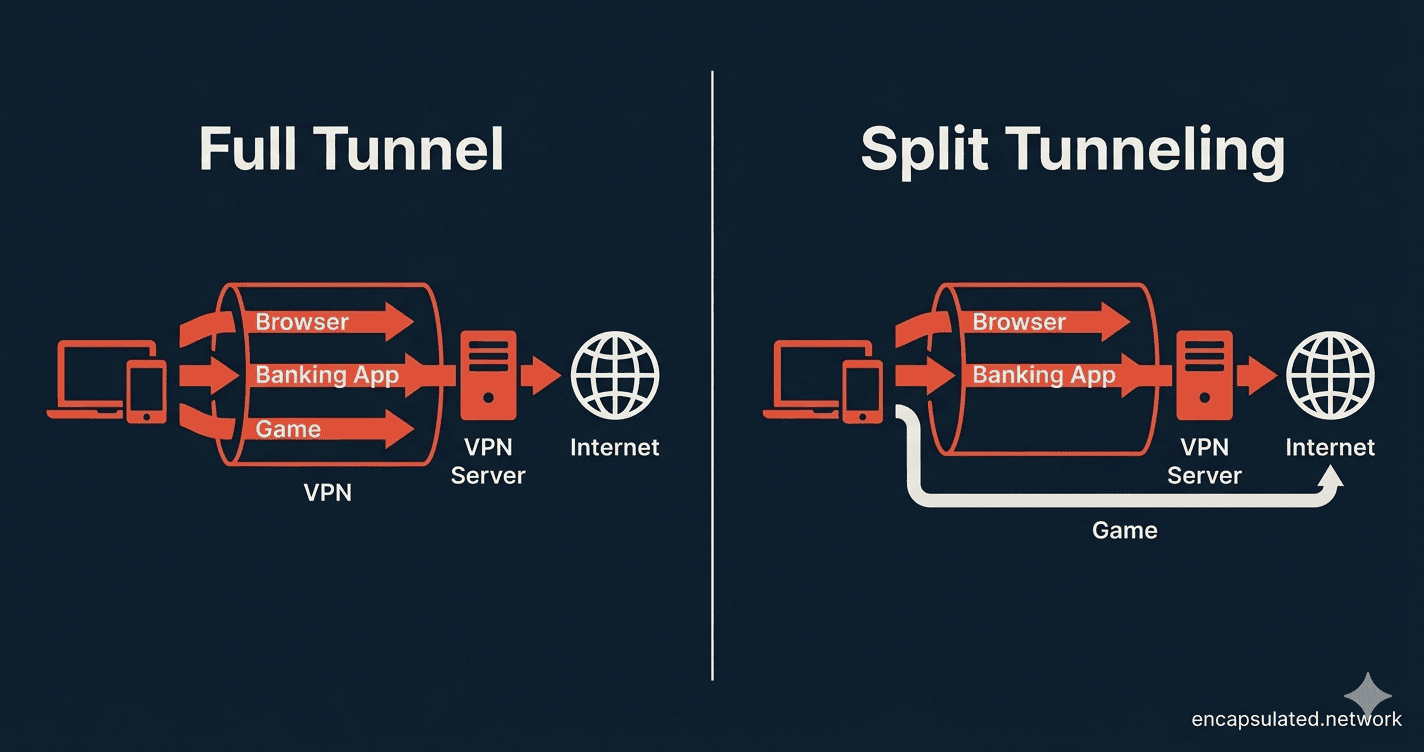
The setting is usually found under Advanced or Connection in your VPN app. Some providers label it differently — “per-app VPN,” “app exclusions,” or “bypass.”
Split tunneling sits alongside your kill switch and protocol choice as part of the same advanced connection layer — the settings that govern how, not just whether, your VPN routes your traffic.

The Three Types of Split Tunneling
App-Based Split Tunneling
This is the most common type. You select specific applications — your browser, a game, a streaming app — and assign them to either the VPN tunnel or the direct connection. Everything else follows the default (usually the full tunnel).
URL and Domain-Based Split Tunneling
Instead of choosing by app, you specify particular websites or domains. Traffic to yourbank.com, for example, always bypasses the VPN and connects with your real IP address. Everything else stays encrypted. This requires more precise configuration but gives you finer control — useful when you need one specific service to see your real location, not the entire app it lives in.
Inverse Split Tunneling
Rather than picking what to exclude from the tunnel, you pick the one or two apps that should use the VPN. Everything else connects directly. It is the right approach when you only need VPN protection for a single purpose — a work tool, a privacy-sensitive app — and want everything else to run at full speed.
How to Enable Split Tunneling (Step by Step)
Enabling split tunneling takes about a minute, and the flow is nearly identical across apps.
- Open your VPN app’s Settings. Look for a section labelled Advanced, Connection, or Privacy — or search for “split tunneling” if your app has a search function.
- Find the split tunneling option. Providers use different names: ProtonVPN calls it Split tunneling; Surfshark calls it Bypasser; others use Per-App VPN, App Exclusions, or simply Bypass.
- Enable it and choose your mode. Most apps offer two modes:
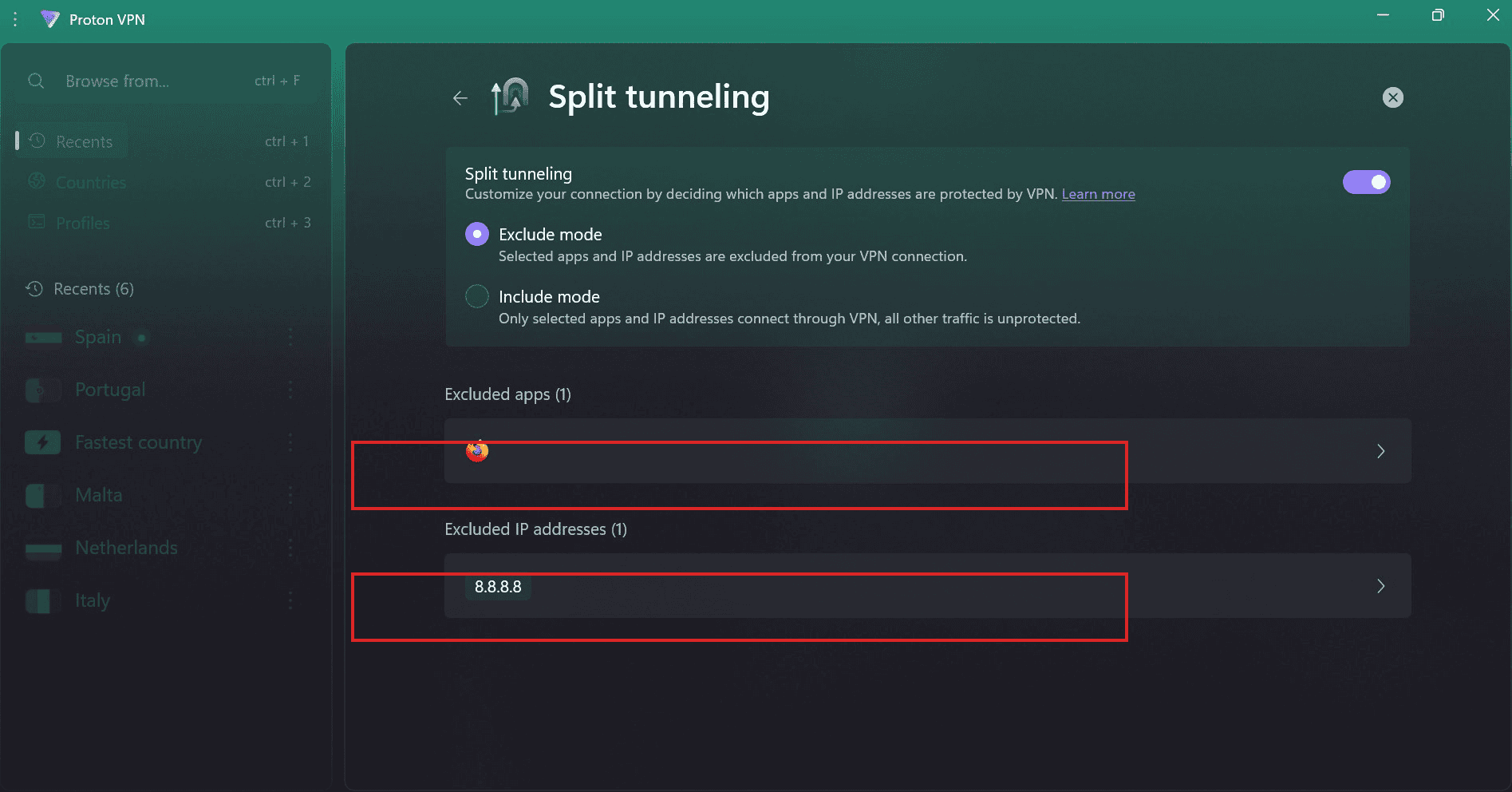
- Exclude mode — the default in most apps. All traffic goes through the VPN; you pick which apps or sites bypass it. Use this when you only need to carve out specific apps.
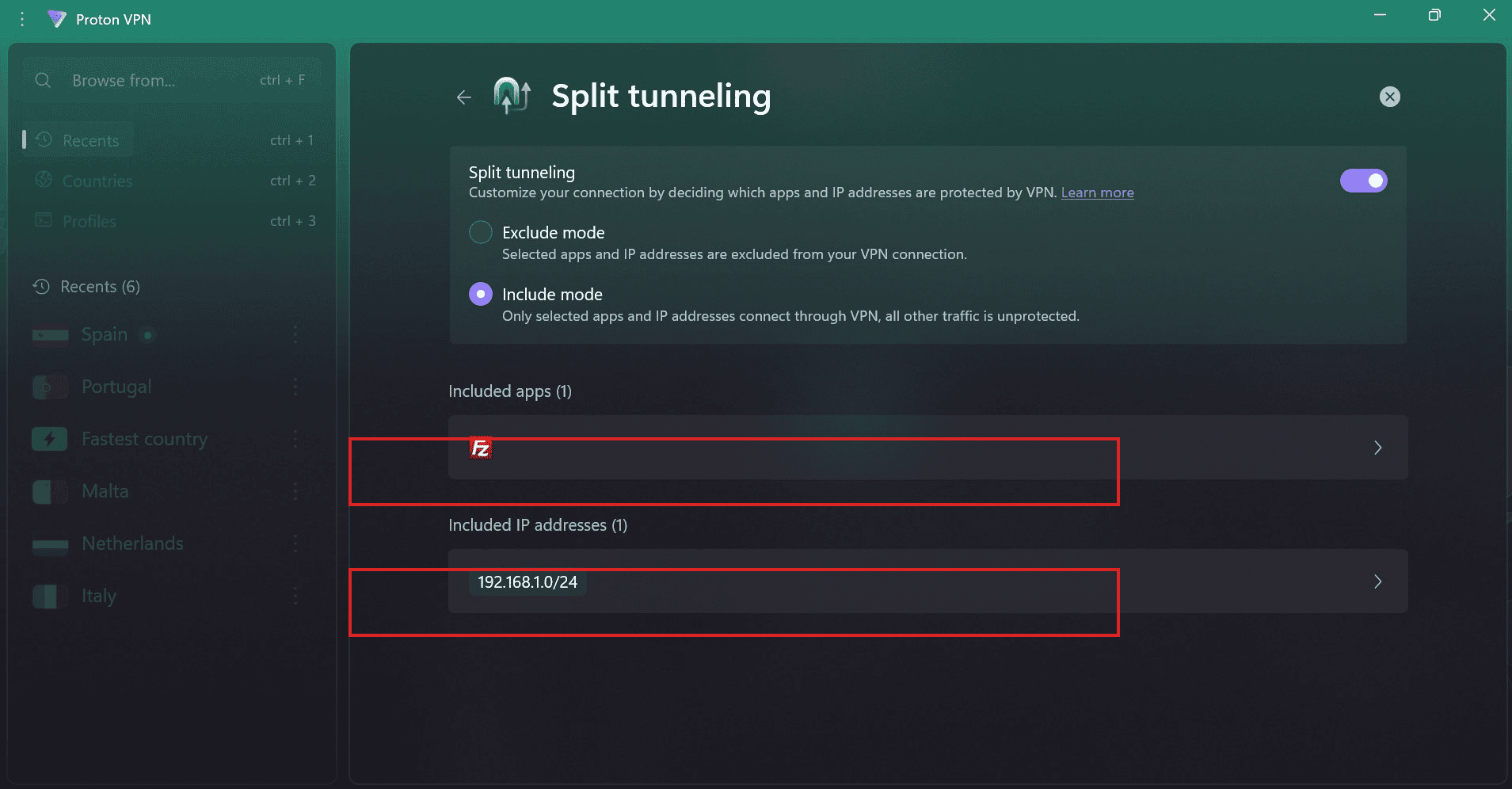
- Include mode (also called inverse split tunneling) — all traffic bypasses the VPN by default; you pick which apps go through it. Use this when you only need VPN protection for specific purposes and want everything else at full speed.
- Add your apps, websites, or IP addresses. In Exclude mode, select the apps or domains you want to route outside the tunnel. In Include mode, select the apps or IPs you want to send through it.
- Save and verify. Some apps apply changes immediately; others require a reconnect. Once saved, verify your setup using the steps in Troubleshooting below — it takes two minutes and confirms your configuration is working as intended.
ProtonVPN on Windows
In ProtonVPN for Windows, split tunneling is accessible via ⚙ Settings or as a direct shortcut on the app’s home screen. Enable it, then choose Exclude mode or Include mode.
Split Tunneling by VPN Provider
Whether split tunneling is even available depends as much on your provider as on your operating system. The table below shows where the major providers stand as of August 2026. Check your provider’s own documentation for the latest. Platform Support below covers the same landscape organised by operating system.
| Provider | Platforms | Modes available | Notable limitation |
|---|---|---|---|
| ProtonVPN | Windows, Android, macOS (experimental), Linux (beta) | Exclude + Include; apps and IPs on Windows/Android; app-exclusion only on macOS/Linux | No iOS; macOS experimental — does not work with WebKit-based apps (Safari) |
| NordVPN | Windows, Android, Android TV | App-based on Windows/Android; port and subnet Allowlist on Linux (a separate, different feature) | No macOS; no iOS |
| ExpressVPN | Windows, macOS, Linux, Android, iOS | App + website exclusions on desktop/Android; website/IP-based on iOS | macOS: requires the Qt website-download app — not available in the App Store version |
| Surfshark | Windows, macOS, Android, iOS, browser extension | App + URL exclusions on desktop/Android; website-level only on iOS | iOS: website-level exclusions only — no app-level |
| IPVanish | Windows, macOS, Android, iOS, Fire TV | App + domain on Windows/Android; domain-based only on macOS/iOS | macOS and iOS: domain-based only — no app-level |
| Mullvad | Windows, Linux, macOS, Android | App-exclusion only (no include mode; no website or IP rules) | No iOS; macOS requires Ventura (13) or later |
| PIA | Windows, macOS, Linux, Android | App + IP; both Exclude and Include modes | No iOS |
iOS note: On current iOS, no consumer VPN offers app-level (per-app) split tunneling — this is an MDM-managed capability available only on enterprise-managed devices. Those iOS entries describe website, domain, or IP-based exclusions: a more limited but still usable form of the feature.
When Split Tunneling Actually Helps
Some of these situations you will hit by accident — your printer disappears, your banking app blocks you. Others are deliberate optimisations. All six are worth knowing before you configure anything.
1. Your Printer or Smart TV Disappeared
This is the most common frustration for anyone who runs a VPN at home. You turn on the VPN, open the print dialog, and your printer is gone. Or your smart TV stops showing up in your casting menu. Or your NAS drive becomes unreachable.
The reason is straightforward: full tunnel mode routes all your traffic through a remote VPN server. From your device’s perspective, it is no longer on your local network. Local devices on your home network, which communicate using LAN addresses, become invisible.
Split tunneling fixes this. Exclude your local network traffic or the specific app you use to print, and your device stays visible to everything on your home network while your browser and other apps remain protected.
2. Your Banking App Is Blocking You
Banks flag VPN IP addresses as a fraud signal. A login from a VPN exit node in a different city — or a different country — looks suspicious to automated fraud systems, and your session may be blocked, flagged, or forced through additional verification every time.
With app-based split tunneling, you route your banking app directly through your real IP address while every other app on your device stays inside the VPN tunnel. You get normal, uninterrupted access to your bank, and everything else remains private. The same applies to any service that rejects VPN addresses — government portals, insurance sites, some payment processors.
For why banking apps flag VPN IPs and what alternatives work when connecting from abroad, see how to change your IP address location.
3. Speed-Sensitive Tasks — Gaming, Downloads, Video Calls
VPN encryption adds processing overhead to every packet your device sends and receives. On a fast connection, the impact is modest. But for latency-sensitive tasks — online gaming, large file downloads, video calls where a few hundred milliseconds of lag is noticeable — that overhead has a real cost. The size of that overhead depends largely on which VPN protocol you are using — WireGuard carries significantly less overhead than OpenVPN for most use cases.
Routing those specific apps outside the tunnel removes the encryption overhead for those tasks only, without exposing everything else you are doing. Your game client connects directly; your browser stays protected. This does not make your VPN faster — it simply stops applying VPN overhead to apps that do not need privacy protection. For a full breakdown of how encryption affects performance and battery life on mobile, see VPN battery drain on mobile.
4. Remote Work on a Corporate VPN
Many corporate VPN setups route all employee traffic through company servers by default — meaning your personal browsing, your streaming, your home devices all travel through your employer’s infrastructure. This is slow, creates unnecessary load on corporate networks, and in some configurations means your employer’s IT team can see everything.
Inverse split tunneling solves this cleanly. Only the work tools that need the corporate VPN — your internal database, your company file server, your business email — go through the tunnel. Everything personal connects directly as normal. This is what most IT departments recommend when they allow users to configure it themselves.
5. Streaming and Local Services
Local streaming platforms, food delivery apps, transit apps, and anything that uses your actual city for results will behave incorrectly — or refuse to work entirely — when they see a VPN exit IP. Routing these apps outside the tunnel while your browser stays protected lets both work simultaneously without conflict.
One important distinction: a VPN only changes how services detect your location by IP address. Apps that use your device’s GPS — many ride-hailing and food delivery apps — detect your real location regardless of your VPN state. Excluding them from the tunnel resolves any IP-versus-GPS mismatch that some apps flag as suspicious.
6. Torrenting Without Slowing Everything Else
Streaming and torrenting pull split tunneling in opposite directions. For streaming you route the app outside the tunnel so it sees your real location; for torrenting you keep the P2P client inside it.
When torrenting, your real IP address is visible to every other peer in the swarm. Keeping your torrent client inside the VPN tunnel hides that IP. Use inverse split tunneling (Include mode) to send only your torrent client through the VPN while everything else connects at full speed directly.
Two things to pair with this setup: a kill switch, so a dropped VPN connection does not briefly reveal your real IP to the swarm; and a provider that supports P2P traffic — some providers restrict torrenting to dedicated servers or specific locations.
If your provider also supports port forwarding, enabling it alongside inverse split tunneling improves seeding ratios further: split tunneling keeps the torrent client fully inside the tunnel, while port forwarding opens the inbound peer connections that a VPN otherwise blocks. See VPN port forwarding for which providers offer it and how the two features interact.
The Risks — What Split Tunneling Does Not Protect
Unprotected traffic is fully exposed. Your VPN traffic travels through an encrypted, opaque pipe — no one in the middle can read it. Traffic outside the tunnel travels on the open internet with no VPN encryption at all. Your ISP can see it. Anyone monitoring the network you are connected to can see it. Your real IP address is visible.
Real IP and location exposure. Every app you route outside the tunnel reveals your actual IP address and, by extension, your approximate location. For apps where that is intentional — your banking app, your printer — this is fine. For apps you simply forgot to configure, it is an accidental exposure.
Compromised apps on unprotected connections. If an app running outside the tunnel is compromised — by malware, a rogue update, or a hijacked connection — that malware can communicate freely with an attacker’s server, entirely undetected by any VPN-level monitoring. The more concrete risk for most users is that the compromised app’s traffic is unprotected and visible. In corporate environments with network-level split tunneling, security teams also worry about lateral movement from the unprotected side into secured internal systems — which is one reason IT departments apply stricter controls on managed devices.
Forgetting what is protected. The quietest risk of all. After configuring split tunneling, it is easy to lose track of which apps are inside the tunnel and which are not. Sensitive tasks performed in an unprotected app — because you forgot it was excluded — are exposed without any warning.
Split Tunneling vs Full Tunnel — When to Use Each
| Split Tunneling | Full Tunnel | |
|---|---|---|
| Privacy protection | Selective — chosen apps only | Complete — all traffic |
| Speed impact | Lower on direct apps | Uniform overhead on all apps |
| Battery drain | Reduced | Higher |
| Local network access | ✅ Works normally | ❌ Often breaks |
| Best for | Home use, remote work, mixed tasks | Public Wi-Fi, sensitive data, high-risk situations |
Enable split tunneling if: you need access to local network devices, your banking or payment app is being blocked, you are gaming or on a video call, or you are on a corporate VPN and want to separate work and personal traffic.
Keep full tunnel on if: you are connected to public Wi-Fi in a café, airport, or hotel; you are handling genuinely sensitive data; or your threat model requires that no traffic leaves your device unencrypted under any circumstances.
Platform Support — Does Your Device Actually Have It?
Split tunneling support varies significantly depending on your operating system. Before spending time configuring it, check whether your device supports it at all. For a provider-by-provider breakdown, see the provider table above — the OS breakdown follows.
Windows and Android offer the broadest support. The majority of VPN providers with split tunneling implement it fully on both platforms, and app-based exclusions work reliably. If you are setting up a VPN on Android from scratch, the full process — including how to configure split tunneling alongside always-on VPN and kill switch settings — is covered in the Android VPN setup guide. If you want split tunneling at the network level — routing specific devices through the VPN while others connect directly — that is handled through policy-based routing on a router VPN. Asus Merlin’s VPN Director and OpenWRT’s LuCI PBR app are the most capable implementations of this approach.
macOS has historically been inconsistent. Apple’s sandboxing rules limit how third-party apps can intercept and reroute system-level network traffic, and several major providers dropped macOS split tunneling support in earlier OS versions. The current picture is more positive: multiple providers including Surfshark, PIA, and Mullvad added or restored macOS split tunneling support between 2024 and 2025, and ExpressVPN re-introduced it in late 2025 via their Qt-based desktop app (macOS 11+, website-download version only — not available through the App Store). NordVPN remains a notable exception with no macOS support at the time of writing. Check your specific provider’s documentation for your macOS version before relying on it.
Linux support exists across several major providers but is less uniform than Windows or Android. ProtonVPN offers split tunneling on Linux in beta (app-exclusion only); Mullvad supports it on Linux with the same app-exclusion model; PIA offers both Exclude and Include modes on Linux. NordVPN’s Linux client has an Allowlist feature that routes traffic by port and subnet rather than by app — a different mechanism that may or may not suit your use case. Check your provider’s Linux documentation for current status and supported modes.
iOS is the most restricted platform. Apple’s iOS architecture limits per-app VPN routing to MDM-managed (enterprise) deployments — no consumer VPN app can offer app-level split tunneling on iPhone. What some providers can offer is website, domain, or IP-based exclusions: Surfshark, ExpressVPN, and IPVanish all provide this on iOS. NordVPN and ProtonVPN offer no split tunneling on iPhone at all. If you need reliable split tunneling across all apps, Android is the significantly more capable platform. Check your provider’s iOS documentation for what mode, if any, is available.
On Fire OS devices, split tunneling is handled within your VPN provider’s app — the same app-level approach as Android, with no system-level control surface. On Vega OS devices — the Fire TV Stick 4K Select (2025) and Fire TV Stick HD (2026) — the situation is more constrained: Vega OS does not run Android APKs, sideloading is unavailable, and split tunneling is entirely dependent on whether your provider’s Vega-native app includes the feature. If network-level split tunneling matters — routing your Firestick through the VPN while other household devices connect directly, or vice versa — that is handled through policy-based routing at the router level rather than on the device itself. The Firestick VPN setup guide covers both paths.
Troubleshooting — When Split Tunneling Breaks
The DNS Leak Problem
DNS leaks are the most common split tunneling failure — and they can go in two directions. The more significant concern is that apps you have configured to use the VPN tunnel still send their DNS queries — the requests that translate domain names like bbc.co.uk into IP addresses — to your ISP’s DNS resolver instead of the VPN’s. This means the domains you visit are visible to your ISP even though your traffic is supposedly tunnelled. A secondary issue can also occur in the opposite direction: excluded apps that should connect directly may still try to use the VPN’s DNS resolver, causing those apps to fail to load sites at all.
Both problems are especially common on Windows, where the operating system’s DNS behaviour does not always follow VPN routing rules cleanly.
The direction-two issue — excluded apps failing to load because they reach for the VPN’s DNS resolver — is usually self-correcting in current VPN apps, which apply VPN DNS only to tunnelled traffic and leave excluded apps on system DNS. If excluded apps are failing anyway, reconnect after saving your split tunneling configuration; most apps do not apply the DNS rules until the connection is refreshed.
The Windows Fix
On Windows 10 and Windows 11, the culprit is usually a feature called Smart Multi-Homed Name Resolution. When enabled, Windows sends DNS queries to all available DNS resolvers simultaneously and uses whichever responds first — which means queries can leak to your ISP’s DNS server even when your VPN’s resolver should be handling them.
To disable it: open the Group Policy Editor (gpedit.msc), navigate to Computer Configuration → Administrative Templates → Network → DNS Client, and set Turn off smart multi-homed name resolution to Enabled. This forces Windows to respect the DNS resolver assigned by your active network connection rather than querying all of them in parallel.
Note: Group Policy Editor is only available on Windows Pro and Enterprise editions. Windows Home users may need to apply the equivalent registry change directly.
How to Verify Your Setup Is Working
Once you have configured split tunneling, verify it is doing what you intended before relying on it. The simplest method:
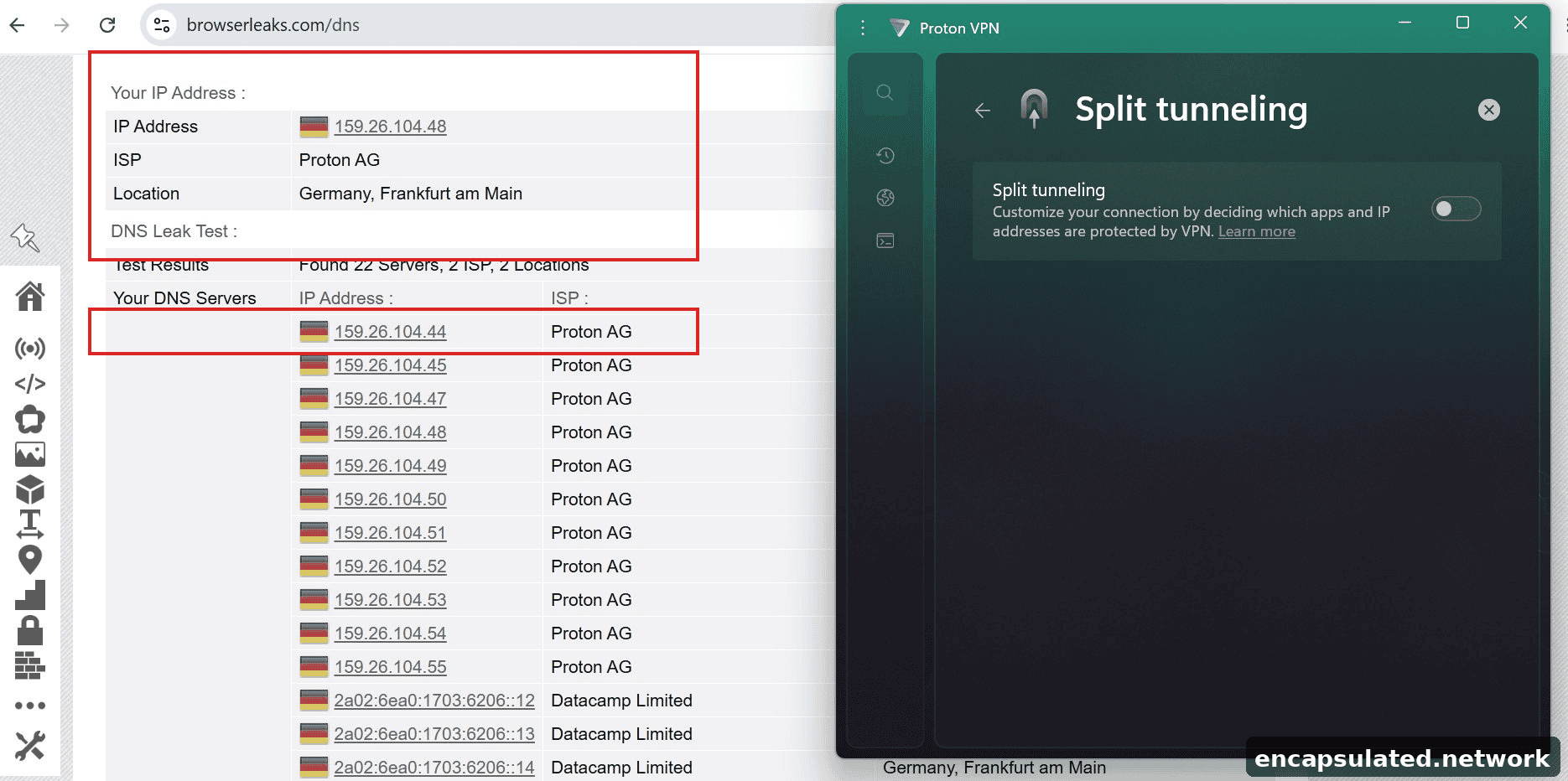

- Visit ipleak.net in a browser that is routed through the VPN — confirm it shows your VPN’s IP address, not your real one.
- Open an app that you have configured to bypass the VPN and check its reported IP address — confirm it shows your real IP.
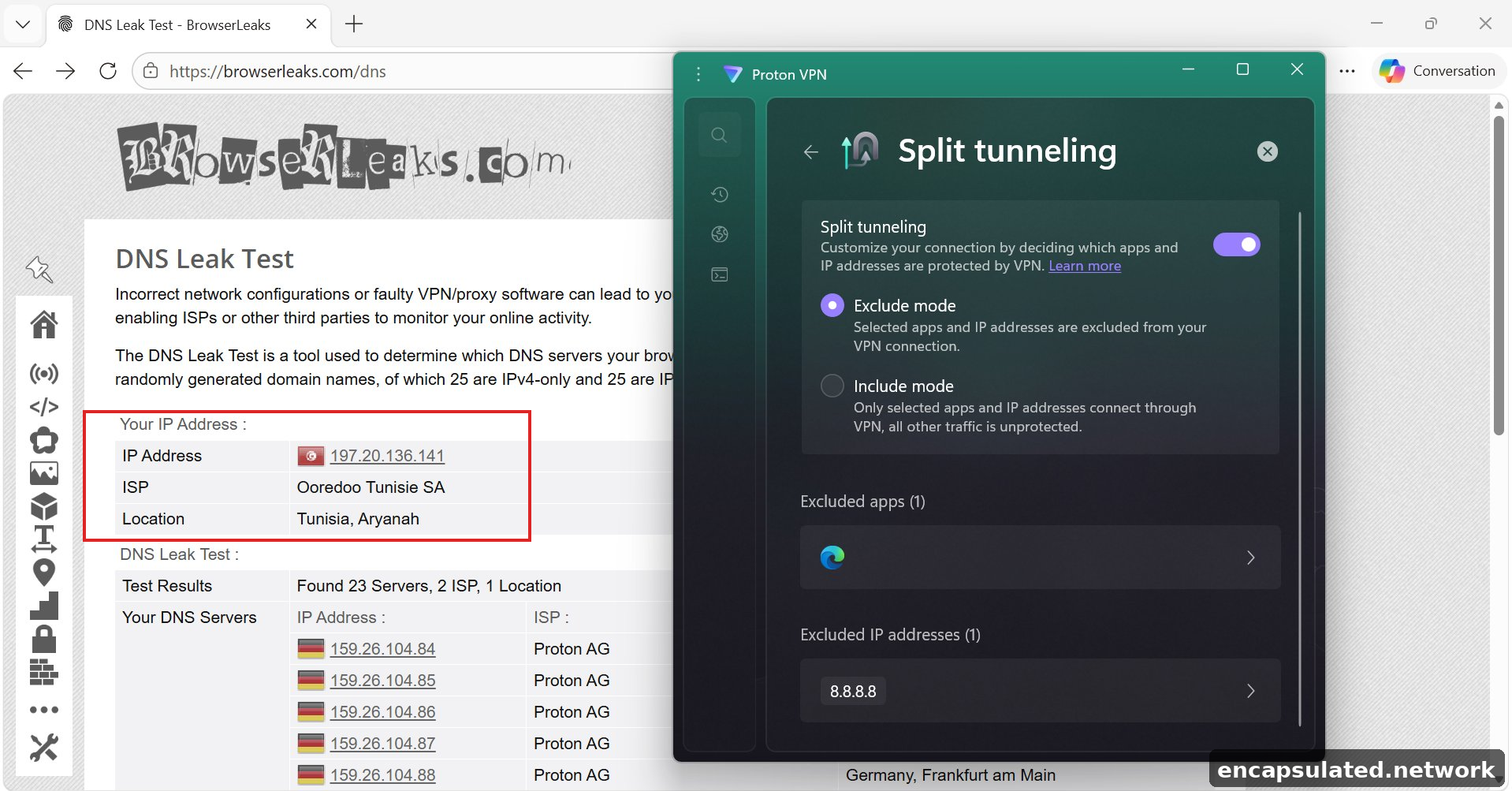
Microsoft Edge is in ProtonVPN’s exclusion list — and it shows exactly what that means: real Tunisian IP, Ooredoo Tunisie SA as the ISP, while the VPN stays connected and Chrome remains protected behind the German server. - If a bypassed app is showing the VPN IP, your routing rules are not applying correctly. If a tunnelled app is showing your real IP, you have a DNS or routing leak.
Frequently Asked Questions
Does split tunneling make my VPN faster?
Not exactly — it removes VPN overhead from apps routed outside the tunnel, but your tunnelled apps run exactly as before. The result can feel faster if you were previously routing high-bandwidth apps like streaming or gaming through the VPN unnecessarily.
Is split tunneling safe for banking?
Yes — and for banking specifically, it is often the better choice. Banks flag VPN IP addresses as fraud signals, so connecting with your real IP via split tunneling avoids blocked sessions or repeated verification prompts. Your banking traffic is still encrypted by your bank’s own HTTPS connection, which is the same protection you would have without any VPN at all. The risk is not exposing your banking traffic — it is accidentally routing other sensitive apps outside the tunnel when you did not intend to.
Is split tunneling the same as a kill switch?
No — they solve different problems. A kill switch cuts all internet access if the VPN connection drops unexpectedly, preventing any traffic from leaking on your real IP during a reconnection. Split tunneling intentionally keeps two connections alive at the same time: one through the VPN, one direct. A kill switch is about protecting against accidental exposure; split tunneling is about deliberate, controlled routing.
Can my ISP see split-tunneled traffic?
Yes. Any traffic you route outside the VPN tunnel is visible to your ISP in the same way it would be without a VPN. Your ISP can see which sites and services those apps are connecting to. They cannot see the encrypted contents of HTTPS traffic — your bank’s website, for example, is still end-to-end encrypted by the browser — but the connection itself and the domain names are visible.
Does split tunneling work on iPhone?
Not at the app level. Apple’s architecture blocks per-app VPN routing for all consumer apps on iPhone — Surfshark, ExpressVPN, and IPVanish offer website or domain-based exclusions as a partial workaround, while NordVPN and ProtonVPN offer nothing on iOS at all. For full app-based split tunneling, Android is the only viable mobile platform.
How do I turn on split tunneling?
Open your VPN app’s Settings and look for split tunneling — it may be labelled Bypasser, Per-App VPN, or App Exclusions depending on your provider. Enable it, choose Exclude mode (to bypass specific apps while protecting everything else) or Include mode (to tunnel only specific apps), add your apps or IP addresses, and save. The step-by-step procedure above includes a ProtonVPN worked example.
Is split tunneling good for streaming or torrenting?
Both, but in opposite directions. Streaming apps that need your real location belong outside the tunnel. Torrent clients belong inside it — excluding a P2P client for speed exposes your real IP to every peer in the swarm.
Does NordVPN have split tunneling? What about ExpressVPN?
NordVPN has no macOS or iOS support; split tunneling is Windows, Android, and Android TV only. ExpressVPN covers all major platforms including iOS, with macOS requiring the Qt website-download app rather than the App Store version. The provider table above covers seven providers in full.
The Bottom Line
Split tunneling is a deliberate routing decision. Used correctly, it solves real problems that full tunnel mode cannot: printers that disappear, banking apps that block you, video calls that lag, local services that need your real location.
The risk is not the feature itself — it is using it without being intentional about which apps you expose. Route sensitive apps outside the tunnel by accident, or forget what you configured six months ago, and you have created a privacy gap you did not mean to.
The rule of thumb: anything that genuinely needs your real IP address or local network access belongs outside the tunnel. Everything else stays inside it. Set it up deliberately, verify it with ipleak.net, and revisit the configuration if your app setup changes.
For traffic where routing through one server is not enough, the architectural move in the other direction is two-hop routing, a second server added to the path so that no single provider holds both the source IP and the destination.
Split tunneling gives you the privacy protection where it matters and the speed and compatibility where it does not — without having to choose between them.