Amazon Fire TV Sticks have run two distinct operating systems since late 2025. Fire OS — Android-based — powers most sticks currently in circulation. Vega OS — a newer, Linux-based platform developed by Amazon — ships on the Fire TV Stick 4K Select (2025) and the Fire TV Stick HD (2026), with Amazon having confirmed that all future Fire TV Sticks will follow. The setup method that works on a Fire OS device does not necessarily exist on a Vega OS device, and the reverse is also true.
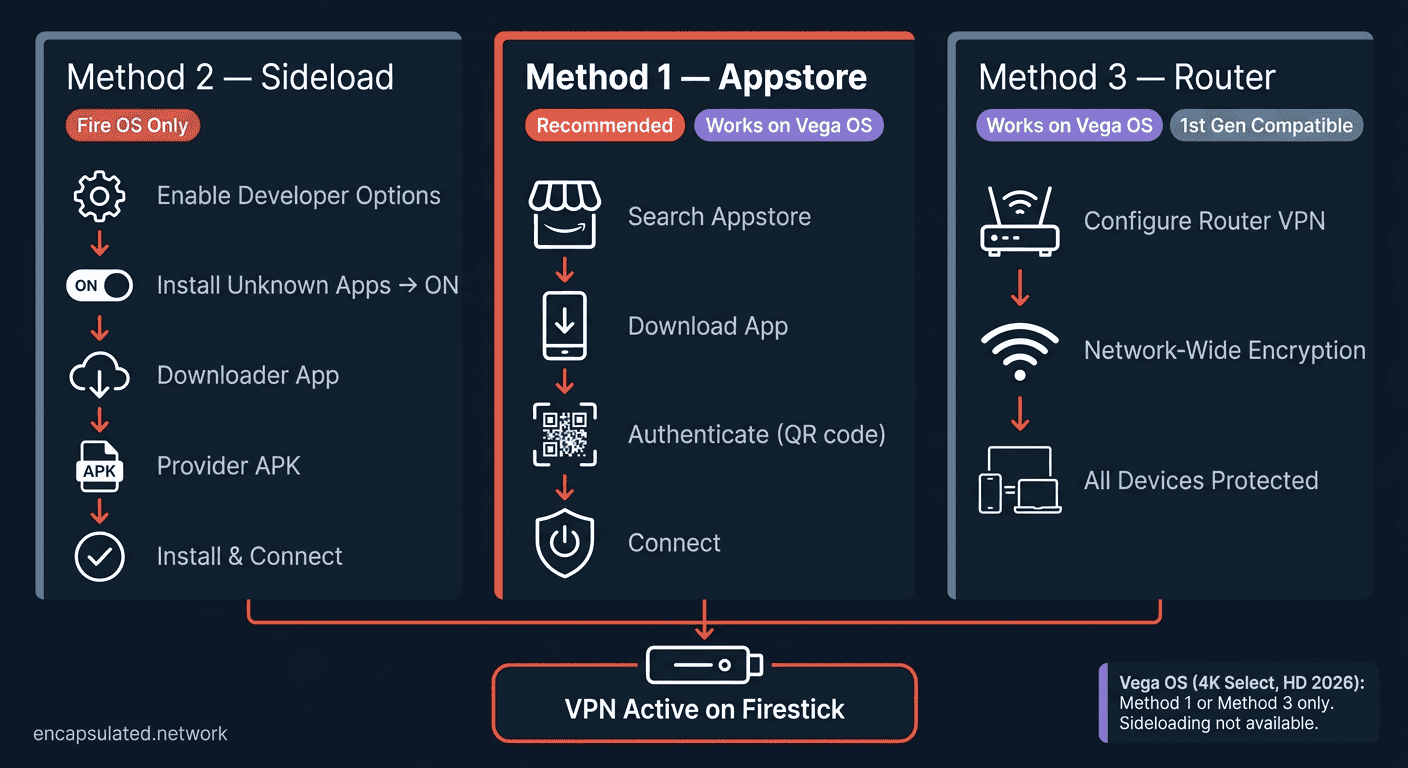
This guide covers three paths: Method 1 — Amazon Appstore (works on all models, including Vega OS), Method 2 — Sideload via Downloader (Fire OS only, not available on Vega OS), and Method 3 — Router workaround (works on all models, including Vega OS and 1st Gen hardware). Before any of those, Step 0 identifies which OS your device is running and which methods apply to you. If you skip it and follow the wrong method, you will waste significant time on steps that cannot work on your hardware.
If you are on an Android phone or tablet rather than a Fire TV device, this guide does not apply — see the Android VPN setup guide instead. If you are new to VPNs and want to understand what an encrypted tunnel actually does before configuring one, start with our guide to how VPNs work and return here. This guide assumes you already have a VPN subscription.
| Method 1 — Appstore | Method 2 — Sideload | Method 3 — Router | |
|---|---|---|---|
| Fire OS compatibility | ✅ All Fire OS models | ✅ Fire OS only | ✅ All models |
| Vega OS compatibility | ✅ If provider has Vega app | ❌ Not available | ✅ All models |
| Setup effort | Low | Medium | High — one-time |
| Provider availability | Most major providers | Any provider with an APK | Any provider |
| Kill switch type | App-level | App-level | Router-level |
| Best for | Most users | Mullvad, IVPN, providers not in Appstore | Vega OS users without a Vega app; 1st Gen hardware; whole-network coverage |
Step 0 — Identify Your Hardware and OS
Before following any method, confirm which operating system your Firestick is running. Navigate to Settings → My Fire TV → About and look at the Software Version field. Fire OS 7 or Fire OS 8 means your device is Android-based — all three methods are available to you. If you see Vega in the version string, your device runs Amazon’s newer Linux-based platform. Method 2 (sideloading) is not available on Vega OS devices. Go to Method 1 if your provider has a Vega-native app, or Method 3 if they do not.
| Model | Year | OS | Methods available |
|---|---|---|---|
| Fire TV Stick HD | 2026 | Vega OS | Method 1, Method 3 |
| Fire TV Stick 4K Select | 2025 | Vega OS | Method 1, Method 3 |
| Fire TV Stick 4K / 4K Plus (2nd gen, renamed 2025) | 2023 | Fire OS 8 | All three |
| Fire TV Stick 4K Max (2nd gen) | 2023 | Fire OS 8 | All three |
| Fire TV Stick HD with Alexa Voice Remote | 2024 | Fire OS 7 | All three |
| Fire TV Stick (3rd gen) | 2020 | Fire OS 7 | All three |
| Fire TV Stick Lite (1st gen) | 2020 | Fire OS 7 | All three |
Note — Fire TV Stick HD (2026): If your device is the 2026 Fire TV Stick HD, you are on Vega OS. It is the most affordable Firestick currently sold and is likely to be many readers’ first Vega device. The seven-click Developer Options path does not open sideloading on this model. Skip to Method 1 if your provider has a Vega-native app, or to Method 3 if they do not. Do not attempt Method 2.
and whether your provider is in the Appstore or not, one of these methods
will get a VPN running on your Firestick.
Method 1 — Install via Amazon Appstore
Works on all models, including Vega OS. Recommended for most users.
Finding your provider’s app
There are two ways to reach the Appstore listing. Via voice: press and hold the Alexa button on your remote and say your provider’s name — for example, “NordVPN” or “Surfshark” — then select the app from the results. Via manual search: from the Fire TV home screen, select Find → Search, use the on-screen keyboard to enter your provider’s name, and select the app from the results.
Installation steps
- Select Get or Download on the app’s Appstore page and wait for the download to complete.
- Select Open and sign in with your VPN account credentials.
- On your first connection, the system will display an Allow connection request dialog. This is expected — approve it. Without this approval, the VPN cannot manage your network connection.
- Select a server location and tap Connect. Confirm the VPN indicator appears in the top-right corner of the Fire TV home screen.
Authentication tip: Typing a full VPN password with a TV remote is slow. Most major providers generate a QR code in their mobile app or web dashboard that authenticates the Firestick directly. Open your provider’s app on your phone, navigate to account or device settings, and use the QR code to complete sign-in on the Firestick. This avoids the on-screen keyboard entirely and is the recommended approach.
Vega OS — provider availability
If you are on Vega OS (4K Select or HD 2026), not all providers in the Amazon Appstore have published a Vega-native app. Vega OS does not run Android APKs — apps must be built specifically for the Vega platform. The Appstore filters listings by device, so if your provider does not appear in a search on your device, it has not yet released a Vega-compatible version.
As of May 2026, verified provider status across both platforms:
| Provider | Fire OS Appstore | Vega OS App |
|---|---|---|
| NordVPN | ✅ Available | ✅ Available |
| Surfshark | ✅ Available | ✅ Available |
| IPVanish | ✅ Available | ✅ Available |
| ExpressVPN | ✅ Available | ❌ Not yet compatible (confirmed by ExpressVPN, May 2026) |
| CyberGhost | ✅ Available | ❌ Not yet compatible |
| ProtonVPN | ✅ Available | ❌ Not yet compatible |
| Private Internet Access | ✅ Available | ❌ Not yet compatible |
| Mullvad | ❌ Not in Appstore — sideload required (Fire OS only) | ❌ Not available |
| IVPN | ❌ Not in Appstore — OpenVPN for Android workaround (Fire OS only) | ❌ Not available |
Vega OS is a new and expanding platform — provider availability will change as developers release Vega-native builds. Verify your provider’s current status in the Amazon Appstore from your device before assuming the table above reflects their most recent release.
Note — Vega OS users without a provider app: If you are on a Vega OS device and your provider does not appear in the Vega column above, sideloading is not an option on your device. The router workaround (Method 3) is the alternative path. See that section for the setup approach.
Method 2 — Sideload via Downloader (Fire OS only)
Important: This method requires a device running Fire OS 7 or Fire OS 8. If you confirmed Vega OS in Step 0, this method is not available to you — skip to Method 3. Sideloading via the Downloader app is blocked on all Vega OS devices.
Use this method if your provider is not in the Amazon Appstore — primarily Mullvad and IVPN — or if you prefer to install directly from your provider’s own APK distribution.
Step 1 — Enable Developer Options
Navigate to Settings → My Fire TV → About. Highlight the device name at the top of the list — for example, Fire TV Stick 4K Max — and press the Select button seven times in quick succession. A brief confirmation message will appear on screen. Press Back. Developer Options is now visible as a new item in the My Fire TV menu.
Step 2 — Grant install permission to Downloader
Navigate to Settings → My Fire TV → Developer Options → Install Unknown Apps. Find Downloader in the list and toggle it to ON. This grants install permission specifically to the Downloader app — not globally to all applications. Each app that needs to install APKs requires its own toggle.
Step 3 — Install the Downloader app
If Downloader is not already installed: from the Fire TV home screen, search for Downloader in the Appstore and install Downloader by developer Elias Saba (AFTVnews). The current major version is 2.0, released March 5, 2026, which introduced a redesigned interface with a unified home screen and single address bar.
Step 4 — Download and install your provider’s APK
- Open Downloader. The address bar at the top of the home screen accepts full URLs, short codes, and search queries.
- Enter the direct APK download URL from your VPN provider’s official website. This URL must come from your provider’s own downloads or manual installation page — not from a third-party APK repository.
- Press Go. The APK will download to your device. When complete, select Install.
- After installation, Downloader will prompt you to delete the APK file. You can safely do so — the installed app will remain on your device.
- Open the newly installed VPN app, sign in with your account credentials, and connect.
APK architecture note: All current Fire TV Stick models run Fire OS in 32-bit mode, regardless of the underlying hardware’s 64-bit capability. If your provider offers separate APK builds rather than a single universal APK, download the armeabi-v7a (32-bit) build. Most major VPN providers ship universal APKs that handle this automatically — the architecture distinction matters primarily for smaller providers that publish separate builds. An incorrect architecture will typically produce an “App not installed” error.
Provider-specific sideload notes
Mullvad — Mullvad’s own documentation confirms the app is not available in the Amazon Appstore and provides a direct APK download URL. Navigate to mullvad.net, go to Download → Android, and copy the direct APK link. Mullvad requires Android 8 or higher and will not install on the original 2014 Fire TV Stick, which runs Android 5.1. Authentication uses your Mullvad account number rather than a username and password.
IVPN — IVPN’s support documentation notes that its app is not currently compatible with Amazon’s implementation of Android. For Fire OS devices, IVPN recommends installing OpenVPN for Android (the open-source client by Arne Schwabe, available in the Amazon Appstore) and importing a manual OpenVPN configuration file generated from the IVPN account portal. The IVPN knowledge base’s Fire TV entry documents the full configuration steps.
Security note: Only use APKs from your VPN provider’s official website. Third-party APK repositories can host versions that have been modified after the developer published them. If the URL does not come from a domain your provider owns, do not use it.
Keeping the app updated after sideload
Sideloaded apps do not receive automatic updates through the Amazon Appstore. When your provider releases a new version, you will need to sideload the updated APK manually using the same Downloader process. Check your provider’s release notes or changelog periodically — VPN app updates frequently include security patches and protocol improvements that matter for privacy.
Method 3 — Router Workaround
Works on all models, including Vega OS and the original 2014 Fire TV Stick.
A VPN configured at the router level protects every device on your network — including your Firestick — without requiring any app to be installed on the Firestick itself. The router handles all encryption. From the Firestick’s perspective, it simply has internet access with no app to configure, no connection dialog to approve, and no app-level kill switch to manage. There is no step where someone forgets to start the app. The protection is on at the infrastructure level.
There are two situations where this is the only practical path:
Vega OS devices without a provider app: If you are on a 4K Select or HD (2026) and your VPN provider has not yet released a Vega-native app, the router is the only encryption option available to you. Sideloading is not available on Vega OS.
Original 2014 Fire TV Stick: The original 2014 Fire TV Stick runs Fire OS 5, based on Android 5.1. Most current VPN apps require Android 8 or higher and will not install on this hardware. NordVPN’s own documentation explicitly states it does not support VPNs via their app. The router workaround provides the same protection without the compatibility constraint.
A secondary benefit that is easy to overlook: a router VPN eliminates the per-device CPU overhead of running a VPN app on the Firestick itself. Encryption is handled entirely by the router’s processor — for a device simultaneously decoding high-bitrate 4K streams, offloading encryption to a dedicated router is a meaningful advantage, particularly on older or more constrained hardware.
If you only want your Firestick routed through the VPN while other household devices connect normally — gaming consoles on a direct connection for lower latency, for example — most VPN-capable router firmware supports policy-based routing to achieve this. You specify which devices tunnel and which connect directly, at the network level rather than per device.
For complete setup instructions across Asus Merlin, GL.iNet, OpenWRT, and DD-WRT — including WireGuard client configuration, DNS leak prevention at the router level, IPv6 handling, kill switch, and per-device routing — see the router VPN setup guide.
Protocol Selection
If your provider’s app includes a protocol setting, WireGuard is the correct default for Firestick use. On a streaming device where the processor handles both 4K video decoding and VPN encryption simultaneously, WireGuard’s kernel-space efficiency and significantly lower CPU overhead make a meaningful difference compared to OpenVPN. This is the same reason WireGuard is preferred over OpenVPN on router hardware — constrained processing resources amplify the difference between the two approaches.
OpenVPN over TCP 443 is the appropriate fallback in two cases: your provider’s app does not offer WireGuard, or you are on a network that blocks UDP traffic and WireGuard connections are timing out. TCP 443 is the same port used by standard HTTPS web traffic — to most basic firewall rules, it is indistinguishable from a normal browsing connection.
If your provider app selects a protocol automatically, leave it on the default. Most apps default to WireGuard or a WireGuard-based equivalent and handle server selection and fallback without manual intervention. For a full technical comparison of the two protocols, including throughput data on constrained hardware, see the WireGuard vs OpenVPN guide.
Split tunneling
Most major VPN apps for Fire TV include a split tunneling feature — typically labelled “split tunneling,” “per-app VPN,” or “app exclusions” in the app’s settings. This allows you to route specific apps outside the VPN tunnel while all other traffic remains inside it. A practical Firestick use case: routing a local media server app using your real network address while all streaming apps route through the VPN. Look for this option in your provider app’s Advanced or Connection settings. For the conceptual background and privacy trade-offs, see the split tunneling guide.
Security Hardening
Getting a VPN connected is step one. These three settings determine whether it actually protects you consistently.
Kill switch — app-level only
Fire OS does not expose Android’s system-level VPN kill switch — the “Block connections without VPN” toggle found in standard Android’s Settings → Network menu. That system control does not exist in Fire OS. Kill switch protection on Firestick is entirely app-level: your VPN app must include its own kill switch feature, and you must enable it within the app’s settings. If the VPN app crashes or is terminated by the system, there is no system-level fallback that prevents your traffic from routing over your real IP address.
Look for a kill switch, network lock, or internet kill switch toggle in your provider app’s settings and enable it before relying on the connection for sensitive traffic. The exact label varies by provider — check under Connection, Advanced, or Security settings. Enabling it once is sufficient; most apps persist this setting across sessions.
One important limitation: unlike standard Android, Fire OS does not allow a VPN app to restart itself automatically after a system-forced termination. If the OS terminates the VPN app in the background under memory pressure, the kill switch stops working at the same time the app does, because the kill switch is a feature of the app and not of the platform. This is a meaningful architectural difference compared to the system-level Lockdown Mode available on standard Android — covered in the Android VPN setup guide. If continuous kill switch coverage is a hard requirement, the router workaround provides a more reliable implementation — see the kill switch section of the router VPN setup guide.
Some providers ship a standalone companion app to address this. IPVanish distributes a separate Fire TV Kill Switch app specifically because Fire OS does not provide a native VPN lockdown mechanism — note that IPVanish’s own support documentation states this companion app is not supported on Fire TV Stick Gen 2 and older hardware. If your provider offers such a companion app, installing it on a supported device provides more consistent coverage than relying solely on the toggle within the main VPN app. For a full explanation of how VPN kill switches work and how to test that yours is functioning correctly, see the VPN kill switch guide.
DNS leak prevention
Fire OS does not expose a Private DNS (DNS-over-TLS) setting through its settings menu. The system-level path available on standard Android — Settings → Network → Private DNS — does not exist as a user-facing option in Fire OS. There is no equivalent path to check or modify on any current Firestick model.
The correct approach is to ensure your VPN app routes DNS through the encrypted tunnel by default. Most reputable providers do this automatically. To confirm: open your provider app’s settings and look for a DNS leak protection, custom DNS, or VPN DNS option and verify it is enabled. Then run the verification check in the next section to confirm DNS queries are not reaching your ISP’s resolvers.
For background on how DNS leaks occur, what they expose to your ISP, and how to interpret leak test results, see the DNS leak guide.
IPv6
Most home routers do not assign IPv6 addresses to Fire TV devices by default, but this assumption should always be verified rather than trusted. The verification step below checks for IPv6 leaks automatically. If a leak is detected, the fix is either your provider app’s IPv6 leak protection toggle — check under Advanced or Connection settings — or disabling IPv6 on your router’s WAN interface. See the router VPN setup guide for the per-firmware steps on Asus Merlin, GL.iNet, OpenWRT, and DD-WRT.
Verification
Once connected, take two minutes to confirm the VPN is working correctly. Open the Silk browser (built-in on all Firestick models) and navigate to ipleak.net. With the VPN connected, check three things:
- IP address — the address shown should match your VPN server’s location, not your home ISP’s address or your real location.
- DNS servers — the DNS servers listed should belong to your VPN provider, not your ISP. If your ISP’s DNS resolvers appear here, you have a DNS leak — return to the DNS section above.
- IPv6 — the IPv6 section should show no detected address, or your VPN server’s IPv6 address. If your real IPv6 address appears, see the IPv6 section above.
If ipleak.net renders slowly or incompletely in Silk: run the same check from a phone or laptop connected to the same Wi-Fi network, with the VPN still active on your Firestick. If that second device shows your VPN server’s IP and your provider’s DNS, the Firestick’s VPN is routing traffic correctly. The Firestick itself does not need to be the device running the test — it needs to be the device with the active VPN connection.
Troubleshooting
| Problem | Likely cause | Fix |
|---|---|---|
| Provider app not found in Appstore | Provider not listed on Fire OS; or Vega OS device with no Vega-native app yet | Check provider’s website — use Downloader sideload (Fire OS) or router workaround (Vega OS) |
| Developer Options not appearing after seven-click | Device is running Vega OS; the seven-click path does not open sideloading on Vega devices | Confirm OS at Settings → My Fire TV → About. Sideloading is not available on Vega OS — use Method 1 or Method 3 |
| Downloader cannot reach the APK URL | URL typo, or provider has updated their download link | Re-check the provider’s official downloads page and copy the current URL |
| VPN connects but IP address is unchanged at ipleak.net | App-level issue or stale connection state | Force Stop the app via Settings → Applications → Manage Installed Applications → [app] → Force Stop, then reopen and reconnect |
| Streaming service shows “not available in your region” despite VPN being connected | Service blocking the VPN exit node’s IP address | Switch to a different server location — this is provider- and service-dependent and changes frequently |
| Sideloaded app shows “App not installed” or fails to install | APK architecture mismatch — arm64-v8a build on a 32-bit device | Download the 32-bit (armeabi-v7a) build from your provider’s site if separate builds are offered; all current Firestick models run Fire OS in 32-bit mode |
| DNS leak detected at ipleak.net | VPN app not routing DNS through the tunnel | Enable DNS leak protection or custom DNS in your VPN app’s settings — most providers offer this under Advanced or Connection settings |
| Firestick unstable, rebooting, or VPN cutting out under load | Insufficient power from TV’s USB port — typical TV USB ports supply 500 mA, below the ~1 A the Firestick needs under combined 4K decode and VPN encryption load | Switch to the official Amazon power adapter (5.25 V / 1 A). Note: the Fire TV Stick HD (2026) is specifically designed for TV USB-C power and is the exception to this rule |
| VPN connection drops and does not automatically reconnect | Auto-reconnect not configured in the provider app | Enable the auto-reconnect, always-on, or persistent connection setting within your VPN app’s settings menu |
| VPN app hangs and stops responding | Stale connection state — app has not cleanly handled a reconnect cycle | Force Stop via Settings → Applications → Manage Installed Applications → [VPN app] → Force Stop, then reopen |
Frequently Asked Questions
Does a VPN work on all Fire TV Stick models?
A VPN app from the Amazon Appstore works on all current Fire OS models and on Vega OS models where the provider has published a Vega-native build. As of May 2026, NordVPN, Surfshark, and IPVanish have Vega-compatible apps; several major providers including ExpressVPN do not yet. The original 2014 Fire TV Stick runs Fire OS 5 (Android 5.1) — below the minimum version required by most current VPN apps. NordVPN’s own documentation explicitly states it does not support VPNs via their app. For that hardware, the router workaround is the only practical option.
What is Vega OS and can I use a VPN on it?
Vega OS is Amazon’s newer Linux-based operating system for Fire TV, introduced in late 2025. It ships on the Fire TV Stick 4K Select (2025) and the Fire TV Stick HD (2026), and Amazon has stated that all future Fire TV Sticks will run it. It is not Android-based — Android APKs do not run on Vega OS, and apps must be built natively for the platform. VPN use on Vega OS requires a provider that has published a Vega-native app in the Amazon Appstore. As of May 2026, NordVPN, Surfshark, and IPVanish have done so. If your provider has not yet released a Vega app, the router workaround is the alternative path.
Can I use a free VPN on a Firestick?
A free tier is available from some providers — ProtonVPN, for example, offers a free plan with no data cap, and its Fire OS app is available in the Amazon Appstore. The considerations for free VPNs on Firestick are the same as on any platform: free tiers typically offer fewer server locations, higher server load, and in some cases no kill switch in the app. VPN services that are entirely free with no paid tier should be approached with significant caution. The infrastructure costs of operating a VPN network are real, and a service with no visible revenue model is sustaining itself through some other means — frequently the collection and sale of user data, which is the opposite of the protection a VPN is supposed to provide.
Will a VPN slow down 4K streaming on Firestick?
It depends primarily on server selection and your provider’s infrastructure. A nearby, lightly loaded server on a provider with strong throughput capacity will have minimal visible impact on 4K streams. A distant or overloaded server will produce buffering. Using WireGuard — where the provider app offers it — reduces the CPU overhead on the Firestick’s processor compared to OpenVPN, which matters on a device simultaneously handling 4K video decoding. If you experience buffering specifically after enabling a VPN, try a server in a closer geographic location before concluding that VPN encryption itself is the cause.
What if my VPN provider isn’t in the Amazon Appstore?
Mullvad and IVPN are the two most common examples — neither publishes a listing in the Amazon Appstore. Mullvad’s own documentation confirms this and directs users to the Downloader sideload method. IVPN notes that its app is not compatible with Amazon’s Android implementation and directs Fire OS users to install OpenVPN for Android as a workaround. On Fire OS devices, Method 2 (sideloading via Downloader) handles both cases. On Vega OS devices, sideloading is not available — the router workaround is the only path for providers not in the Vega Appstore.
Is sideloading a VPN onto a Firestick safe?
Sideloading is safe when the APK comes directly from your VPN provider’s official website. The risk in sideloading is not the process itself — it is the APK source. Third-party APK repositories can host modified or malicious versions of apps that have been tampered with after the developer published them. Downloading the APK URL directly from your provider’s own downloads page, entering that URL into Downloader, and installing from that source eliminates the third-party risk. Do not use any APK mirror site — only the provider’s own URL.
Do I need to keep the VPN connected all the time on Firestick?
It depends on your reason for using one. For general streaming privacy and ISP-level protection, keeping the VPN connected during use is the straightforward approach — the performance impact on a current device with a well-chosen server location is minimal. Unlike standard Android, Fire OS does not expose an always-on VPN system toggle. Connection management is handled entirely through your provider app — typically via an auto-reconnect or persistent connection setting in the app itself. Enable that setting if your use case requires continuous protection, so the app reconnects automatically after a dropout rather than leaving your traffic exposed until you manually reconnect.