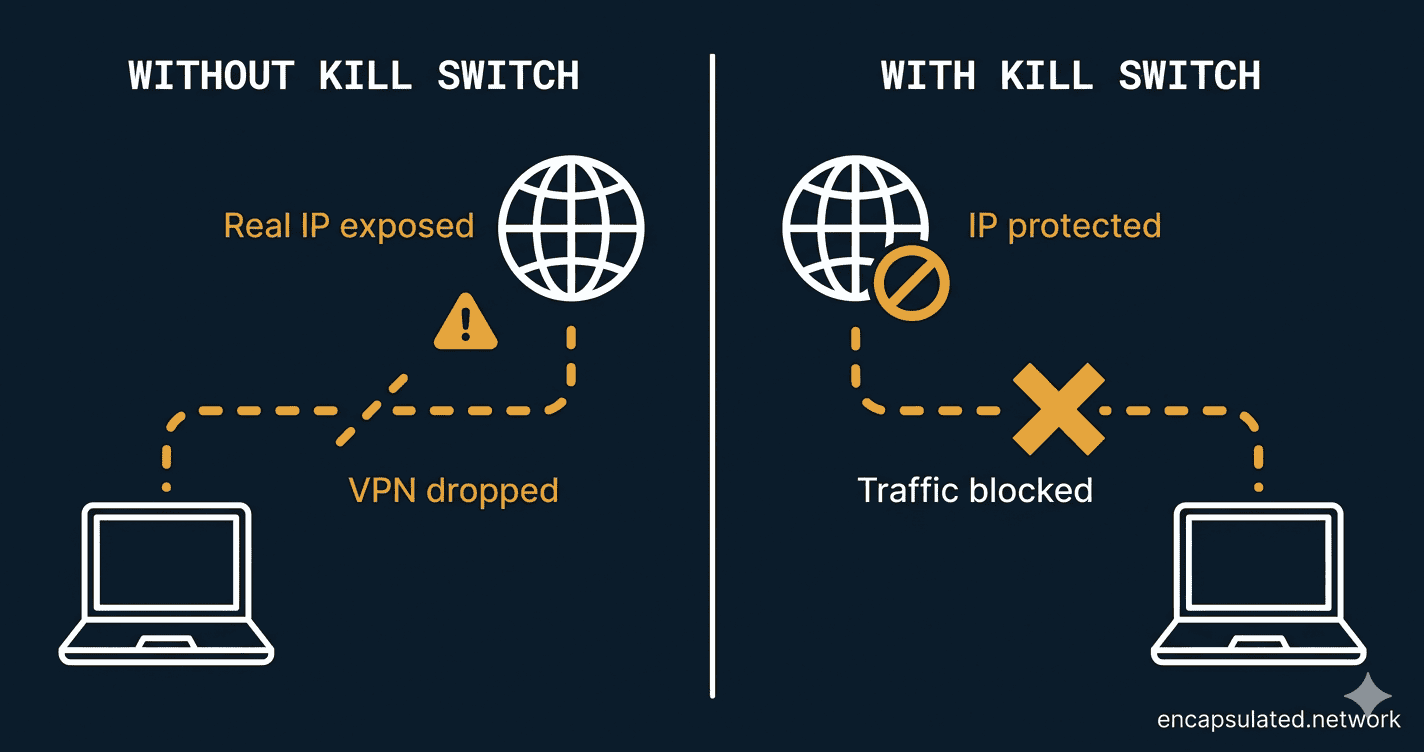
A VPN kill switch is a setting that blocks your device’s internet traffic when the VPN connection drops, so nothing is sent outside the encrypted tunnel while the VPN reconnects. Many VPN apps include one, and Android has its own version built into the system.
Without a kill switch, your apps keep working over your normal internet connection during the drop, and websites and other services see your real IP address until the VPN connection is back. With one, that traffic is blocked instead.
TL;DR
- Kill switches differ in what they block and when. A system-level one blocks the whole device; an app-level one blocks only the apps you choose. A standard one acts only when the VPN drops unexpectedly, while a stricter always-on mode blocks whenever the VPN is off, including after you disconnect it yourself.
- Firewall-based kill switches use the operating system’s firewall so that traffic can only leave through the VPN, which leaves no gap. Reactive ones watch the connection and block traffic after they notice a drop, which leaves a short gap.
- Leave your kill switch on, especially on public Wi-Fi, when torrenting, or whenever your real IP address must stay hidden. Some apps turn it on by default and others do not, so check your settings.
- Test your kill switch by making the connection fail for real: turn Wi-Fi off, then check your IP address the moment it comes back on. Pressing Disconnect proves nothing for a standard kill switch, which is designed to ignore a disconnect you choose.
- A kill switch does not catch everything. A computer can send traffic before the VPN has loaded its blocking rules, Android lets system apps bypass the VPN, iPhones keep some system traffic outside the tunnel, and an attack called TunnelVision can reroute traffic without the VPN ever dropping.
Why does a VPN need a kill switch?
A VPN needs a kill switch because VPN connections drop, and during a drop your device sends traffic over its normal connection unless that traffic is blocked.
Connections drop for ordinary reasons:
- Changing networks. Moving from Wi-Fi to mobile data, or from one Wi-Fi network to another, breaks the connection, and the VPN has to reconnect over the new network.
- Server problems. The VPN server can become unavailable, for example when the provider takes it offline for maintenance.
- Security software. A firewall or antivirus program on the device can block the VPN app’s connection.
- Timeouts. If the VPN app hears nothing from the server for a set time, it treats the connection as lost and reconnects.
How does a VPN kill switch work?
A kill switch stops traffic from leaving the device unless it goes through the VPN, and lifts the block once the VPN is connected again. It makes the VPN fail closed: when the VPN fails, traffic stops instead of flowing unprotected. There are two ways to build one.
- Firewall-based. Rules in the operating system’s firewall allow traffic only through the VPN’s network interface, apart from the VPN’s own connection to its server and some local network traffic, such as DHCP. When the VPN drops, there is no permitted route left, so traffic is blocked at once.
- Reactive. The VPN app watches the connection and, when it sees a drop, cuts internet access. There is a short gap between the drop and the block, and an app that watches only the IPv4 connection can miss traffic the device sends over IPv6.
A reactive kill switch works in four stages: it watches the connection, detects a drop, blocks traffic and lifts the block once the VPN reconnects. A firewall-based one has nothing to detect, because traffic can only leave through the VPN.
Each operating system provides its own tools for this:
| Platform | What kill switches use |
|---|---|
| Windows | Windows Filtering Platform (WFP), the filtering system the Windows firewall is built on |
| macOS | The PF firewall, or Apple’s includeAllNetworks option, which a VPN app can switch on to send most traffic through the VPN (macOS 10.15 and later) |
| Linux | nftables or iptables firewall rules |
| Android | Android’s VpnService API, plus the system settings Always-on VPN and Block connections without VPN |
| iPhone and iPad | Apple’s includeAllNetworks option, which a VPN app switches on to send most traffic through the tunnel (iOS 14 and later) |
Kill switch vs auto-reconnect, Always-on VPN and leak protection
A kill switch is often confused with three neighbouring features. Each covers a different part of the problem, and they work best together.
| Feature | What it does | How it differs from a kill switch |
|---|---|---|
| Auto-reconnect | Brings the VPN connection back after a drop | Does not stop traffic during the drop; the kill switch does |
| Always-on VPN (Android) | Keeps the VPN running and starts it automatically | Does not block traffic on its own; the separate Block connections without VPN setting does |
| DNS and IPv6 leak protection | Keeps DNS requests inside the tunnel and stops IPv6 traffic leaving outside it while the VPN is connected | Covers a different moment: leak protection works while the VPN is up, the kill switch when it drops. Some firewall-based kill switches also block DNS and IPv6 leaks while the VPN is up. |
WebRTC leaks are different: they come from the browser, not the network, so they need their own check. For how each leak works and how to test for it, see DNS leaks and WebRTC leaks.
Types of VPN kill switch
Besides being firewall-based or reactive, kill switches differ in two ways: what they block, and when they block it.
A system-level kill switch blocks all internet traffic on the device. An app-level one either closes the apps you choose or cuts their connection when the VPN drops, while other apps stay online. It suits someone who wants to protect one app, such as a torrent client, without losing internet access everywhere else.
When they block depends on the mode:
| Mode | When it blocks | If you disconnect yourself |
|---|---|---|
| Standard | After an unexpected drop | Your normal connection returns |
| Always-on mode | Whenever the VPN is not connected | Traffic stays blocked until you reconnect or turn the mode off |
Not every app uses the name kill switch: apps also call it Internet Kill Switch, Firewall or VPN bypass prevention, and call their stricter modes strict, advanced or lockdown. Some always-on modes also keep blocking while the device starts up, before the VPN app has connected.
Should you turn your kill switch on?
Most people should leave their VPN kill switch on. The cost is that your connection pauses each time the VPN reconnects; the benefit is that your apps cannot fall back to your normal connection during that pause. Some apps turn it on by default and others leave it off, so check your app’s settings.
When it matters most
- Public Wi-Fi. On a hotel, airport or café network, a drop sends your traffic outside the VPN’s encryption, on a network you do not control.
- Torrenting. Other peers in a BitTorrent swarm can see the IP address you connect from, because the tracker gives clients a list of peers’ addresses. If the VPN drops and the torrent client carries on, peers see your real address. Some torrent clients, such as qBittorrent, can also be bound to the VPN’s network interface, which helps prevent IP leaks. Blocking traffic during drops matters more if you use VPN port forwarding, which lets other peers connect to you directly.
- High-risk work. If a single exposure of your IP address has legal or safety consequences, use an always-on mode and a no-log VPN. A kill switch protects your IP address during drops; it does not protect you from the VPN provider. Some gaps remain even then; see When a kill switch is not enough below.
- Where VPN use draws attention. Standard VPN protocols are relatively easy to recognise on a network, so a drop does not give away anything new about your VPN use. A drop reveals your normal traffic instead: the sites you visit and your real IP address go out over your regular connection, where your internet provider can see them.
When you might turn it off
- Streaming at home. If you use a VPN only to stream on a stable home connection, a kill switch interrupts playback each time the VPN reconnects. Turning it off trades those interruptions for brief exposure of your real IP address.
- Signing in to Windows. An always-on mode can stop you signing in to Windows with a Microsoft account after events such as a password change or a major update, because that sign-in needs an internet connection. A backup local Windows account, created in advance so you can sign in without an internet connection, gets round this.
What to look for in a VPN kill switch
Before you rely on a kill switch, check five things in your app’s settings or documentation:
- Firewall-based or reactive? A firewall-based design leaves no gap when the VPN drops. If the documentation does not say, the tests below show whether yours leaks.
- Is there an always-on mode, and does it cover start-up? This matters if you need protection after a manual disconnect or while the device starts.
- Does it keep blocking if the app closes or crashes? A firewall-based one can, because the rules belong to the operating system, but some apps remove their rules when you close the app. Check the documentation, because closing the app is not a reliable test.
- Is it on, and on every device? Some apps ship with it off, and some have none on certain devices.
- Does it work with split tunneling? If you exclude apps from the VPN with split tunneling, check how the two settings interact.
How to turn a VPN kill switch on or off
On most devices the kill switch is a setting in the VPN app. Android is the exception: it also has its own, in the system settings.
In your VPN app
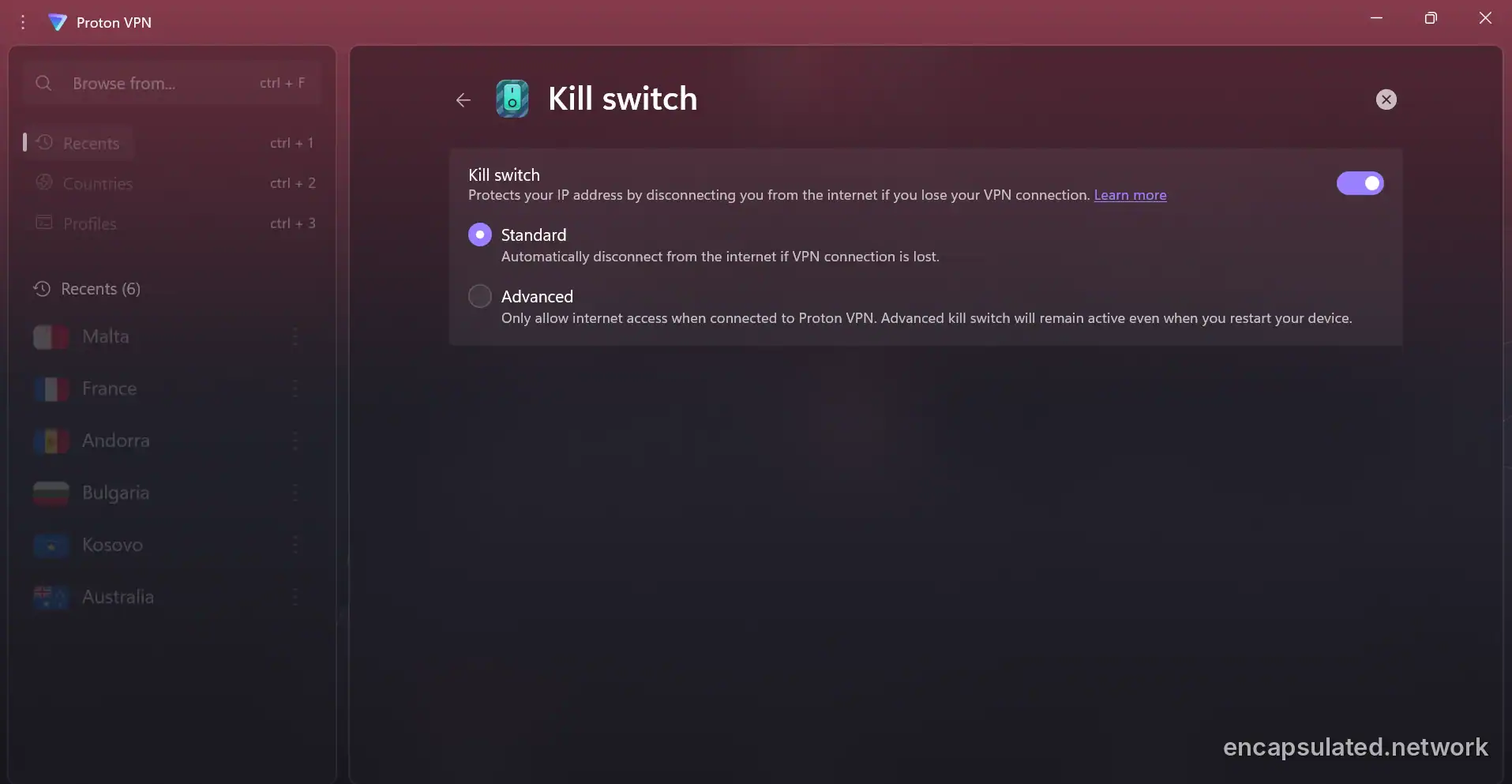
Open the app’s settings and look for kill switch, or one of the other names apps use for it. Some apps offer a stricter always-on mode alongside the standard setting. You turn it off in the same place; if an always-on mode is also on, turn that off as well.
On Android
Android can block traffic that does not go through your VPN app, independently of the app’s own kill switch, although system apps and some system traffic are exempt. On stock Android:
- Open Settings and tap Network & internet, then VPN.
- Tap the settings (gear) icon next to your VPN app.
- Turn on Always-on VPN.
- Turn on Block connections without VPN.
Despite its name, Always-on VPN on its own is not an always-on mode: it keeps the VPN running, and Block connections without VPN does the blocking. That setting can be turned on only once Always-on VPN is on. On Samsung and other phones the path to these settings differs; search Settings for “VPN”. Always-on VPN has been part of Android since version 7.0 and works with VPN apps that support it. To turn Android’s kill switch off, open the same menu and switch off Block connections without VPN, and Always-on VPN too if you no longer want the VPN to start on its own. For the full setup, see the Android VPN setup guide.

On iPhone and iPad
There is no system-wide kill switch setting for home users. The protection comes from a setting in the VPN app, which asks iOS to send traffic through the tunnel.
Organisations can force an always-on VPN on their devices through device management, in which case the organisation decides whether users can turn it off. See remote access VPNs for how organisations run VPNs for staff.
On Windows and Mac
Neither has a kill switch setting for home users; it comes from the VPN app. Organisations can configure Windows to allow traffic only over the VPN, using a LockDown VPN profile.
On a Chromebook
On a Chromebook, Proton VPN says the always-on and kill switch settings in its Android app do not stay on after a restart, because of how ChromeOS handles Android apps. Other Android VPN apps may behave the same way, so check those settings after each restart. On a managed Chromebook, the administrator can set an Android VPN app to always on, and all user traffic is then blocked if the VPN fails.
On Fire TV
Not every VPN app offers a kill switch on a Fire TV Stick. Some newer Fire TV devices, starting with the Fire TV Stick 4K Select, run Amazon’s Vega OS instead of the Android-based Fire OS, and VPN apps for Vega OS may offer only basic features, so check that the app has one. For installation steps, see the Firestick VPN setup guide.
On a router
A kill switch on the router protects every device that uses the router’s VPN connection, including devices that cannot run a VPN app. Some router firmware, such as GL.iNet’s, has an option that cuts internet access for those devices when the VPN is down. The VPN router setup guide covers the steps for each firmware.
If your internet stays blocked with the VPN off
An always-on mode blocks the internet whenever the VPN is off, so open the app and either reconnect or turn the mode off. On Android, also check Block connections without VPN in the system VPN settings. Turn the kill switch off before uninstalling a VPN app. If the block remains after uninstalling, reinstall the app, restart the device, turn the kill switch off, and then remove the app again.
How to test your VPN kill switch
Make the VPN connection fail for real and watch whether your real IP address appears. Each test checks one kind of failure, so run more than one.
Before you start
Pressing Disconnect does not test a standard kill switch, which is designed to stay out of the way when you disconnect on purpose: your real IP address comes back whether or not it works. Disconnect is only a valid test for an always-on mode.
Closing the app is not a reliable test either. Many VPN apps run the tunnel and the firewall rules in a background service: in some apps the service keeps running after you close the window, and in others closing the window stops it. Either way, you are not testing a real drop.
Test 1: Drop the network
- With the VPN off, open ipv4.icanhazip.com, which shows your public IPv4 address and nothing else. Note the address.
- Turn the kill switch on, connect to the VPN and reload the page. It should now show the VPN server’s address.
- Turn Wi-Fi off and back on, unplug and replug the Ethernet cable, or restart the router. Reload the page as soon as the network returns, and keep reloading until the VPN has reconnected.
The kill switch passes if you see only errors or the VPN’s address. It fails if your real address appears at any point. A leak can only show in the moment after the network returns and before the VPN reconnects, and a short gap can fall between two reloads, so a pass is good evidence, not proof. The ipv4.icanhazip.com page also checks only your IPv4 address, so it cannot reveal an IPv6 leak. Test 4 records every packet, IPv6 included.

Test 2: Switch servers
Repeat Test 1 while you switch from one VPN server to another. At least one provider documents a short gap during the change.
Test 3: Restart the device
This test is for always-on modes. Restart the device and, before the VPN app connects, try to open a website. If the mode covers start-up, nothing should load until the VPN is connected. A browser check shows only the moment you make it, though, not what was sent in the seconds before you could open a browser.
Test 4: Watch the traffic with Wireshark
Capture traffic with Wireshark on your Wi-Fi or Ethernet interface, using a capture filter that hides traffic to the VPN server:
not host <VPN server IP>If your app does not show the server’s IP address, capture for a few seconds while connected without a filter: the server is the address that receives almost all the traffic.
Then force a drop or restart the device. Anything that appears, apart from local network traffic such as DHCP, ARP and device-name broadcasts, left the device outside the VPN, including DNS requests sent to your router. If the VPN reconnects to a different server, its encrypted traffic to that new address appears too, and the VPN app may contact the provider’s servers while it reconnects; neither is a leak.
What these tests do not show
An IP check does not show where your DNS requests go, or whether your browser reveals your address through WebRTC. Test those separately with a DNS leak test and a WebRTC leak test.
If your kill switch fails a test
Check that the setting is on, and turn on the stricter always-on mode if your app has one. On Android, also turn on Block connections without VPN. Then check the app’s documentation: a reactive kill switch leaves a short gap by design, while a firewall-based one should show none. If your real address still appears, report the test and what you saw to the provider.
When a kill switch is not enough
A kill switch covers the moment the VPN drops. Traffic can still leave outside the VPN while the device starts up, through exceptions built into Android and iOS, and through attacks that reroute traffic while the VPN stays connected.
At start-up
When a computer starts, the network can come up before the VPN app has loaded its blocking rules. Some always-on modes on Windows and Linux keep their rules in place through a restart, so traffic stays blocked until the VPN connects. macOS can be harder: Mullvad, for example, documents that its Mac app can leak for a short time after start-up, even with auto-connect on, because macOS does not let it start its service before other programs, and Mullvad knows of no fix it can add to the app.
On Android
Block connections without VPN does not block everything. Android’s developer documentation states that system apps can always bypass the VPN, and other gaps have been found:
- Connectivity checks. Each time Android joins a Wi-Fi network, it checks for internet access outside the VPN. Mullvad reported this in 2022 and, in October 2026, still lists these checks as traffic Android exempts from the VPN.
- Reconnections. Traffic can leak briefly while a VPN app reconnects or after it is force-stopped.
- Two 2026 flaws. In April and July 2026, two researchers published separate ways for a malicious app to send traffic outside the VPN and reveal the device’s real IP address, even with Block connections without VPN on: a bug in Android 16 and later, and the misuse of a Wi-Fi hardware feature that keeps network connections alive. According to the researchers, Google closed the first report as “Won’t Fix (Infeasible)” and marked the second report as a duplicate of an existing issue. GrapheneOS, an alternative Android operating system, patched the first in May 2026 and disabled the hardware feature for ordinary apps in October 2026. Both flaws need a malicious app already installed on the phone, so they are a reason to be careful about which apps you install.
On iPhone and iPad
The iOS option that VPN apps use for their kill switch, includeAllNetworks, sends most traffic through the tunnel, not all of it. With it on, iOS drops traffic while the VPN is not connected, for example while it reconnects after you move from Wi-Fi to mobile data. But Apple always keeps some traffic outside the tunnel:
- local network control traffic, such as DHCP;
- captive portal sign-in pages on Wi-Fi hotspots;
- cellular-only services, such as VoLTE calls;
- communication with a paired device, such as an Apple Watch.
By default, iOS also leaves local network traffic (such as AirPlay and AirDrop), cellular services (such as Wi-Fi Calling and SMS) and Apple push notifications outside the tunnel unless the VPN app includes them. VPN providers also report that some Apple DNS requests bypass the tunnel with the kill switch on.
In 2023 IVPN removed the kill switch from its iOS app for iOS 16 and later, after finding that traffic to Apple services could bypass the tunnel and reveal the user’s IP address to Apple. As of its June 2026 release, the feature had not returned. There is no public evidence that Apple has fixed the problem. On an iPhone or iPad, treat a kill switch as partial protection, and test it.
When the VPN never drops: TunnelVision
TunnelVision (CVE-2024-3661, published in May 2024) lets an attacker on the same local network use a DHCP feature, option 121, to add routes that send traffic around the VPN tunnel. The VPN stays connected, so a reactive kill switch never triggers. A firewall-based kill switch blocks the rerouted traffic, though those connections then stop working, and the attacker can still work out where some of that traffic was going. Android is not affected, because it does not support option 121.
Kill switch and split tunneling
Whether a kill switch works with split tunneling depends on the VPN app. Split tunneling sends chosen apps outside the VPN on purpose. Some VPN apps keep those excluded apps online while the kill switch protects everything else; others do not let the two work together on most platforms. Check your app’s documentation before using both.
Building your own kill switch on Linux
On Linux you can build one yourself with firewall rules. For WireGuard, the wg-quick manual gives an example for a configuration that sends all traffic through the tunnel: add these two lines to the [Interface] section of the configuration file.
PostUp = iptables -I OUTPUT ! -o %i -m mark ! --mark $(wg show %i fwmark) -m addrtype ! --dst-type LOCAL -j REJECT
PreDown = iptables -D OUTPUT ! -o %i -m mark ! --mark $(wg show %i fwmark) -m addrtype ! --dst-type LOCAL -j REJECT
The first line rejects outgoing traffic unless it goes through the WireGuard interface or is WireGuard’s own encrypted traffic to the server, which wg-quick marks (the fwmark) so the rule lets it pass; the second removes the rule when the interface goes down. Most DHCP traffic still gets through, and the block ends when you bring the interface down. These rules cover IPv4 only: if your network uses IPv6, add matching ip6tables lines, or IPv6 traffic is not blocked.
OpenVPN‘s open-source client has no kill switch option, so blocking traffic when OpenVPN is not running is left to firewall rules you write yourself. The Linux VPN setup guide has complete rule sets.
Frequently asked questions
Should you turn on a VPN kill switch?
Yes, for most people. The trade-off is a brief interruption each time the VPN reconnects, during which your apps are blocked from using your regular connection. It matters most on public Wi-Fi, for torrenting and whenever exposing your real IP address carries a risk. Streaming at home is one case where some people turn it off.
Do all VPNs have a kill switch?
No. Many apps offer one, but not on every device. Some apps have none on a Fire TV Stick, for example, and at least one provider removed its kill switch from iOS after finding that Apple traffic leaked past it.
Is a VPN kill switch on by default?
It depends on the app. Some VPN apps enable it on installation, some build it in permanently, and others leave it off until you turn it on. Open your app’s settings to check, and look for a stricter always-on mode if you want blocking to continue after you disconnect.
Does a kill switch work if I disconnect the VPN myself?
Only in an always-on mode. A standard kill switch reacts only to unexpected drops, so when you disconnect deliberately your regular connection returns straight away. An always-on mode treats any time without the VPN as a drop and keeps traffic blocked until you reconnect or switch that mode off.
Does a kill switch slow down my internet?
A firewall-based kill switch does check traffic against its rules, but no published test shows a noticeable effect on speed. Any slowdown you notice while connected probably comes from the VPN connection itself. To check, run a speed test on the same server with it on and then off.
Does an iPhone have a VPN kill switch?
Not as a setting iOS offers home users. It is part of the VPN app, which uses Apple’s includeAllNetworks option to route most traffic through the tunnel. Apple still keeps some system traffic outside it, and VPN providers report that some Apple DNS lookups still go around it.
Does a kill switch stop DNS or WebRTC leaks?
Not always. A kill switch acts when the VPN drops, though some firewall-based ones also keep DNS requests inside the tunnel while the VPN is connected. WebRTC is a browser feature, so browser settings, not the kill switch, decide whether it exposes your address. Test for DNS and WebRTC leaks separately.
What is a kill switch on the internet?
The term has two meanings. In VPNs, it is the feature that blocks traffic when the VPN drops. It can also mean a deliberate shutdown of internet access, such as one ordered by a government; the digital rights group Media Defence notes that internet shutdowns are sometimes called a kill switch.