
What Is a DNS Leak? (The Locked Door, Open Window Problem)
A DNS leak is a security flaw where your DNS requests bypass your VPN tunnel and go directly to your ISP, even while your VPN is actively connected.
DNS stands for Domain Name System, and it works like the internet’s phone book. Every time you type a website address (say, bbc.co.uk), your device does not know where that site lives. It sends a DNS query to a server asking: “What is the IP address for bbc.co.uk?” That server looks up the answer and sends it back. Your browser then connects to the right place.
Without a VPN, your ISP handles every one of those lookups. Which means your ISP can see every domain you visit: not the exact pages, but the domain names. Every news site. Every health query. Every forum. In many countries, ISPs are legally required to log and retain this data.
A working VPN is supposed to change that. Your DNS queries travel inside the encrypted tunnel to your VPN provider’s private DNS servers. Your ISP only sees scrambled traffic going to a VPN server.
A proxy does not offer this: DNS queries bypass a proxy entirely and continue going through your ISP’s servers. The VPN vs. proxy guide covers this distinction.
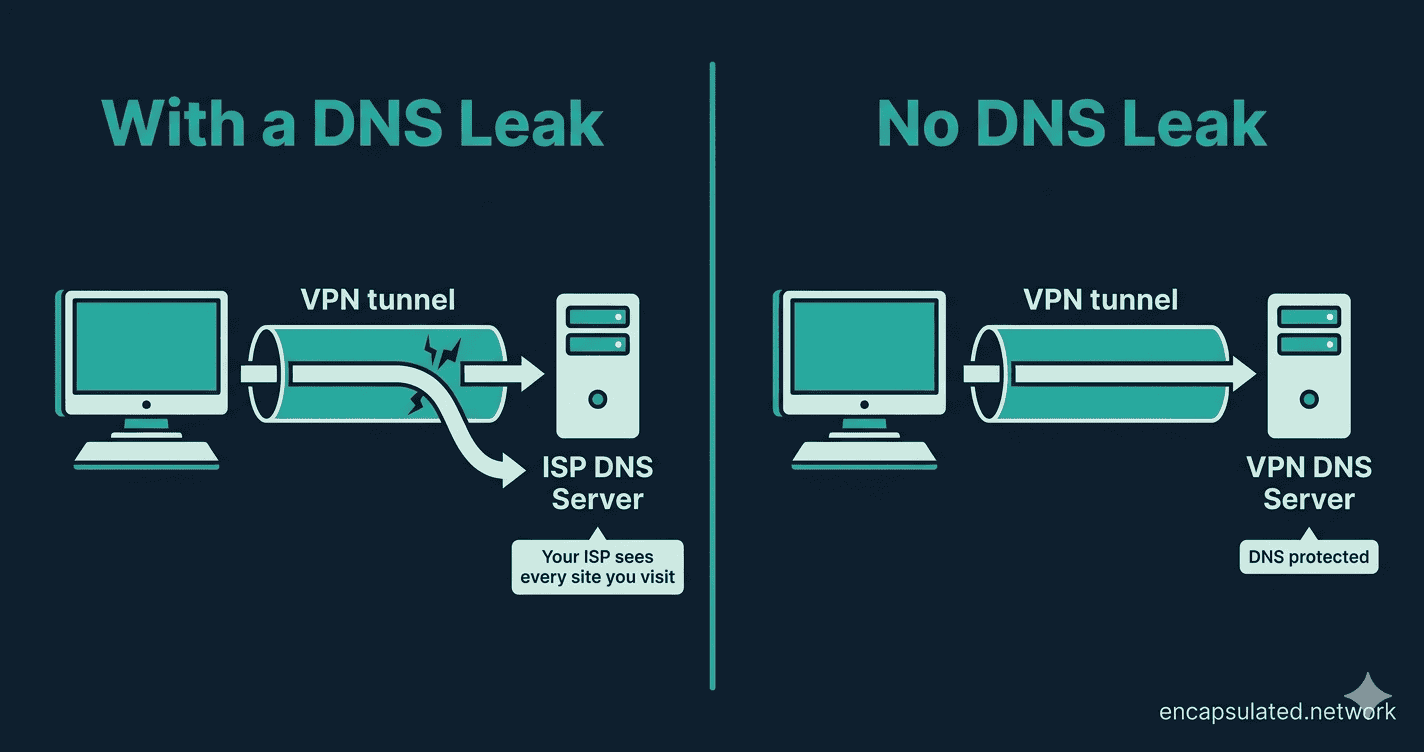
A DNS leak breaks that protection. Your VPN locks the front door of your house, but a DNS leak means your computer is still shouting your browsing requests out of an open window directly to your ISP. Your ISP is listening at the window the whole time.
Your ISP can see every domain you visit.
DNS Leak vs. IP Leak: What’s Actually Exposed
These two vulnerabilities are often confused with each other, but they expose completely different things, and you can fail one test while passing the other.
An IP address leak means your real IPv4 address is visible to websites and services you visit. If your VPN is supposed to mask your location but a site can still see your real IP, that is an IP leak.
A DNS leak means the domains you look up are visible to your ISP’s DNS servers, even while your real IP may remain hidden from the sites you visit. Your VPN might successfully mask your address while quietly exposing every domain you browse to your ISP.
That is a false sense of security: a log of every domain you visit is often as revealing as your IP address, and in many jurisdictions that data is retained and accessible on request.
The two failures are independent. You can have a DNS leak without an IP leak (the VPN tunnels your traffic correctly but misroutes DNS queries), and you can have an IP leak without a DNS leak (the VPN drops momentarily but your DNS was already cached in the VPN’s resolver).
The same test tools (dnsleaktest.com, ipleak.net, and browserleaks.com/dns) reveal both types of exposure in a single pass.
DNS Leaks in Context: The Four VPN Leak Types
A DNS leak is one of four ways a VPN can quietly expose information about you.
| Leak type | What’s exposed | Who sees it | How to test | Typical fix |
|---|---|---|---|---|
| IP address leak | Your real IPv4 address | Sites and services you visit | ipleak.net (top IP field) | Use a VPN with a reliable kill switch |
| IPv6 leak | Your IPv6 address and IPv6 DNS queries | Your ISP; sites that log IPv6 connections | ipleak.net (IPv6 section) | Disable IPv6, or use a VPN that routes IPv6 fully |
| DNS leak | Every domain you look up | Your ISP’s DNS servers | dnsleaktest.com; browserleaks.com/dns | Enable VPN DNS leak protection |
| WebRTC leak | Your real IP address | Any website using browser WebRTC APIs | browserleaks.com/webrtc | Disable WebRTC in browser or use a blocking extension |
An IPv6 leak and a DNS leak are frequently linked. When a VPN does not route IPv6 traffic through the tunnel, IPv6 DNS queries escape with it, so fixing an IPv6 leak often resolves a co-occurring DNS leak at the same time.
The guides for WebRTC leaks and the kill switch cover the other two types in full.
Why Is Your VPN Leaking? The Three Common Causes
Windows “Smart” Features Working Against You
Windows 8 and later (including Windows 10 and 11) include a feature called Smart Multi-Homed Name Resolution (SMHNR). Microsoft designed it to speed up browsing: when you visit a site, Windows sends DNS queries to every available server at once and accepts whichever one responds first.
Because your ISP’s DNS server is typically closer and faster than your VPN’s DNS server (which has to process requests through the encrypted tunnel), your ISP’s server tends to win the race, and Windows routes the query there instead.
This happens silently. Your VPN app reports a connected status. Windows is still quietly routing DNS queries to your ISP.
The IPv6 Problem
Many VPNs were built primarily around IPv4 and do not route IPv6 traffic through the tunnel. If your ISP has enabled IPv6, your device may send IPv6 DNS queries that slip around the VPN entirely — a distinct leak type with its own test and fix, covered in full in the IPv6 leak guide.
Transparent ISP Proxies
Some ISPs use transparent DNS proxies: systems that intercept outgoing DNS requests and redirect them to the ISP’s own servers, regardless of what DNS settings you have configured on your device. Even if you have manually set a private DNS server like Cloudflare’s 1.1.1.1, a transparent proxy can silently reroute those queries without your knowledge.
This applies to unencrypted, port-53 DNS traffic; using encrypted DNS (DoH or DoT) bypasses this type of interception entirely.
How to Run a DNS Leak Test in 60 Seconds
You cannot tell whether you have a DNS leak by looking at your VPN app. The app will show “Connected” either way.
Step 1: Check Your Baseline (VPN Off)
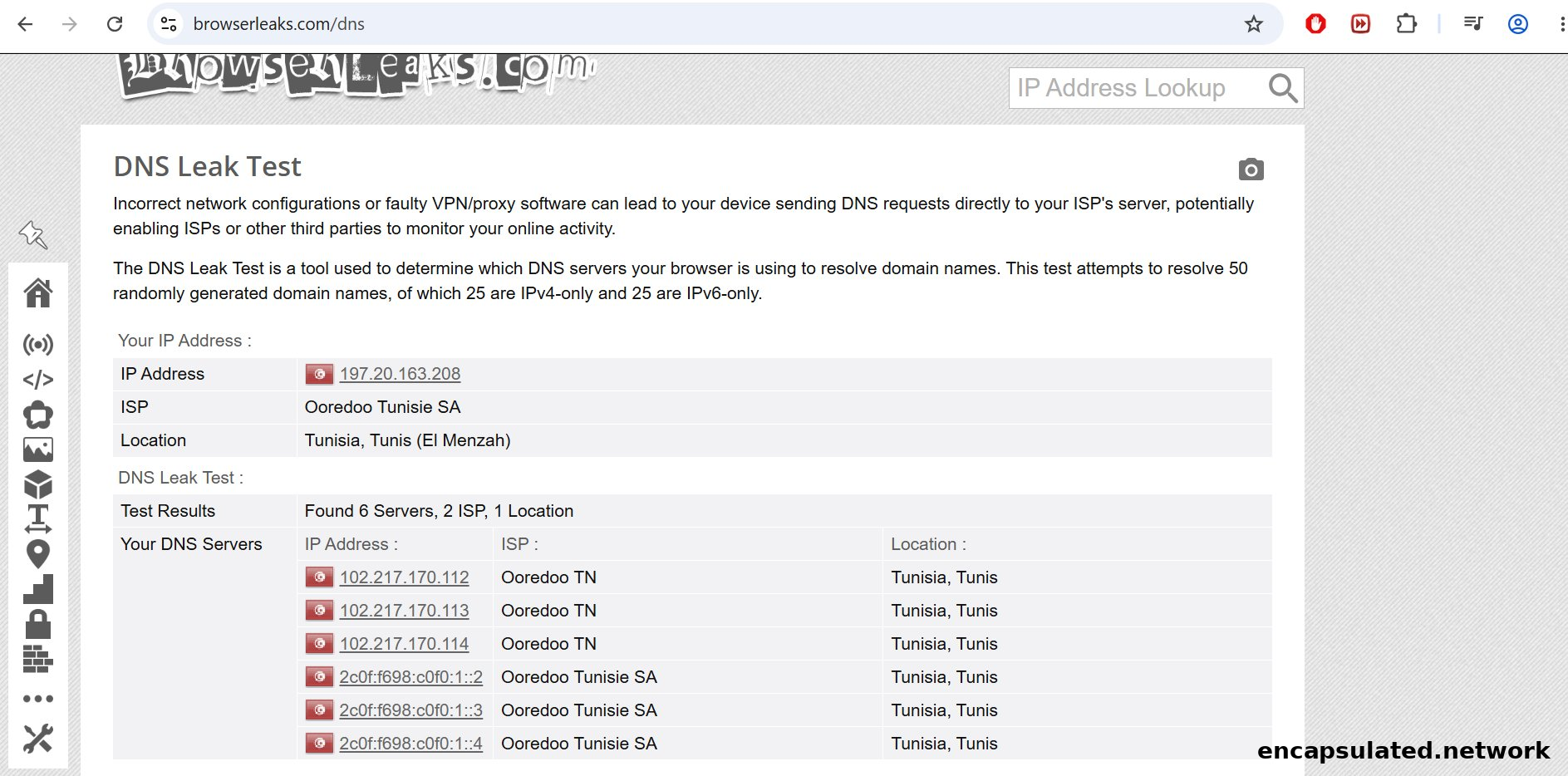
Before connecting your VPN, go to dnsleaktest.com, ipleak.net, or browserleaks.com/dns. Note the IP address shown and the DNS server names listed.
You will see your real ISP’s name and likely your actual city or region. This is your baseline: what the internet sees without any VPN protection.
Step 2: Connect Your VPN
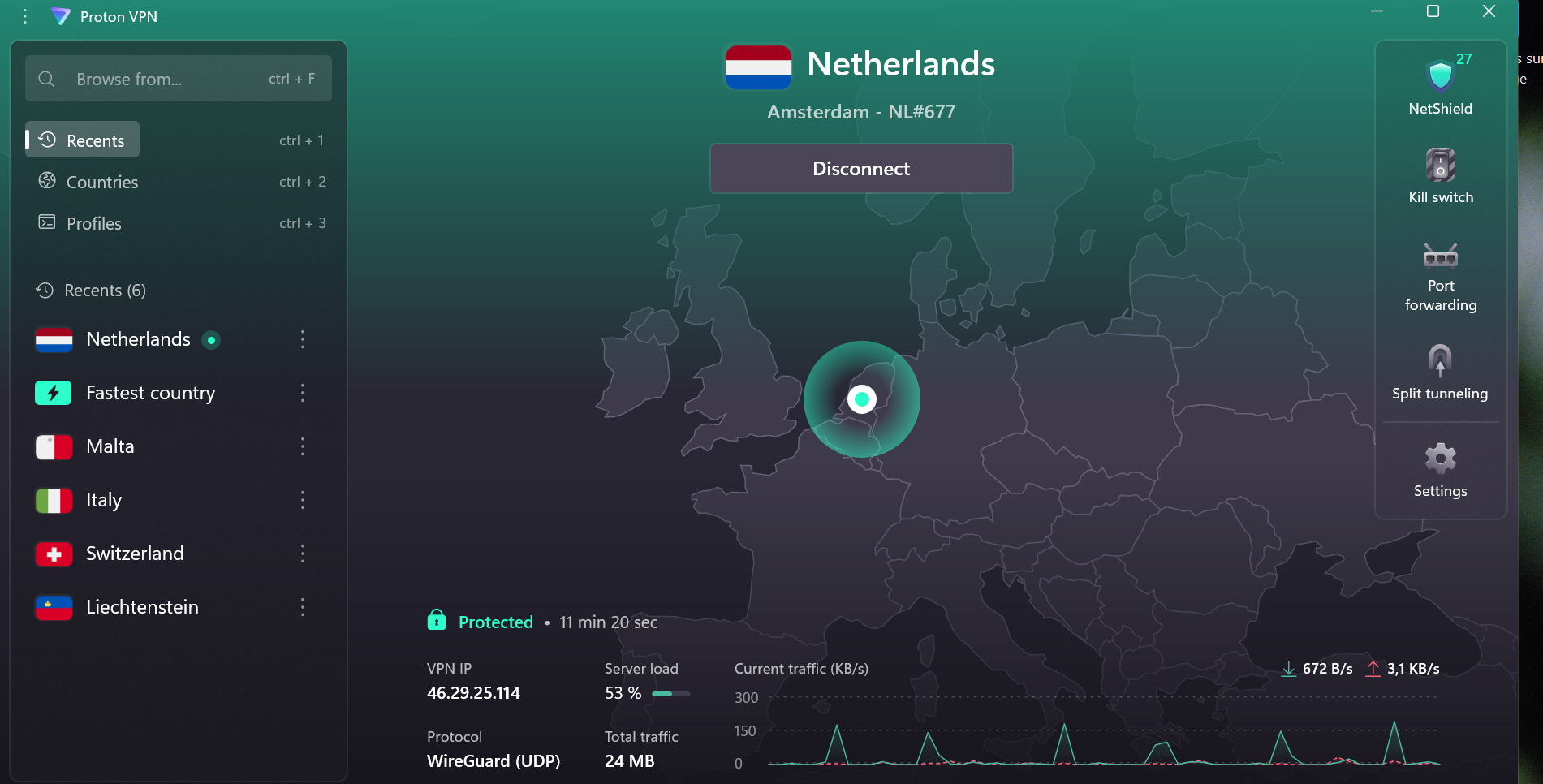
Open your VPN app and connect to a server in a different country. Switzerland and the Netherlands are useful reference points because they are far enough from most users’ real locations to make a leak immediately obvious.
Step 3: Run the Test Again (VPN On)
Go back to the testing site and reload the page fresh; do not use cached results from Step 1. Click Standard Test. Wait for the results.
How to Read Your Results
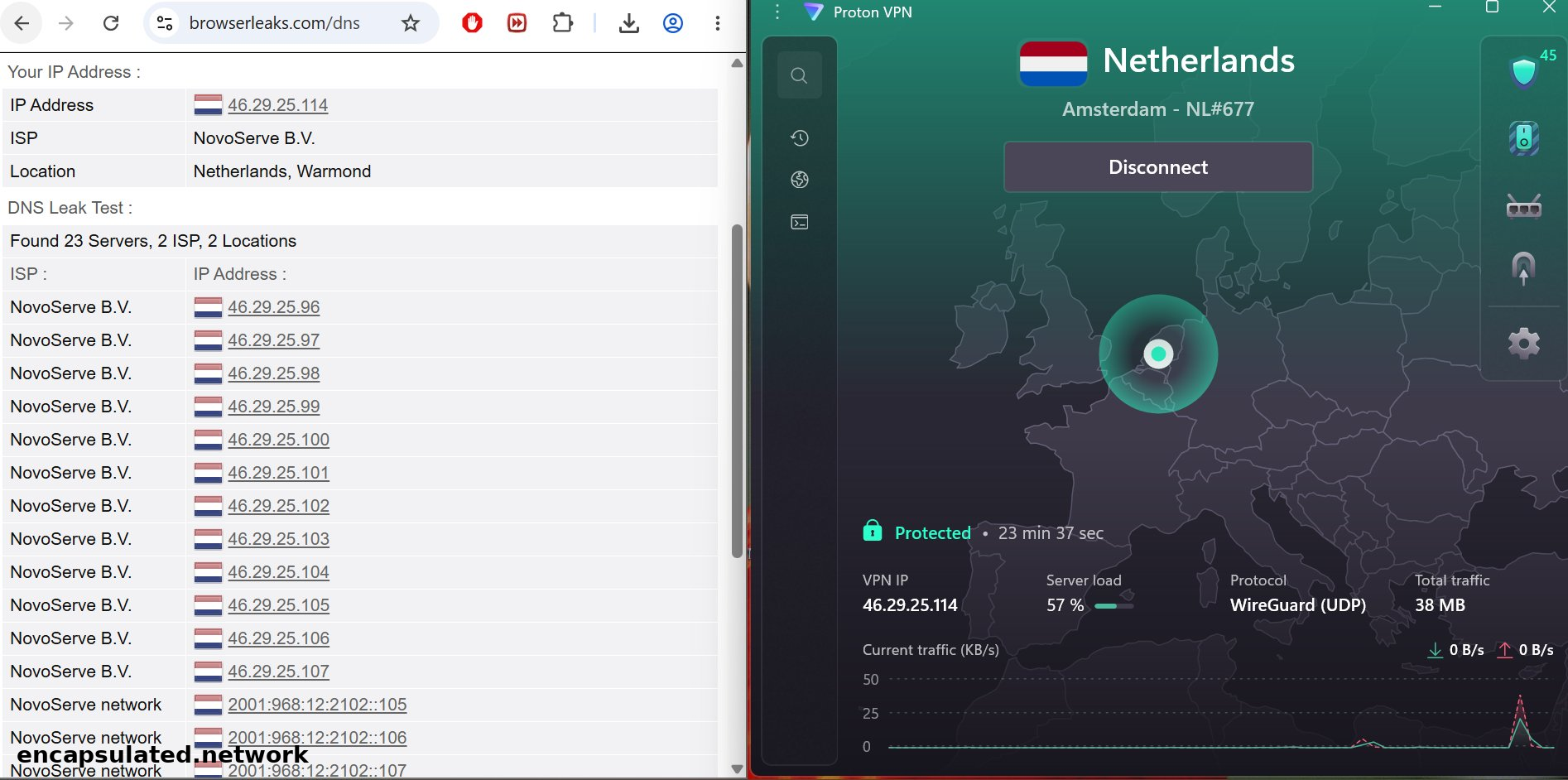
Passed: no leak. The results show only DNS servers in your VPN’s country, with no entry bearing your real ISP’s name.
Note that the resolver name may be a hosting or infrastructure company rather than your VPN’s brand. For example, ProtonVPN’s Amsterdam servers show “NovoServe B.V.” in passing results, because NovoServe provides the physical infrastructure those servers run on. That is a pass, not a leak.
Failed: DNS leak confirmed. You see one or more servers that mention your real ISP. Even a single entry like this is a confirmed DNS leak.
A note on the Extended Test option on dnsleaktest.com: it queries more servers and takes longer, but gives additional certainty. The Standard Test is sufficient for most people.
What to Do If dnsleaktest.com Isn’t Working
If dnsleaktest.com won’t load or throws an error, the site has occasional downtime, and a failed page load has nothing to do with whether your VPN is leaking.
Two reliable alternatives work the same way:
- browserleaks.com/dns: resolves 50 randomly generated domains and reports every DNS server that responded, including IPv6 entries.
- ipleak.net: shows DNS servers, IP address, and WebRTC exposure in a single pass.
If the alternatives also fail to load, the most likely cause is a browser extension or firewall blocking the domain. Try opening the page in a private window with extensions disabled, or do a hard refresh (Ctrl+Shift+R on Windows and Linux, Cmd+Shift+R on macOS).
How to Fix a DNS Leak (No Terminal Required)
If the test shows a leak, there are four fixes. Work through them in order, from simplest to most involved.
Fix 1: Check Your VPN App’s Built-in Settings First
Most VPN apps have a DNS leak protection toggle that is sometimes disabled by default. Open your VPN’s Settings or Preferences and look for:
- DNS Leak Protection or Prevent DNS Leaks: enable this if it is present
- Kill Switch: enable this too. A kill switch cuts all internet traffic the moment your VPN connection drops, even for a fraction of a second. This prevents your real IP from being exposed during reconnects. If you are not familiar with how a kill switch works, see the kill switch guide.
Once both are enabled, re-run the leak test. This resolves the majority of DNS leak cases.
Fix 2: Set a Trusted DNS Server Manually
If your VPN app has no built-in DNS protection, you can manually configure your device to use a privacy-respecting DNS provider instead of your ISP’s servers:
- Cloudflare: 1.1.1.1
- Quad9: 9.9.9.9
- Your VPN provider’s own DNS server address (check their support documentation)
On Windows 11 (native path): Settings → Network & internet → Wi‑Fi (or Ethernet) → click your connection → Edit next to “DNS server assignment” → select Manual → enter 1.1.1.1 as the preferred IPv4 DNS server → Save.
On Windows 10, or via the classic method on Windows 11: Settings → Network & Internet → Change adapter options (on Windows 11: Advanced network settings → More network adapter options) → right-click your active connection → Properties → Internet Protocol Version 4 (TCP/IPv4) → Properties → “Use the following DNS server addresses” → enter 1.1.1.1 → OK.
On macOS: System Settings → Network → click your active connection → Details → DNS tab → click the + button → add 1.1.1.1 → OK.
After saving these changes, flush your DNS cache before re-running the test, as stale cached entries from before the change can make a correctly fixed configuration appear to still be leaking. See The Test Still Shows a Leak: Now What? for the flush commands.
If you are running a router VPN setup, the DNS fix applies at the router level rather than per device: set the DNS server in your router’s DHCP settings to your provider’s resolver or a private resolver like 1.1.1.1. Every device on the network inherits the correct DNS automatically.
Fix 3: Disable IPv6 on Your Device
If your VPN does not support IPv6 and your ISP has enabled it, your IPv6 DNS requests are bypassing the tunnel entirely. For complete step-by-step instructions across all platforms — Windows, macOS, Linux, Android, iOS, and router — see the IPv6 leak guide.
Short version: on Windows, open your network adapter’s Properties and uncheck Internet Protocol Version 6 (TCP/IPv6). On macOS, go to System Settings → Network → your connection → Details → TCP/IP tab → set Configure IPv6 to Link-local only. Disabling IPv6 has no meaningful impact on everyday browsing — almost all websites support IPv4 and your device falls back automatically.
Fix 4: Enable Secure DNS in Your Browser
This is not a standalone fix; it is an extra layer alongside the other fixes. Modern browsers support DNS-over-HTTPS (DoH), which encrypts DNS queries at the browser level. This is particularly useful on networks where transparent ISP proxies may be intercepting unencrypted DNS traffic, as DoH bypasses that type of interception entirely.
On Chrome: Settings → Privacy and security → Security → scroll to “Use secure DNS” → enable it and select a provider (Cloudflare or your VPN provider’s DNS if listed).
On Edge: Settings → Privacy, search and services → scroll to “Use secure DNS to specify how to look up the network address for websites” → enable it and select a provider.
On Firefox: Settings → Privacy & Security → scroll to DNS over HTTPS. Firefox uses a protection-level model ranging from default (DoH as a fallback only) to maximum protection (all DNS routed through DoH). Select the higher protection level and choose a resolver.
Cloudflare is listed by default, or you can enter your VPN provider’s resolver if they offer one. The exact option names may vary slightly between Firefox versions.
Browser-Extension VPNs: A Special Case
Browser-based VPN extensions work differently from full VPN applications. They route only your browser’s traffic through their proxy. Your operating system’s DNS resolver is left entirely unaffected.
Because a browser-extension VPN typically does route the browser’s own DNS queries through its proxy, an in-browser DNS leak test (such as dnsleaktest.com or browserleaks.com/dns) may return a passing result, showing the extension’s DNS server rather than your ISP.
Meanwhile, every other application on your device (your email client, system services, streaming software) is still sending DNS queries directly through your ISP.
If you use a browser-extension VPN, an in-browser passing result does not mean your device is leak-free. A full VPN application is the only solution that routes both browser and system-level DNS through the tunnel.
The Test Still Shows a Leak: Now What?
If you have enabled DNS leak protection and the test still names your real ISP, work through this escalation list in order.
- Confirm both settings are on. Kill switch and DNS leak protection are separate toggles. Check that both are enabled in your VPN app, not just one.
- Flush your DNS cache and reconnect. Old DNS entries cached before the VPN connected can make the test appear to leak even after the fix is in place. On Windows, open Command Prompt and run
ipconfig /flushdns. On macOS, open Terminal and runsudo dscacheutil -flushcache; sudo killall -HUP mDNSResponder. Then disconnect your VPN fully, reconnect, and re-run the test. - Disable IPv6. If your VPN does not support IPv6, disable IPv6 as in Fix 3. Re-test after.
- Switch VPN protocol or server. Some DNS routing issues are configuration-specific. Try switching protocol (for example, OpenVPN to WireGuard, or vice versa) or connecting to a different server in the same country. Re-test after each change.
- Test on a second device. If a second device on the same network also leaks, the issue is at the network or router level. If only your original device leaks, the cause is device-specific and Fix 2 or Fix 3 should address it.
What a passing result looks like: only DNS servers in your VPN’s country appear, with no entry bearing your real ISP’s name. The resolver may display a hosting or infrastructure company’s name rather than your VPN’s brand; that is normal and correct.
If you have worked through all five steps and the test still shows your ISP, your VPN does not provide effective DNS leak protection in your network environment. Consider switching to a provider that does.
DNS Leaks by Platform
Android
VPN apps generally handle DNS well on Android, but the most reliable configuration is to enable Always-on VPN alongside the “Block connections without VPN” option. This is designed to ensure DNS queries never leave the device outside the VPN tunnel, not even briefly during a reconnect.
You can find this setting under Settings → Network & Internet → VPN → tap the gear icon next to your VPN. Note that Samsung One UI and other Android skins may label this path differently.
One caveat: an Android 16 issue has been reported where traffic can escape the tunnel even with both settings enabled. Google has acknowledged the report but treats it as outside its threat model. Running a DNS leak test after connecting, rather than trusting the settings alone, remains the most reliable verification.
The full Android setup process (including Always-on VPN, Block connections without VPN, Private DNS configuration, and the battery optimization step) is covered end-to-end in the Android VPN setup guide. The kill switch guide covers the theory behind these settings.
iOS
iOS VPN behaviour changed significantly in 2024, though the situation remains more complex than other platforms. Running a DNS leak test after connecting is the only reliable way to know what your specific app and iOS version are actually doing.
Apple patched the most widely documented iOS VPN leak in iOS 17.7 and iOS 18 (CVE-2024-44165, September 2024). The bug (that iOS did not close pre-existing connections when a VPN activated, allowing them to persist outside the tunnel and leak DNS traffic) was first disclosed by ProtonVPN in 2020 and confirmed still present through iOS 15.6 by researcher Michael Horowitz, with coverage in Ars Technica, The Register, 9to5Mac, and CNET. That bug is patched; Horowitz’s testing stops at iOS 15.6 and independent verification of intermediate versions was limited.
However, a distinct issue persists: Apple’s own services (iCloud, push notifications, and other Apple platform traffic) bypass the VPN tunnel even when a VPN is actively connected. This was confirmed as recently as April 2026 and is not addressed by the CVE-2024-44165 patch.
Apple introduced the includeAllNetworks NetworkExtension API flag in iOS 14, which, when enabled, routes most network traffic including DNS through the VPN tunnel. Apple’s current documentation says “most,” not “all”: Apple’s own services bypass the tunnel even with this flag set.
The flag is off by default. Many VPN apps do not enable it because it can cause significant connectivity failures and incompatibilities. Providers that do enable it sometimes pair it with the excludeLocalNetworks flag to preserve local network functionality, at the cost of leaving local traffic outside the tunnel.
The practical situation on current iOS: the pre-existing-connection leak from the original 2020 disclosure is patched in iOS 17.7 and later. The Apple-services bypass, a different and narrower category of traffic, is not.
For most browsing and DNS activity, a VPN on current iOS meaningfully improves privacy. Additionally, split tunneling configurations on iOS can compound these issues, as any traffic excluded from the tunnel also bypasses its DNS protection.
Linux
For Linux users, the DNS leak fix is different: it involves integrating your VPN with systemd-resolved to ensure DNS queries are routed through the correct resolver. In some configurations, particularly WireGuard setups, you will also need to add a DNS = directive and potentially PostUp/PreDown hooks to your WireGuard configuration file to prevent DNS from falling back to the system resolver.
The full Linux-specific fix, along with steps to verify your VPN is working on Linux end-to-end, is covered in the Linux VPN setup guide.
DNS Leaks vs. WebRTC Leaks: The Quick Distinction
These two vulnerabilities are frequently confused. They are different problems.
A DNS leak exposes the domains you visit to your ISP via DNS queries that bypass the VPN tunnel. A WebRTC leak exposes your real IP address through browser WebRTC APIs, regardless of whether your VPN is connected.
Different cause, different exposure, different fix. ipleak.net shows both in one pass; run the WebRTC check there while you are at it.
Quick Checklist: Staying Leak-Free
- Run a DNS leak test immediately after changing any DNS settings or enabling leak protection. Confirm it actually worked.
- Re-test once a week and always after a major OS update, which can reset network settings silently
- Flush your DNS cache after any DNS settings change before re-testing, as stale entries can make a fixed configuration appear to still be leaking
- Keep your VPN app updated, as many leaks are caused by outdated client software
- Enable the Kill Switch in your VPN app. It and DNS leak protection work together, not interchangeably.
- Enable DNS-over-HTTPS in your browser as a secondary layer, especially on public or shared networks
- If your VPN does not support IPv6, disable IPv6 on your device
- Be cautious with free VPNs: a peer-reviewed study presented at the 2026 NDSS security conference (MVPNalyzer) found 24 out of 281 free Android VPN apps leaked DNS across approximately 360 million installs; earlier research from ICSI Berkeley in 2017 documented the same pattern in free Android VPN apps
Bottom Line
A DNS leak is one of the more frustrating privacy gaps a VPN can have, because it is invisible. Your app shows a green light, your IP looks hidden, and your ISP is quietly logging every domain you visit anyway.
It is also one of the easier problems to confirm and fix. A 60-second test on dnsleaktest.com or browserleaks.com/dns tells you exactly where you stand, and in most cases enabling your VPN’s built-in DNS leak protection resolves it immediately.
If your VPN does not have that option, consider switching to one that does. DNS protection is not an advanced feature; it is a basic part of what a VPN is supposed to do.
Frequently Asked Questions
Does a DNS leak expose my IP address?
Not directly. A DNS leak exposes the domains you visit to your ISP’s DNS servers, not your IP address itself. Hiding your IP while leaking your DNS queries gives you a false sense of security.
Which DNS leak test tool is most reliable?
dnsleaktest.com, ipleak.net, and browserleaks.com/dns are all widely used and reliable. For most people, the Standard Test on dnsleaktest.com is sufficient.
Run it immediately after connecting your VPN, before opening anything else in the browser, to avoid cached DNS entries from before the VPN connected skewing the results. If dnsleaktest.com is unavailable, browserleaks.com/dns is a direct alternative that works identically.
Can a VPN kill switch prevent DNS leaks?
No. This is a common misconception worth clearing up. A kill switch prevents your real IP from being exposed if the VPN drops unexpectedly: it cuts all internet access until the VPN reconnects.
It does not prevent DNS leaks that occur while the VPN is actively connected. You need both: kill switch for connection-drop exposure, DNS leak protection for in-tunnel DNS routing.
My VPN says it has built-in DNS leak protection. Do I still need to test?
Yes. Marketing claims and actual implementation do not always match, and even VPNs with genuine leak protection can leak in specific conditions, particularly after reconnecting to a new network, switching servers, or following an OS update that resets DNS settings. The test takes 60 seconds and gives you certainty that the protection is actually working.
Is a DNS leak a sign that my VPN is broken?
Not broken, but insufficient for your network environment. It is a specific configuration gap, not a sign that the VPN is failing at everything.
How often should I run a DNS leak test?
Once a week is a reasonable habit, and always after any OS update, VPN app update, or change to your network setup. OS updates in particular have a history of resetting network and DNS settings silently. A 60-second test after each update is enough to catch any regression before it becomes a sustained leak.
Does DNS-over-HTTPS (DoH) stop a DNS leak?
Partially, and only at the browser level. DNS-over-HTTPS encrypts DNS queries inside HTTPS traffic on port 443, which means transparent ISP proxies that intercept unencrypted port-53 DNS cannot touch them. Enabling DoH in your browser (Fix 4) is a useful extra layer for exactly that threat.
But DoH does not fix a full DNS leak. It protects only DNS queries made by the browser, not queries made by your operating system or any other application on your device.
And it does nothing to prevent SMHNR-style or IPv6-style leaks, which operate at the OS level before the browser is involved. Use it alongside the other fixes, not instead of them.
Why does my leak test show a different company than my VPN?
That is normal, and it is a pass, not a leak. VPN providers run their servers through commercial data centers and hosting companies, and those providers’ names appear in DNS resolution results rather than the VPN’s own brand.
A leak is confirmed only when you see your real ISP’s name: the same one shown in your baseline result from Step 1, before you connected your VPN. Any data center or hosting company name that is not your ISP is a pass.